


 Photo: William Hook / Unsplash
ShipZee (shipping courier)
Connect ShipZee to Vondera: where to find your credentials and what happens after you connect.
🖥️ Open in dashboard/couriers/install?id=shipzeeShipZee is a shipping company you can connect to Vondera to send it your orders and get tracking updates back. Category: Shipping courier · integration built by Vondera · no price shown.
Connect ShipZee
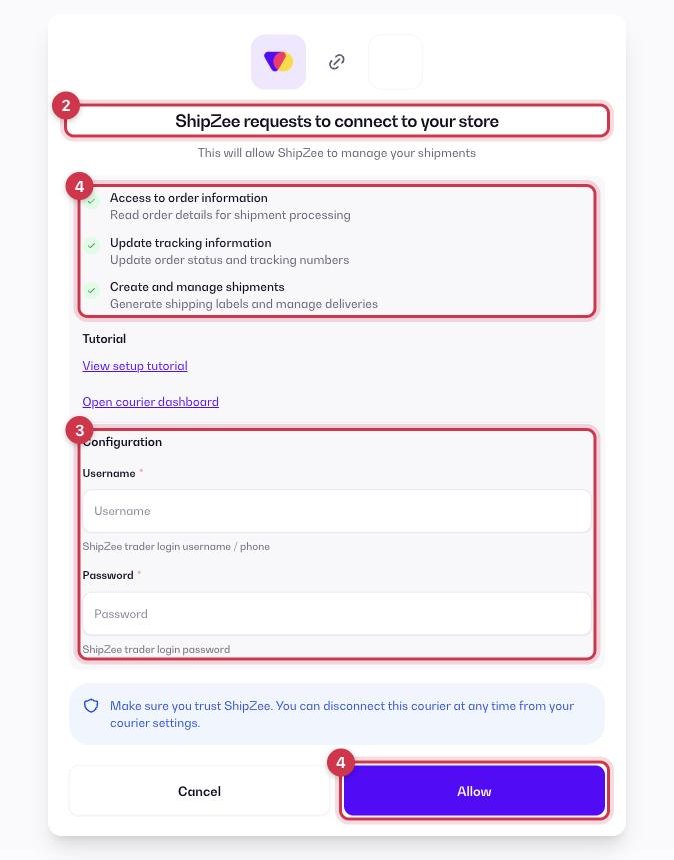
- Open Apps in the dashboard and go to the Apps tab (tap the Shipping filter to see couriers only).
- Find ShipZee and click Get.
- Fill in the Configuration fields below.
- Review the permissions (read orders, update tracking, create shipments) and click Allow.
After you connect
ShipZee then appears in Orders › Couriers. In Settings › Shipping Settings you can make it your Default courier, turn on Auto-assign courier for new orders, and turn on Sync status from courier so order statuses follow ShipZee's updates. More in How courier apps work.
Where to get your username and password
They are the login of your business (merchant) account with this courier: the same email or username and password you use to sign in to their merchant dashboard. No account yet? Contact the courier’s sales team to open a business account, and ask them to enable API (integration) access for it. Use the account owner’s login, not an employee sub-user.
Common questions
Does ShipZee cost anything in Vondera?
No price is shown in the App Store. Shipping fees are agreed between you and ShipZee, who bills you directly.