

 Photo: William Hook / Unsplash
How courier apps work
Connect a shipping company to Vondera, send it your orders and get tracking updates back — plus the full list of courier apps.
🖥️ Open in dashboard/dashboard/couriers🎬 Watch the video
Videos are in Arabic.
Courier apps connect Vondera to shipping companies. Once a courier is connected, Vondera can send it your orders as shipments and receive tracking updates back, so you don't copy order details by hand. Courier apps are third-party shipping companies integrated by Vondera. No price is shown for them in the App Store; shipping fees are between you and the courier.
Option 1: install from the App Store
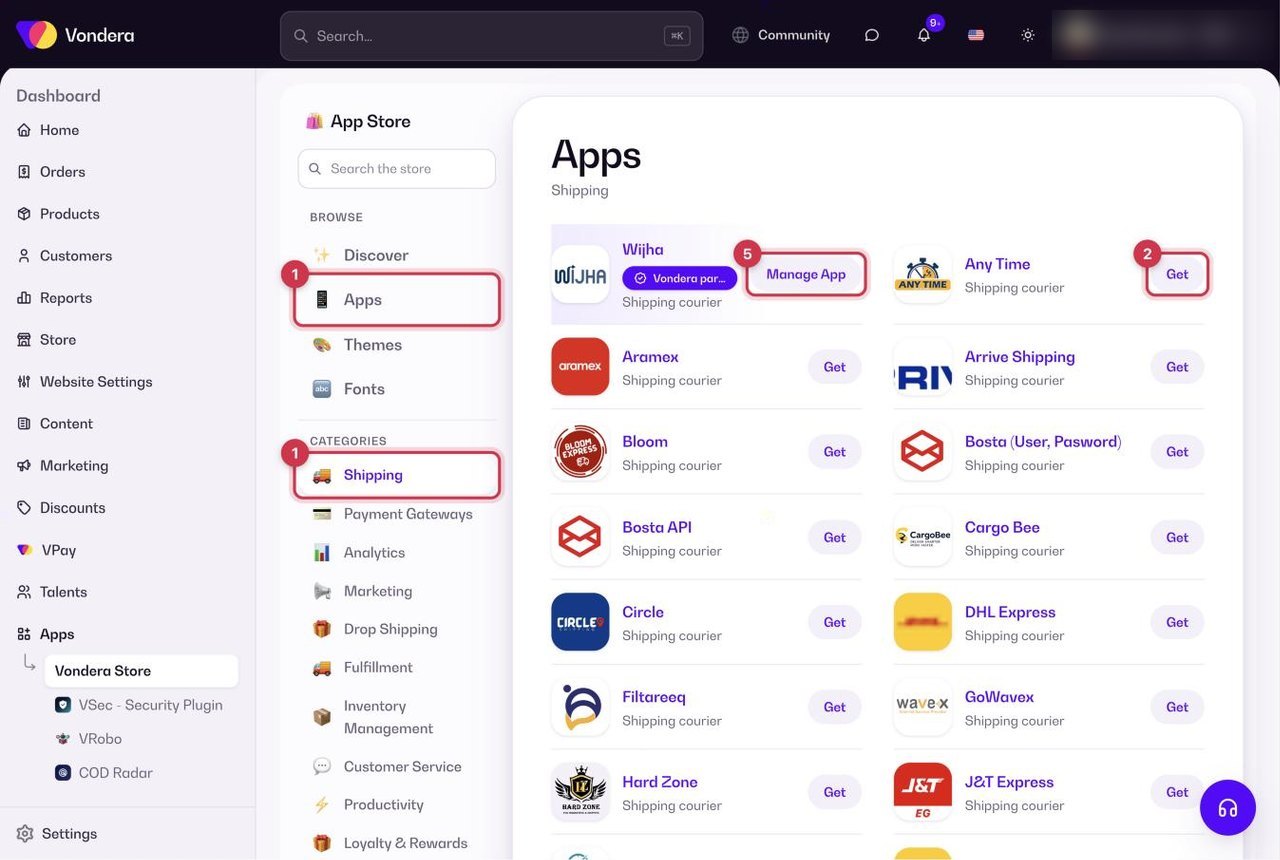
- Open Apps in the dashboard and go to the Apps tab. Tap the Shipping filter to see couriers only.
- Find your courier and click Get.
- Review the "<Courier> requests to connect to your store" screen and its permissions.
- Fill in the Configuration form with the credentials from your courier account.
- Click Allow. The courier is installed and its button changes to Manage App.
Option 2: add from Orders › Couriers
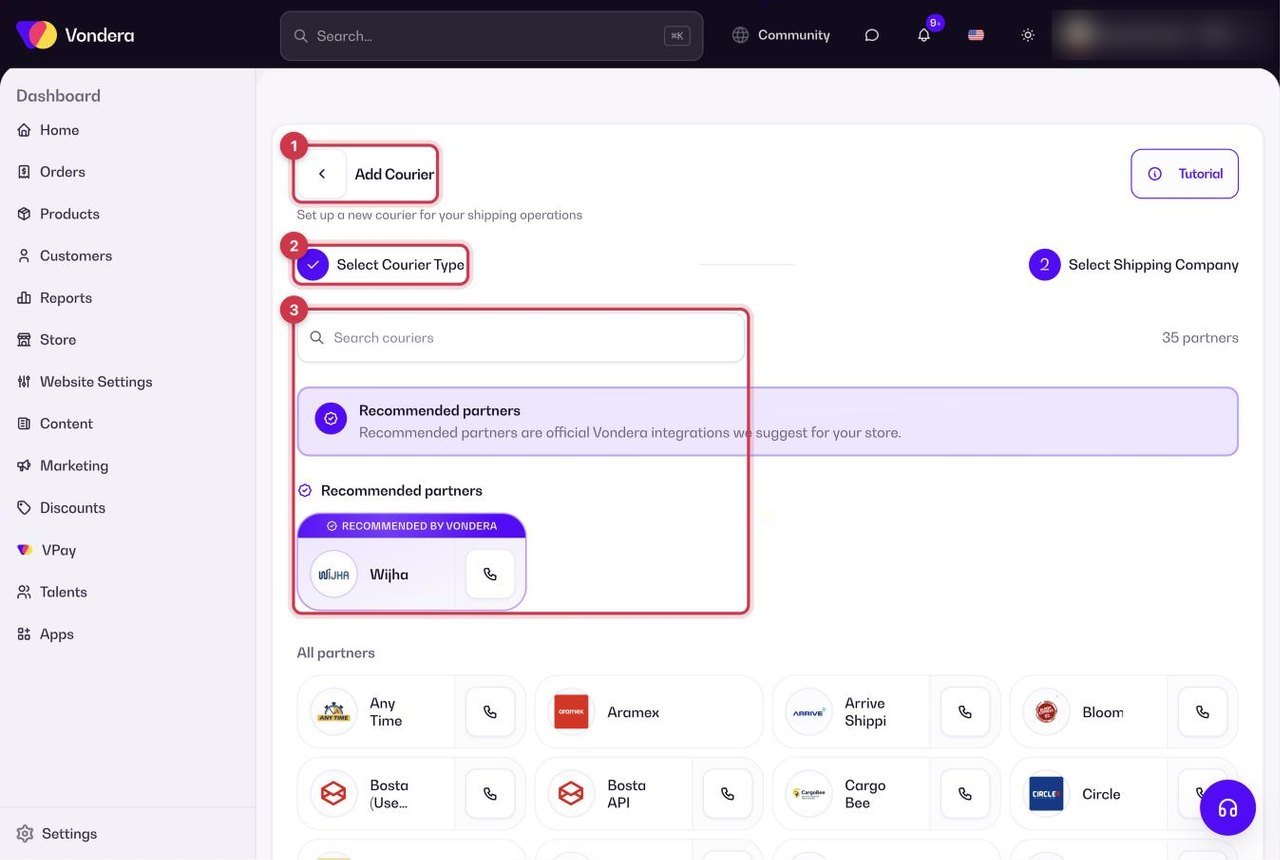
- Go to Orders › Couriers and click Add Courier.
- Choose Our Shipping Partner (an approved shipping company with an integration).
- Search for the company or pick one under Recommended partners, then click Continue.
- Enter the credentials the courier asks for.
What a courier app can do
- Access order information — read the details of the orders you send it.
- Update tracking information — update the order status and tracking numbers.
- Create and manage shipments — create shipping labels and deliveries.
Credentials
Each courier asks for different details: a username and password, an email and password, or an API key or token. You get them from your account with the courier or from your account manager there. Many setup pages have a View setup tutorial link or Call and WhatsApp buttons to reach the courier's support.
After you connect
- Orders › Couriers — see every courier you added with its status (Active or Disabled). Use Show Disabled Only to filter.
- Settings › Shipping Settings — choose your Default courier, turn on Auto-assign courier so new orders go to it automatically, and turn on Sync status from courier so order statuses update when the courier reports a change.
- Also in Shipping Settings — Show courier zones in checkout lets customers pick a courier sub-zone at checkout (choose the Checkout courier), and Customer Must Select a City makes the area required.
- Settings › Shipping Options — offer different rates, couriers and delivery times per zone.
- Reports › Couriers — compare orders, shipping cost, failed, successful and on-hold orders for each courier.
All courier apps
- Wijha — Vondera partner, recommended
- Any Time
- Aramex
- Arrive Shipping
- Bloom
- Bosta (Username, Password)
- Bosta API
- Cargo Bee
- Circle
- DHL Express
- Filtareeq
- GoWavex
- Hard Zone
- J&T Express
- Koko Way
- Leopard Logistics
- Magex Express
- Mubasher
- Mylerz
- Northway
- Panther
- Pro Zone
- QB Express
- Quick Connect
- Runners
- Shimex Express
- ShipBlu
- ShipZee
- Side Up
- Stox
- Telegraph
- TrackExpress
- Turbo
- Wingezz
- Yalla Fel Sekka
Where to get your username and password
They are the login of your business (merchant) account with this courier: the same email or username and password you use to sign in to their merchant dashboard. No account yet? Contact the courier’s sales team to open a business account, and ask them to enable API (integration) access for it. Use the account owner’s login, not an employee sub-user.
Common questions
Can I use more than one courier?
Yes. You can add several couriers, pick one as the default in Settings › Shipping Settings, and use Settings › Shipping Options to set different couriers per zone.
Can I disconnect a courier later?
Yes. The connect screen reminds you that you can disconnect the app at any time. Manage your couriers from Orders › Couriers.
Which Bosta app should I choose?
Use Bosta API (API key) — it is the preferred option. Bosta (Username, Password) connects with your Bosta login instead.