

 Photo: William Hook / Unsplash
Checkout.com
Connect Checkout.com with your secret key, webhook signature key and API prefix.
🖥️ Open in dashboard/payment-gateways/install?id=checkoutcomCheckout.com is an international card processor. You need a secret key, a workflow webhook and your API prefix.
Supported currencies: USD, EUR, GBP, AED, SAR, EGP, KWD
Connect Checkout.com
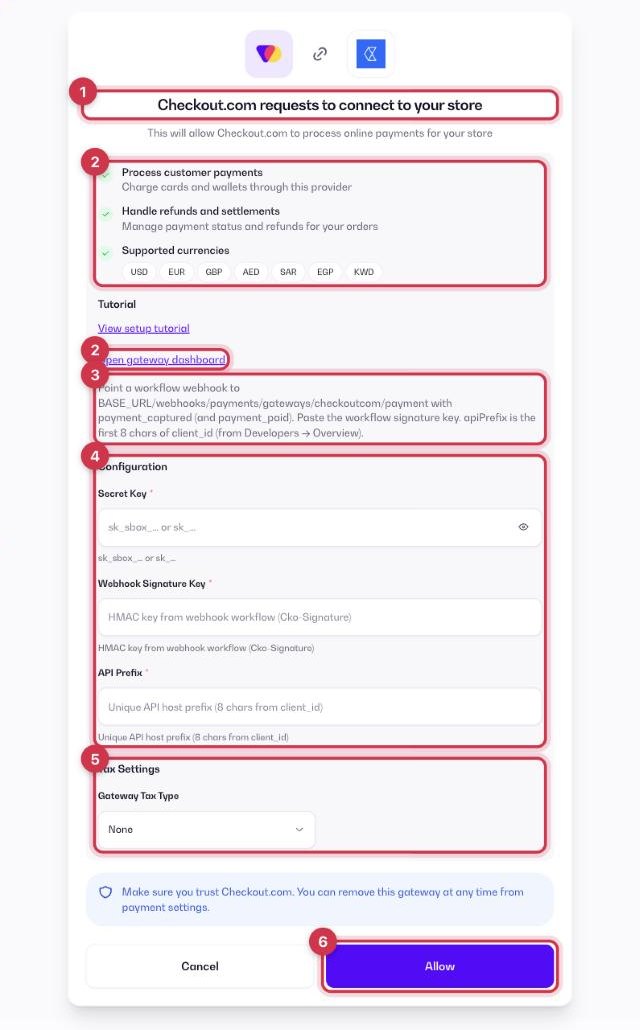
- Go to Apps and open the Payment Gateways category (or go to Store › Payment settings → Payment Gateways), then click Get or Install on Checkout.com.
- On the connect screen, check the permissions and click Open gateway dashboard to sign in to your Checkout.com merchant dashboard. Click Tutorial if you want a step-by-step guide.
- In your Checkout.com dashboard, create a workflow webhook for the payment_captured and payment_paid events, pointing to the webhook URL shown in the app. Copy its signature key.
- Fill in the Configuration fields (see the table below).
- Optional: under Tax Settings, choose a Gateway Tax Type — None, Fixed or Percentage — to add an extra fee when customers pay with Checkout.com.
- Click Allow. Checkout.com now shows as your active gateway in Store › Payment settings.
Configuration fields
Secret Key
Starts with sk_sbox_ (sandbox) or sk_ (live), in your Checkout.com merchant dashboard.
Webhook Signature Key
The signature key of the workflow webhook you created.
API Prefix
The first 8 characters after cli_ in your client ID, in Settings → Account structure.
Where to find these values in Checkout.com
- In the Checkout.com dashboard go to Developers › Keys, create a secret key and copy it (live keys start with sk_, sandbox with sk_sbox_).
- Go to Developers › Webhooks › Create configuration, enter a name and paste the Vondera webhook URL as the Endpoint URL.
- Under the signature key click Generate key and copy it into Webhook Signature Key; tick payment_captured and payment_paid, then click Create webhook.
- Find your client ID (cli_…) under Settings › Account structure: the API Prefix is the first 8 characters after cli_.
ℹ️ Good to knowCopy the live values (not test or sandbox). Menu names can differ slightly between accounts; if you can’t find a value, ask the gateway’s support or your account manager.
Common questions
Can I test before going live?
Yes. Use your sandbox secret key (sk_sbox_…) first, then replace it with your live key.
Can I use Checkout.com together with another gateway?
No. Only one online gateway can be active at a time. To switch, remove the current gateway from Store › Payment settings and connect the new one. See the payment gateways overview.