

 Photo: William Hook / Unsplash
Fawaterak
Connect Fawaterak with OAuth client credentials and your vendor key.
🖥️ Open in dashboard/payment-gateways/install?id=fawaterkFawaterak is an Egyptian payment provider. Vondera connects to it through its API v3 using OAuth client credentials.
Supported currencies: EGP, USD, EUR, SAR
Connect Fawaterak
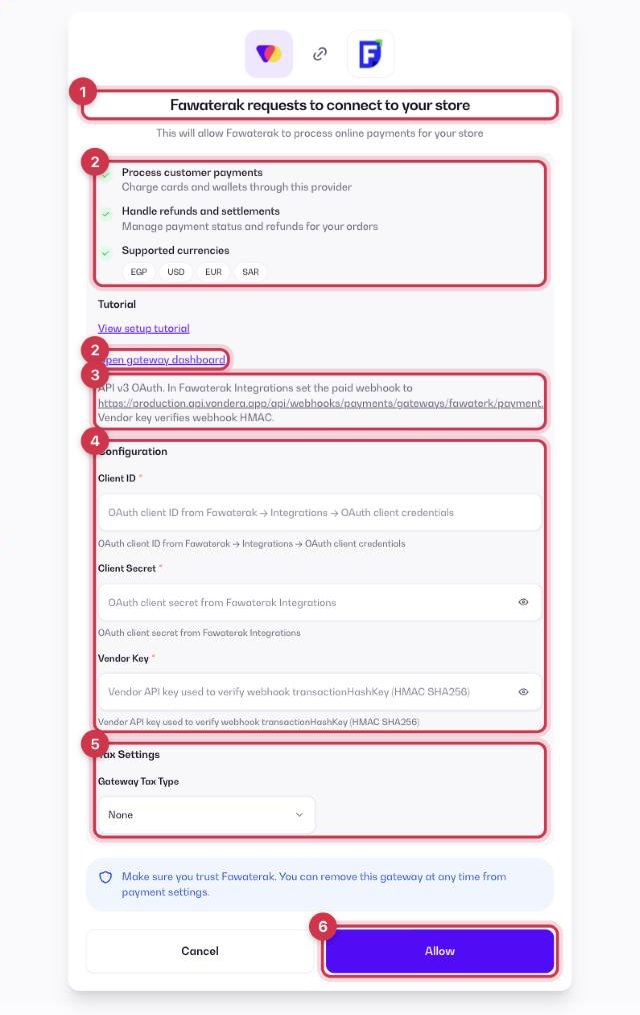
- Go to Apps and open the Payment Gateways category (or go to Store › Payment settings → Payment Gateways), then click Get or Install on Fawaterak.
- On the connect screen, check the permissions and click Open gateway dashboard to sign in to your Fawaterak merchant dashboard. Click Tutorial if you want a step-by-step guide.
- In Fawaterak Integrations, set the paid webhook to the URL shown in the app.
- Fill in the Configuration fields (see the table below).
- Optional: under Tax Settings, choose a Gateway Tax Type — None, Fixed or Percentage — to add an extra fee when customers pay with Fawaterak.
- Click Allow. Fawaterak now shows as your active gateway in Store › Payment settings.
Configuration fields
Client ID
In your Fawaterak merchant dashboard under Integrations → OAuth client credentials.
Client Secret
In the same place as the Client ID.
Vendor Key
Shown as API Key under Integrations → Fawaterak in your Fawaterak dashboard. It is used to verify webhook messages.
Where to find these values in Fawaterak
- Sign in at app.fawaterk.com and go to Integrations › Fawaterak.
- Copy the value labelled API Key: this is the Vendor Key Vondera asks for (you don’t need the Provider Key).
- In Integrations, add the Vondera webhook URL exactly as shown.
- For the Client ID and Client Secret, ask your Fawaterak account manager to enable API v3 and send your OAuth client credentials.
ℹ️ Good to knowCopy the live values (not test or sandbox). Menu names can differ slightly between accounts; if you can’t find a value, ask the gateway’s support or your account manager.
Common questions
Can I use Fawaterak together with another gateway?
No. Only one online gateway can be active at a time. To switch, remove the current gateway from Store › Payment settings and connect the new one. See the payment gateways overview.