

 Photo: William Hook / Unsplash
Paymob EG
Connect Paymob to accept cards and, optionally, mobile wallets such as Vodafone Cash.
🖥️ Open in dashboard/payment-gateways/install?id=paymobPaymob is one of the most used payment gateways in Egypt. It accepts cards and, if you add a wallet integration, mobile wallets such as Vodafone Cash.
Supported currencies: EGP
Connect Paymob EG
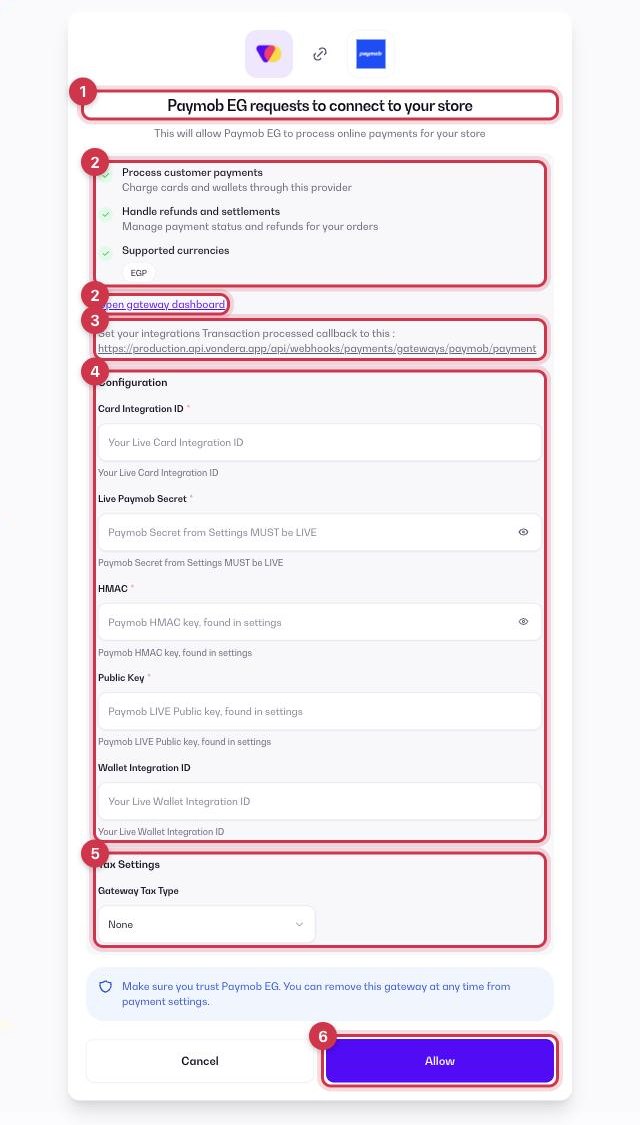
- Go to Apps and open the Payment Gateways category (or go to Store › Payment settings → Payment Gateways), then click Get or Install on Paymob EG.
- On the connect screen, check the permissions and click Open gateway dashboard to sign in to your Paymob EG merchant dashboard.
- In your Paymob dashboard, open your integration and set Transaction processed callback to the callback URL shown in the app.
- Fill in the Configuration fields (see the table below).
- Optional: under Tax Settings, choose a Gateway Tax Type — None, Fixed or Percentage — to add an extra fee when customers pay with Paymob EG.
- Click Allow. Paymob EG now shows as your active gateway in Store › Payment settings.
Configuration fields
Card Integration ID
Your live card integration ID, in your Paymob merchant dashboard.
Live Paymob Secret
Your secret key, in your Paymob merchant dashboard. It must be the live key, not the test one.
HMAC
Your HMAC value, in your Paymob merchant dashboard.
Public Key
Your live public key, in your Paymob merchant dashboard.
Wallet Integration ID
Optional. Add your wallet integration ID to accept mobile wallets such as Vodafone Cash.
Where to find these values in Paymob
- Sign in to the Paymob dashboard (accept.paymob.com) and switch the mode toggle at the top to Live.
- Open Settings › API Keys and click View next to Secret key (contains sk_live) and Public key (contains pk_live). Don’t confuse them with the "API key" on the same page.
- In Settings › Account Info, copy the HMAC value.
- Open Developers › Payment Integrations: copy the Integration ID of the online card row, and of the mobile wallet row if you have one.
- Click each Integration ID you use (card and wallet), paste the Vondera callback URL into Transaction processed callback (called Webhook URL in the newer dashboard) and click Save Changes.
💡 TipNo wallet row? Mobile wallets aren’t on by default: ask your Paymob account manager to enable them.
ℹ️ Good to knowCopy the live values (not test or sandbox). Menu names can differ slightly between accounts; if you can’t find a value, ask the gateway’s support or your account manager.
Common questions
Why do I need live keys?
The Paymob fields expect your live credentials so real customers can pay. Test keys won’t take real payments.
Can I use Paymob EG together with another gateway?
No. Only one online gateway can be active at a time. To switch, remove the current gateway from Store › Payment settings and connect the new one. See the payment gateways overview.