

 Photo: Annie Spratt / Unsplash
Find and connect a media buyer
Compare verified media buyers by real results, contact them, and connect one to your store with read-only access.
🖥️ Open in dashboard/dashboard/v-mediabuyersA good media buyer can grow your sales with paid ads on Facebook, Instagram, TikTok, Snapchat and more. The Media Buyers marketplace helps you choose based on real numbers: you can see how much each media buyer has generated for Vondera stores, how many orders and how many stores they work with.
You will find it under Talents › Media Buyers. You can also browse media buyers on the public site https://mediabuyers.vondera.app.
Choose a media buyer
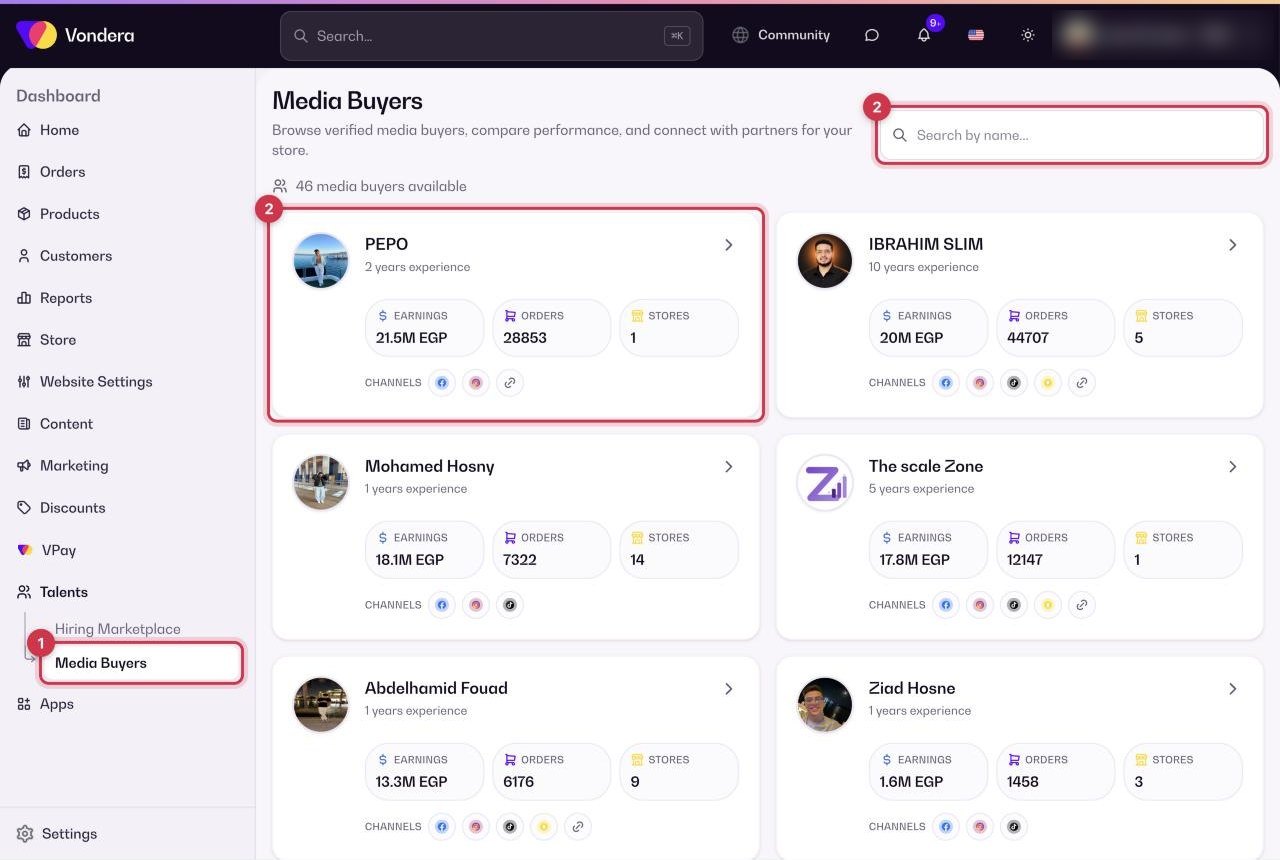
- Go to Talents › Media Buyers.
- Search by name, or scroll through the cards. Each card shows years of experience, Earnings (EGP generated), Orders, Stores and the ad channels they use.
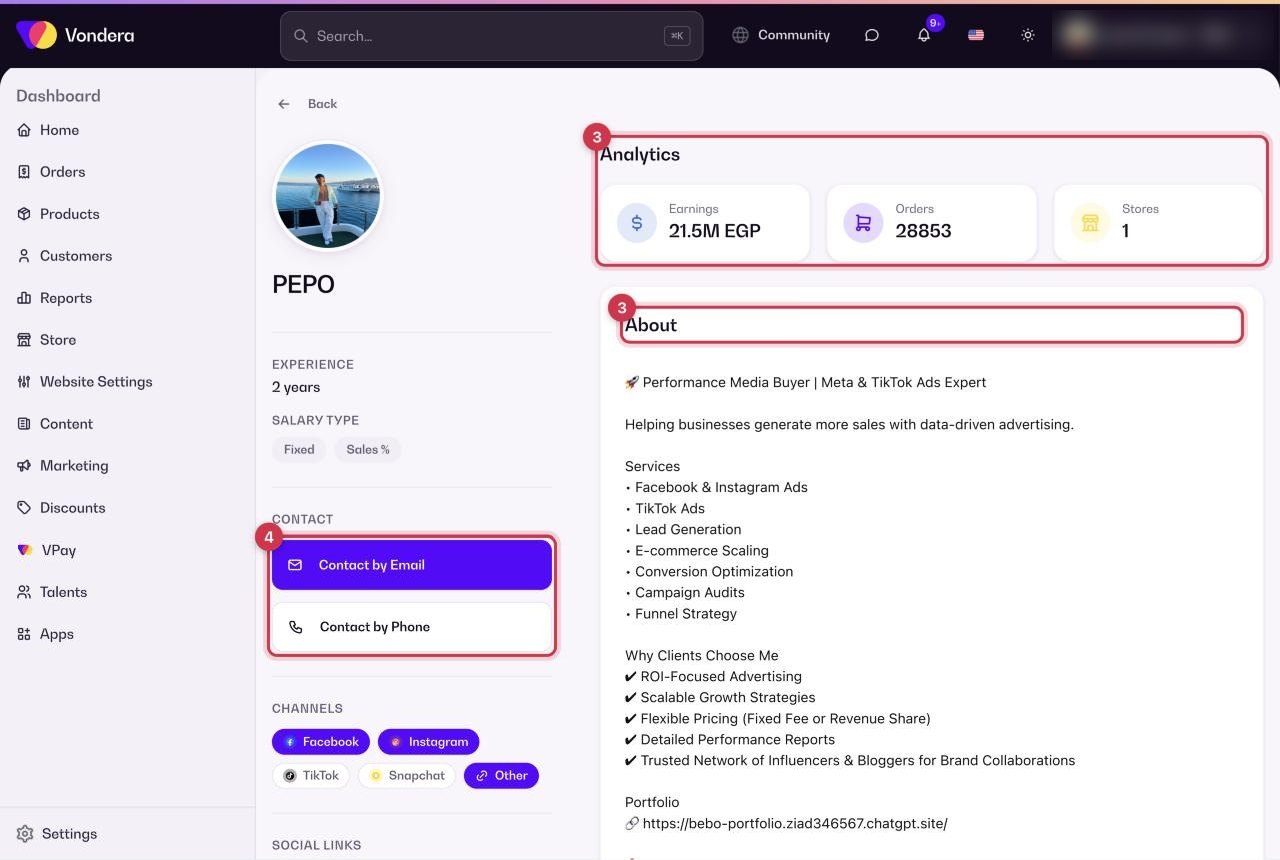
- Open a profile to see their channels, social links, analytics, about section and the stores they work with.
- Click Contact by Email or Contact by Phone to agree on the work.
Connect the media buyer to your store
- Get the media buyer's Connect Code. It is shown in the Referral section of their profile, or they can send it to you.
- Go to Settings › Media Buyers (or click Go to Settings on the profile).
- Enter the connect code. The media buyer then appears as Connected.
- The media buyer gets read-only access to your store data and analytics.
- They cannot change your products, prices or orders.
- Your customers' phone numbers and addresses stay private.
- You can disconnect them at any time from Settings › Media Buyers.
Common questions
What can a connected media buyer see?
Your store data and analytics, in read-only mode. They cannot edit products, prices or orders, and they cannot see customer phone numbers or addresses.
How do I stop working with a media buyer?
Go to Settings › Media Buyers and click Disconnect.
Where do the numbers on the cards come from?
They are the media buyer's results on Vondera stores: earnings generated, orders and number of stores.