

 Photo: Domenico Loia / Unsplash
Active sessions and signing out other devices
See every device and browser signed into your account, and sign out all other devices in one click.
🖥️ Open in dashboard/dashboard/settings?section=active-sessionsActive Sessions shows every device and browser that’s currently signed into your Vondera account. It’s a quick security check: if you see a device you don’t recognize, or you’ve lost a phone, you can sign out everywhere else in one click.
Go to Settings › Active Sessions.
Sign out other devices
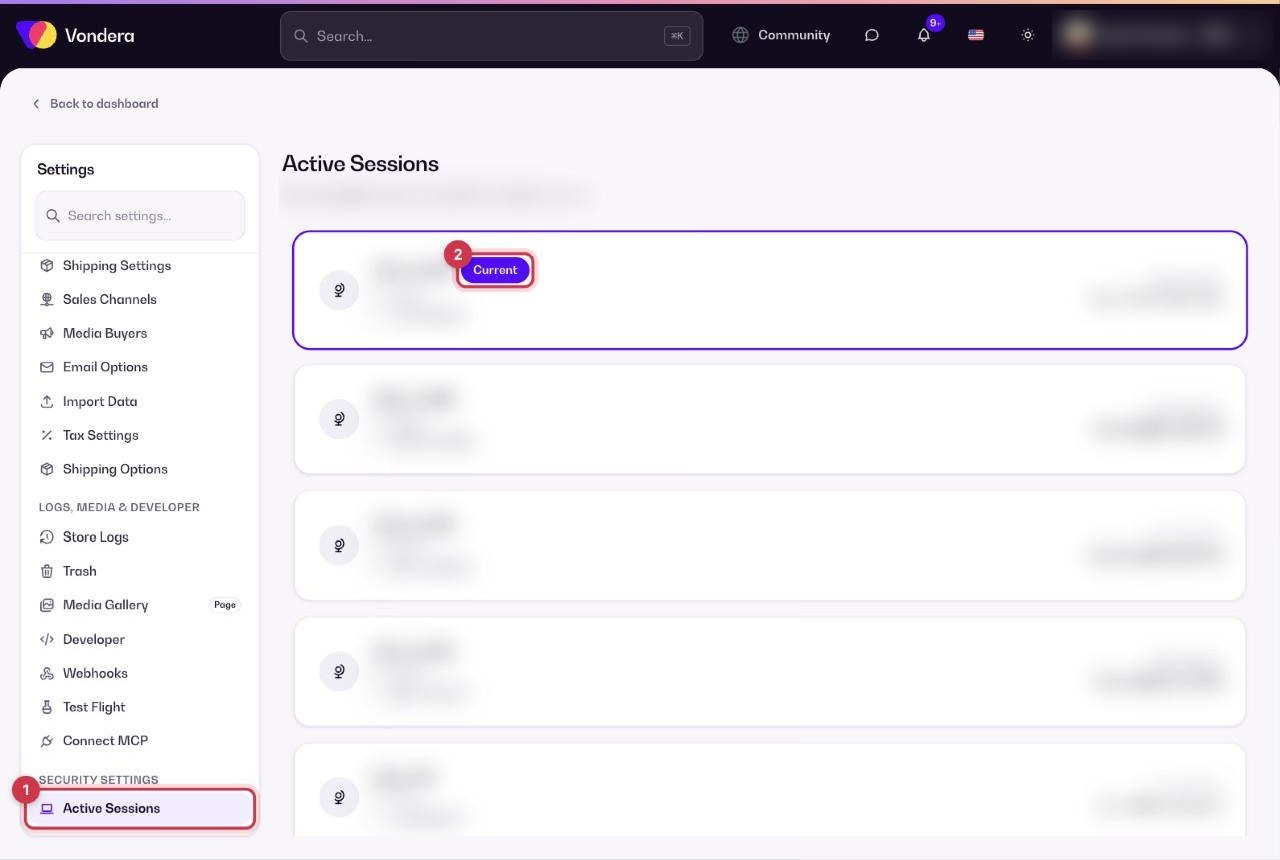
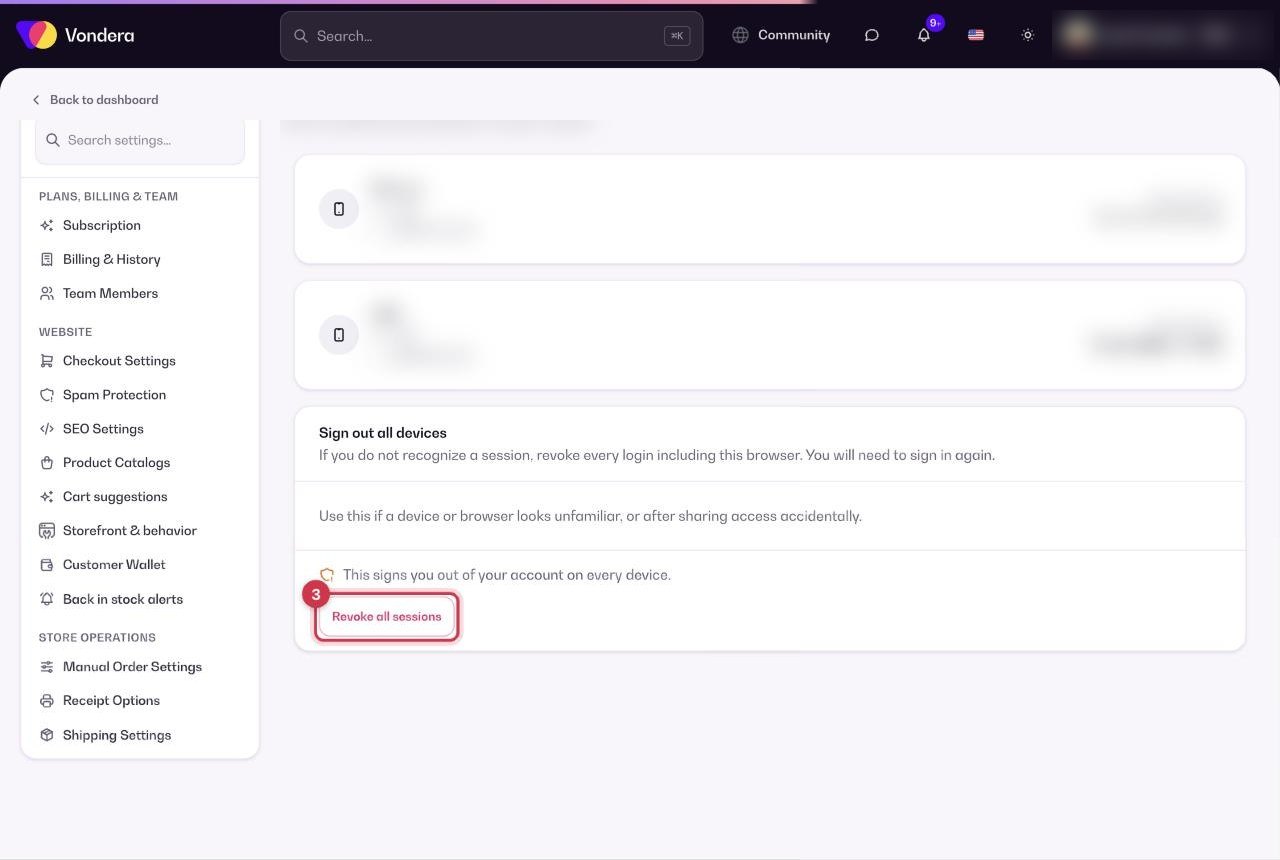
- Open Settings › Active Sessions.
- Review the list. The device you’re using now has a Current badge.
- If anything looks unfamiliar, click Revoke all sessions.
- Every other device is signed out. Your current session stays signed in.
Browser / device
The browser or device signed in, for example Chrome, Edge, Safari or iPhone.
OS
The operating system of that device.
IP
The internet address the session is using.
Last activity
When that session was last used.
Current
Marks the session you’re using right now.
Revoke all sessions
Signs out every other device and browser.
💡 TipAfter revoking sessions because of a lost device or a shared login, change your password too — so nobody can sign back in.
Common questions
I see a device I don’t recognize. What should I do?
Click Revoke all sessions, then change your password. If you think someone else accessed your store, contact support at support@vondera.app or +20 100 394 7556 (11 AM–7 PM Egypt time, Friday off).
Will revoking sessions sign out my team members?
This page shows the sessions of your own account. Team members sign in with their own accounts — manage them in Team members.