

 Photo: Domenico Loia / Unsplash
Test Flight: bind a developer account
Link a developer’s account to your store by email so they can preview and test API changes safely.
🖥️ Open in dashboard/dashboard/settings?section=test-flightTest Flight is for merchants who work with a developer or an app builder. It lets you bind a developer account to your store so they can preview and test API changes safely, before they affect your live store.
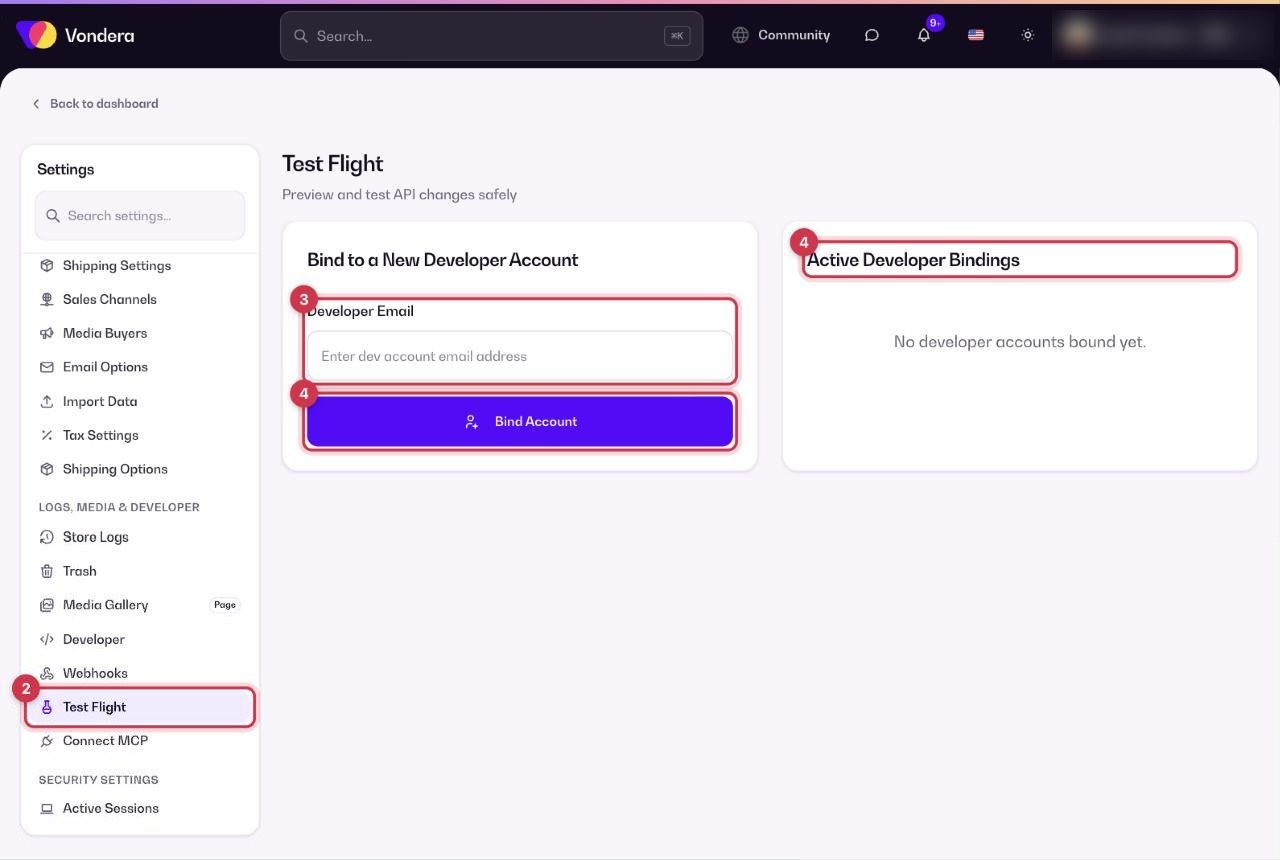
Go to Settings › Test Flight.
Bind a developer account
- Ask your developer for the email of their developer account.
- Open Settings › Test Flight.
- Enter it under Developer Email in “Bind to a New Developer Account”.
- Click Bind Account. The developer appears under Active Developer Bindings.
Developer Email
The email of the developer account you want to link to your store.
Bind Account
Links that developer account to your store.
Active Developer Bindings
The developer accounts currently linked to your store. Empty means none are bound yet.
ℹ️ Good to knowOnly bind developers you trust and work with. Review the list from time to time and remove anyone you no longer work with.
Common questions
Do I need Test Flight to use my API key?
No. The API key in Settings › Developer works on its own. Test Flight is for developers who need to test changes safely.
The list says “No developer accounts bound yet”.
That’s normal until you bind your first developer email.