

 Photo: Domenico Loia / Unsplash
Team members and permissions
Give each employee their own account, choose what they can access, and ban access when someone leaves.
🖥️ Open in dashboard/dashboard/settings?section=team-members🎬 Watch the video
Videos are in Arabic.
If other people help you run the store — order confirmation agents, warehouse staff or a business partner — give each of them their own team member account instead of sharing your password. Every person signs in with their own login, sees only the parts of the dashboard their role allows, and everything they do is recorded under their name.
You'll find it in Settings › Team Members. This is where you manage staff accounts, roles and permissions.
Add a team member
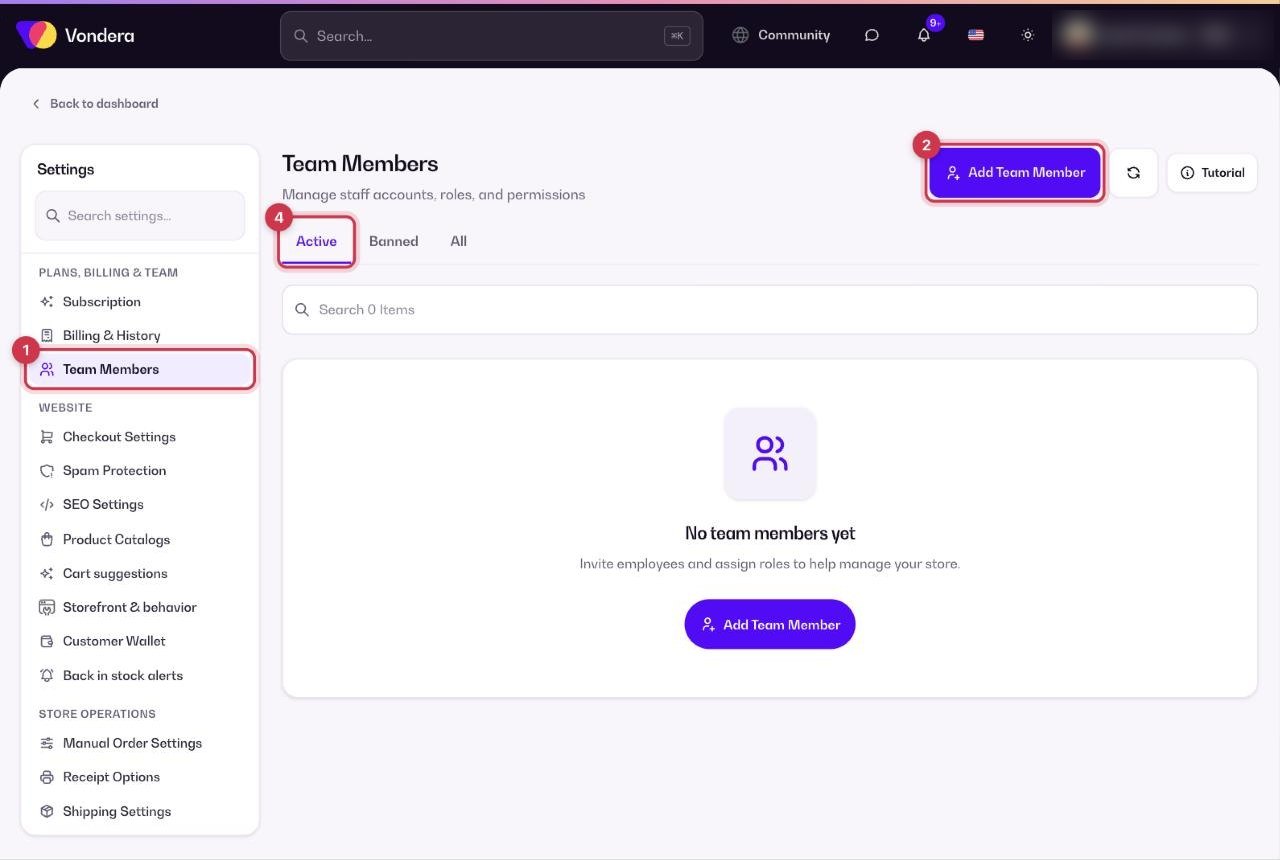
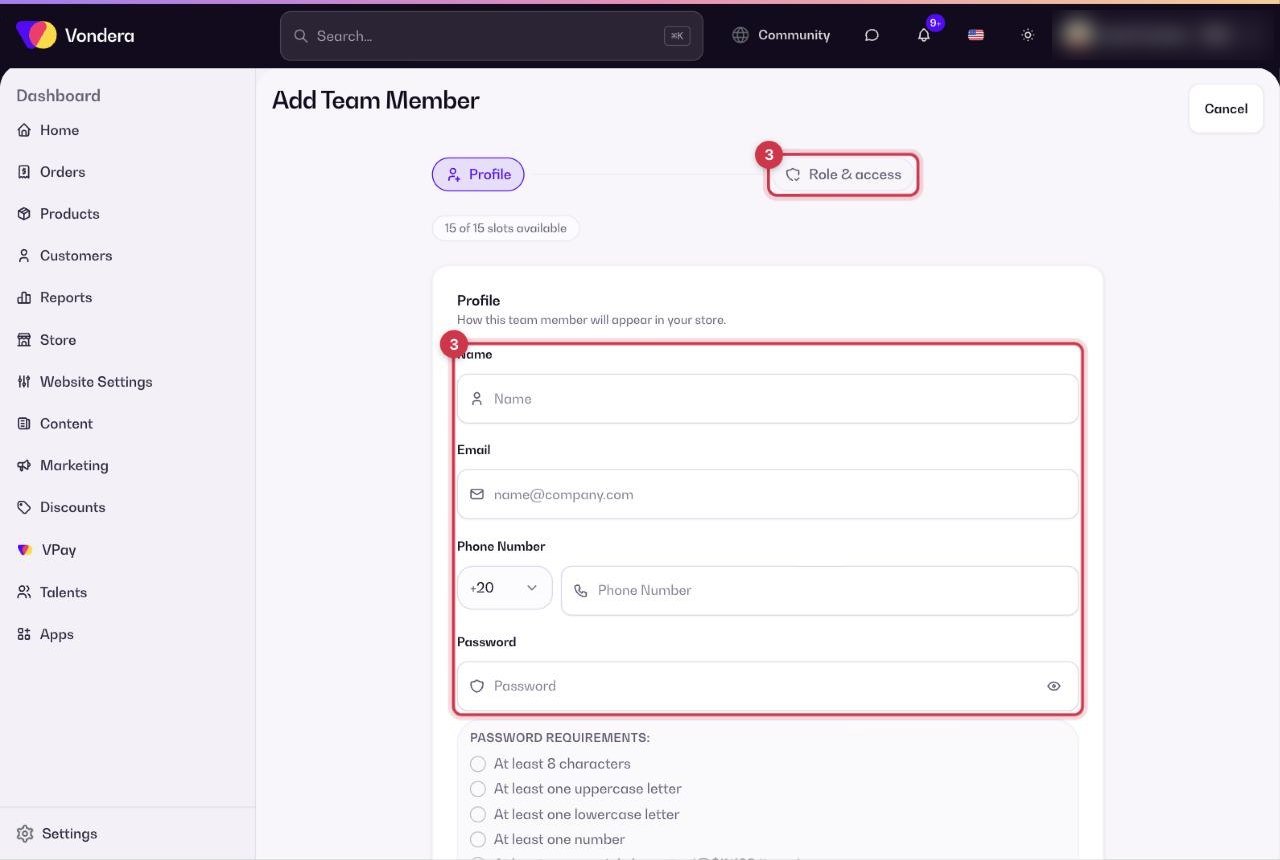
- Open Settings › Team Members.
- Click Add Team Member.
- Fill in the employee's details and choose the role and permissions that match their job.
- Save. The new member appears in the list under the Active filter.
What you see on the page
Common questions
What should I do when an employee leaves?
Ban their account so they can no longer sign in. They move to the Banned filter, and their past actions stay in the store logs. You can also check Active sessions on your own account if you ever shared your login.
Can I assign orders to a specific team member?
Yes. Open the order, click Actions and choose Assign. If you turn on Order Assignment Email in Email options, an email goes out when an order is assigned.
Is there a limit on team members?
Team features depend on your plan. Compare plans under Settings › Subscription › Compare All Features (Support & Team section).