

 Photo: Domenico Loia / Unsplash
Connect Vondera to Claude and AI assistants (MCP)
Add Vondera as a connector in Claude or another AI assistant, then ask it about your orders, products and store in plain language.
🖥️ Open in dashboard/dashboard/settings?section=connect-mcpMCP (Model Context Protocol) is a standard way to connect AI assistants to other apps. When you connect Vondera to Claude, you can manage your store by chatting: ask about your latest orders, check sales, look up products and more — in plain English or Arabic.
Go to Settings › Connect MCP. The page shows your Vondera MCP URL with a copy button and the steps below.
Connect to Claude
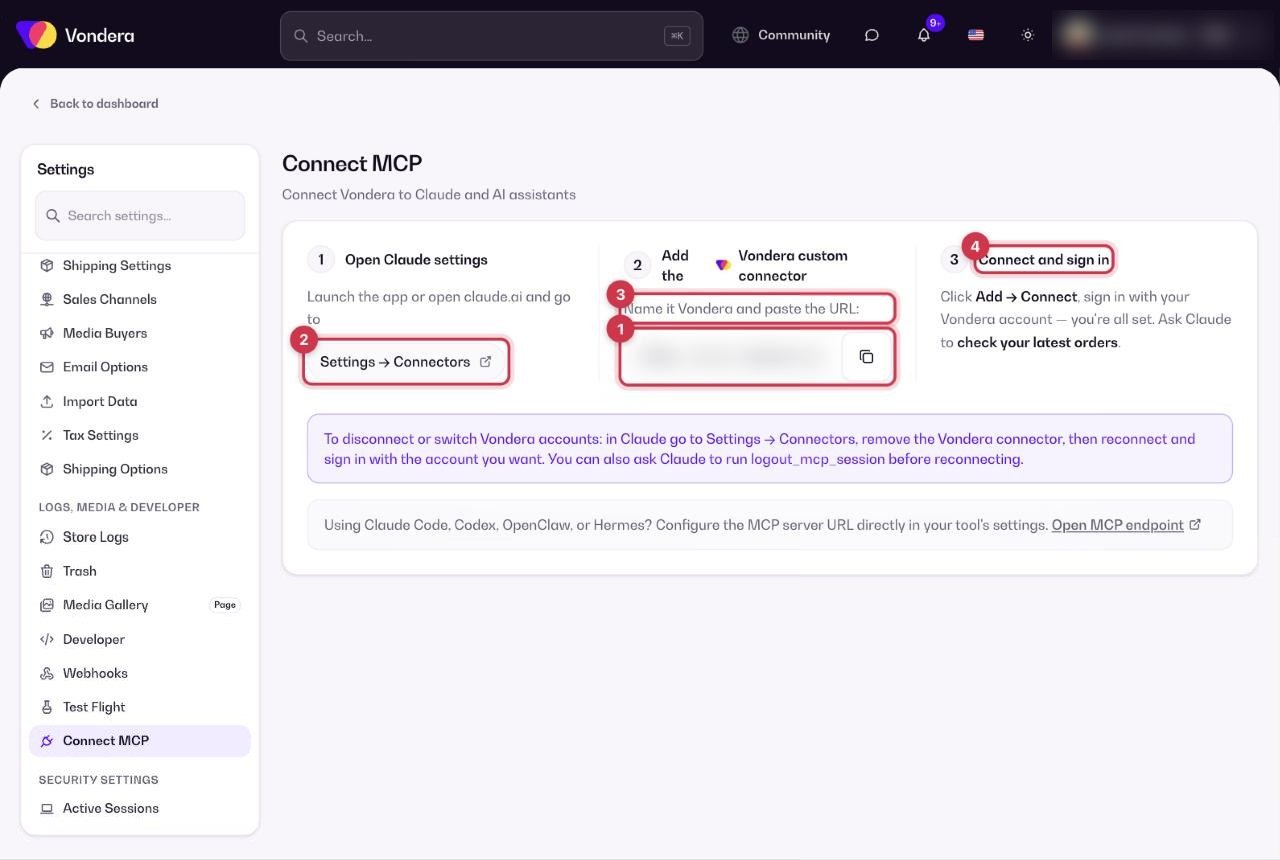
- Copy the MCP URL from Settings › Connect MCP.
- Open Claude and go to Settings › Connectors.
- Add a custom connector, name it Vondera and paste the MCP URL.
- Click Add, then Connect, and sign in with your Vondera account.
- Try it: ask Claude something like “check my latest orders”.
Switch to another store account
- Remove the Vondera connector in Claude and add it again, then sign in with the other account.
- Or ask Claude to run logout_mcp_session, then reconnect.
Common questions
What can I ask?
Questions like “How many orders did I get today?”, “Which products are low on stock?” or “Show me pending orders”. Start simple and build from there.
Does it work with tools other than Claude?
Yes. Developer tools such as Claude Code, Codex, OpenClaw or Hermes can use the MCP server URL directly.
How do I disconnect?
Remove the Vondera connector from your AI assistant’s settings.