

 Photo: Nick Morrison / Unsplash
Write and publish blog posts
Create blog articles for your store, add a featured image and SEO details, and publish now or schedule for later.
🖥️ Open in dashboard/dashboard/blogsA blog gives your store more than product pages: buying guides, styling tips, news about new collections. Good posts bring visitors from Google and give you content to share on social media. Each post gets its own page on your store at /blogs/your-post-link.
Click Content in the sidebar. The first page is your list of blog posts, with a status filter so you can see drafts, published or scheduled posts.
Write a new post
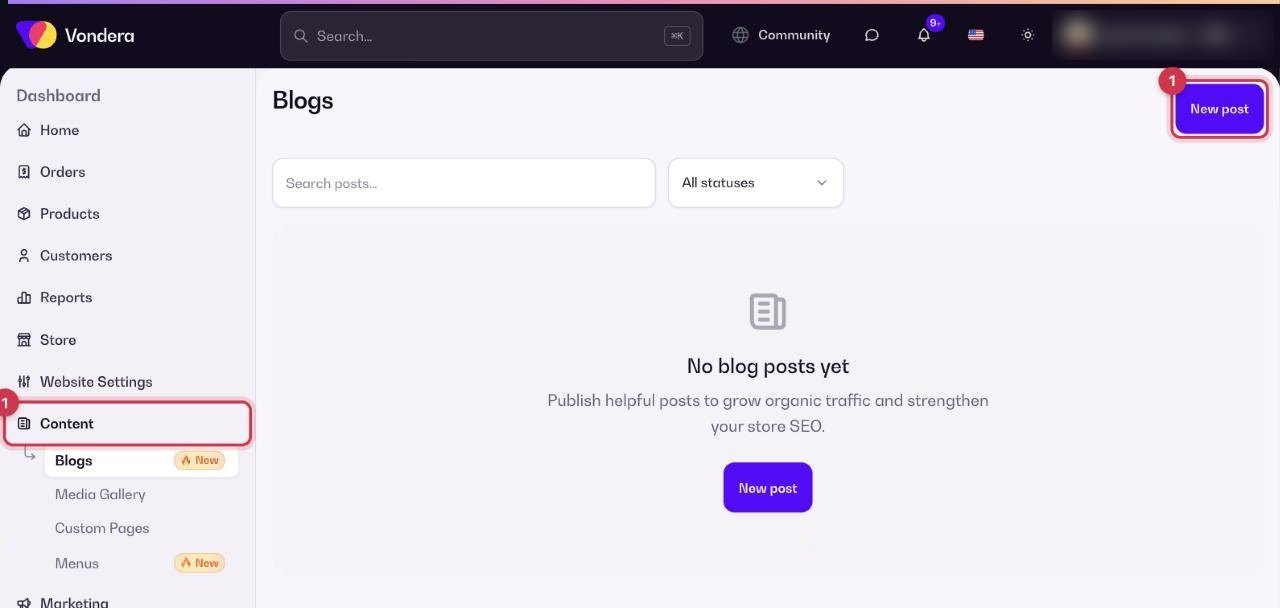
- Go to Content and click New post.
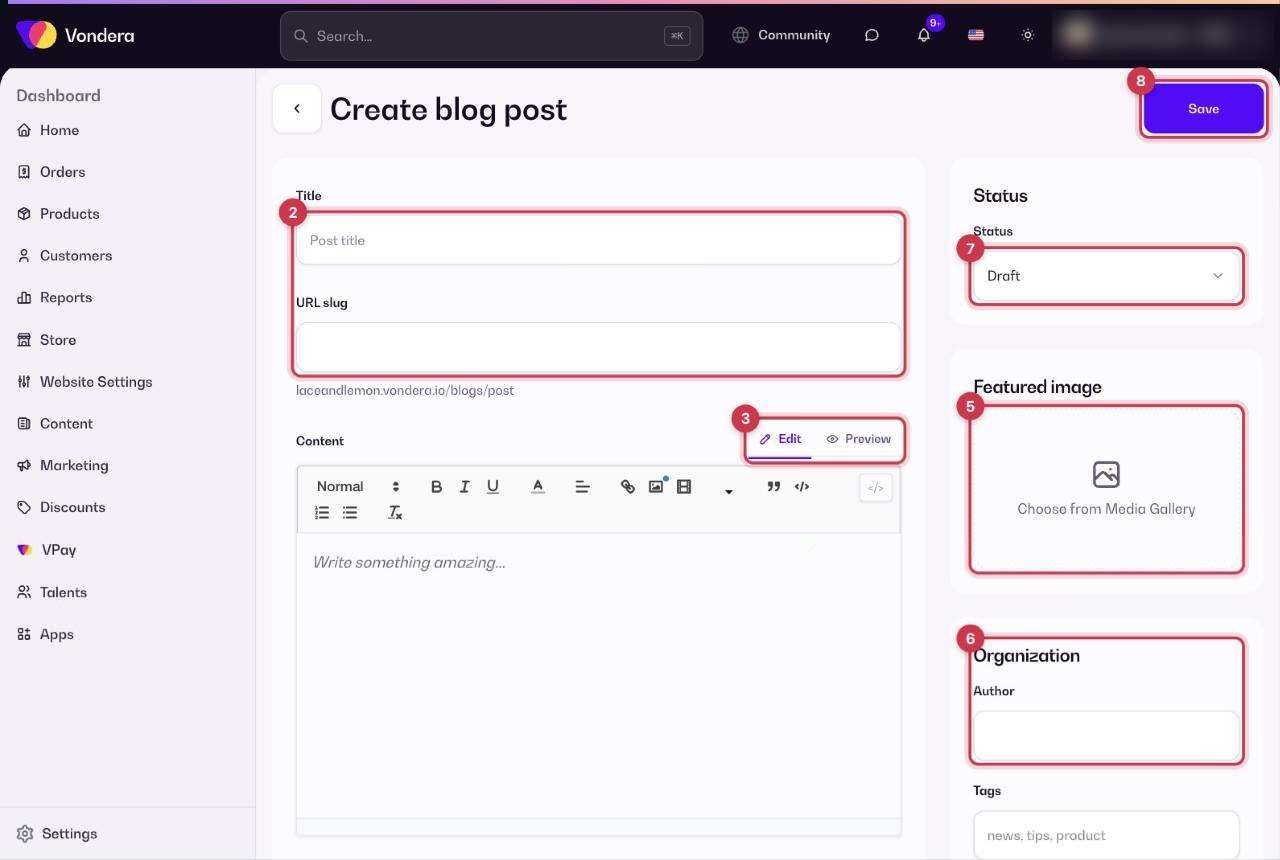
- Type a Title. The URL slug is the link of the post; you can see a preview of the full address under it.
- Write the post in Content. Use Edit to write, Preview to see how it looks, or HTML if you want to paste code.
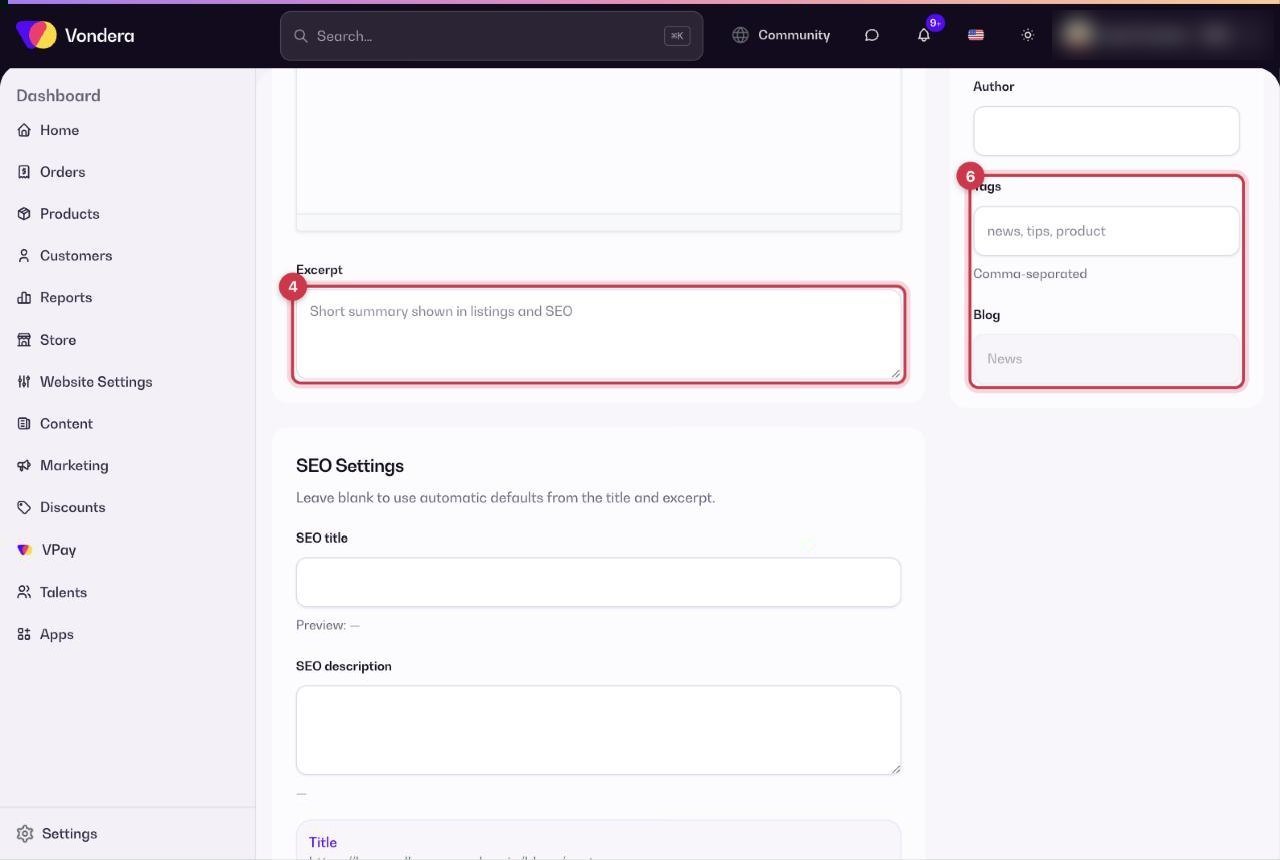
- Add a short Excerpt. It appears in post lists and search results.
- Under Featured image, click Choose from Media Gallery to pick the main image.
- Fill in Organization: the Author, Tags and the Blog it belongs to.
- Choose a Status: Draft, Published or Scheduled.
- Click Save.
Common questions
Can I save a post and finish it later?
Yes. Set Status to Draft and click Save. Customers won’t see it until you publish.
Do I have to fill in the SEO fields?
No. If you leave them blank, the title and excerpt are used automatically.
How do I add images inside the post?
Upload them to the Media Gallery first, then add them in the content editor. The featured image is chosen from the gallery too.