

 Photo: Clay Banks / Unsplash
Import customers from a file
Add or update up to 2,000 customers at once from a CSV or Excel file.
🖥️ Open in dashboard/dashboard/customers/bulk-importIf you already have a customer list — from another platform, a spreadsheet or your WhatsApp contacts — you can bring it into Vondera in one go instead of adding customers one by one.
Where to find it
Go to Customers › Import (or open /dashboard/customers/bulk-import).
Import your customers
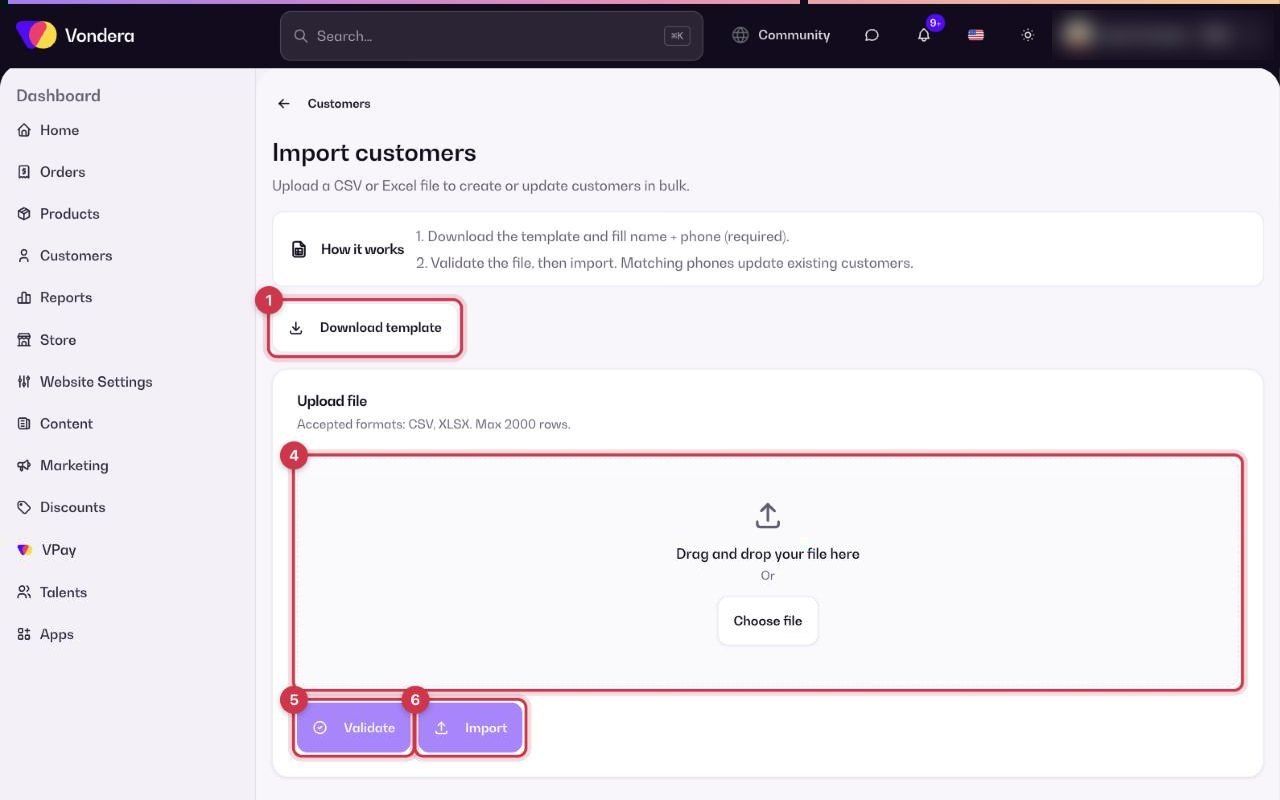
- Click Download template to get a file with the right columns.
- Fill in your customers. Name and Phone are required for every row.
- Save the file as CSV or XLSX.
- Click Choose file, or drag and drop the file onto the page.
- Click Validate. Vondera checks the file and tells you if any rows need fixing.
- Fix any problems, then click Import.
File formats
CSV or XLSX.
Maximum size
Up to 2,000 rows per file.
Required columns
Name and phone.
Existing customers
If a phone number already exists, that customer is updated instead of being added again.
💡 TipWrite phone numbers in one consistent format across the file. This helps Vondera match existing customers correctly and avoids duplicates.
ℹ️ Good to knowImporting customers does not subscribe them to your marketing emails. Your email list is managed separately in Newsletter subscribers.
Common questions
I have more than 2,000 customers. What should I do?
Split your list into several files of up to 2,000 rows each and import them one after another.
Will importing create duplicate customers?
No, as long as phone numbers match. A row with an existing phone number updates that customer.
Validation failed. What now?
Check that every row has a name and a phone number and that you used the template columns, then validate again.