

 Photo: Clay Banks / Unsplash
Newsletter subscribers
See who joined your marketing email list, where they signed up, filter them and export the list.
🖥️ Open in dashboard/dashboard/subscribersSubscribers are the people who agreed to receive marketing emails from your store, for example by signing up in your website footer. This is your email marketing audience, and it is separate from your customers list.
Where to find it
Go to Customers › Subscribers (or open /dashboard/subscribers).
What the table shows
Email
The subscriber’s email address.
Phone
Their phone number, if they gave one.
Source
Where they subscribed, for example Footer form or Sign up.
Status
Subscribed or Unsubscribed.
Consent
Whether they gave consent to receive marketing (Yes / No).
Subscribed on
When they joined the list.
Unsubscribed on
When they left the list, if they did.
Filter and export subscribers
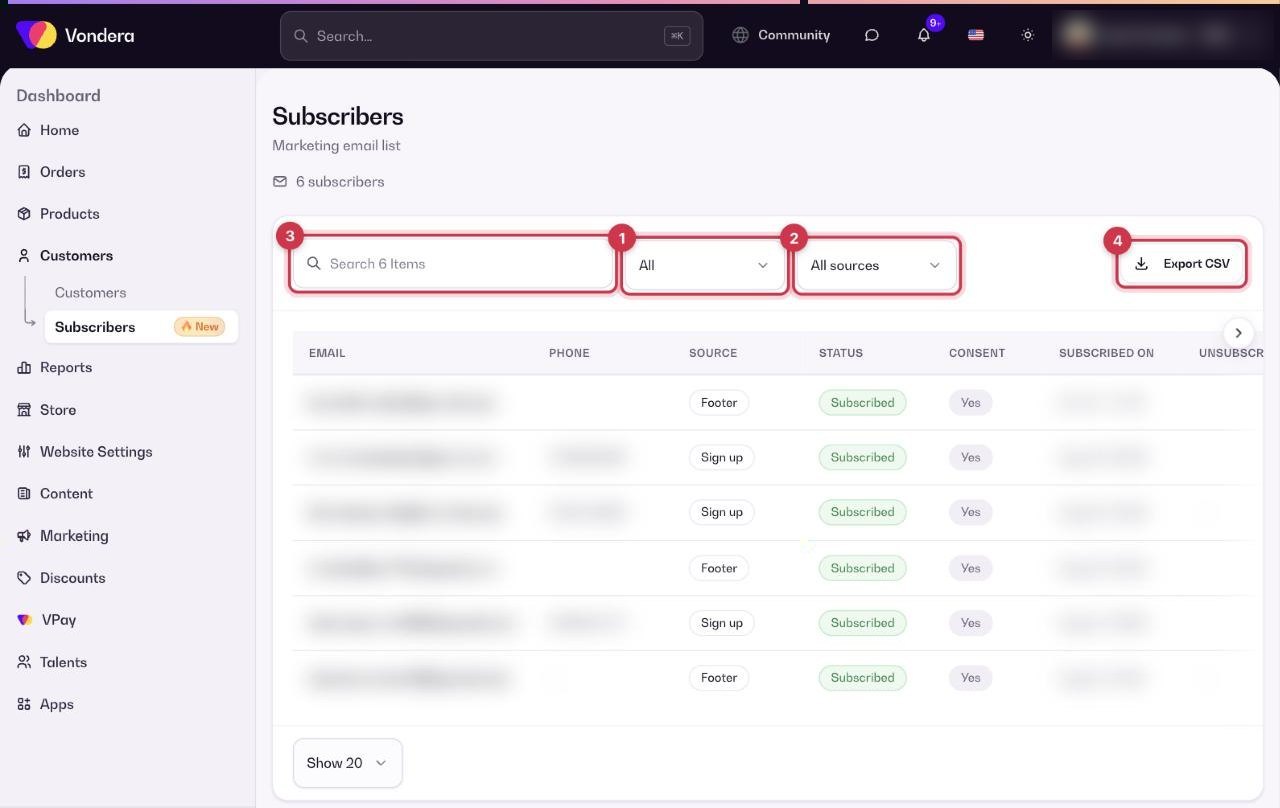
- Use the Status filter to show, for example, only subscribed people.
- Use the Source filter (All sources by default) to see where people signed up.
- Type in the search box to find a specific email.
- Click Export CSV to download the filtered list.
💡 TipSend your campaigns to this list from Marketing › Email campaigns. Always respect unsubscribes: people with the status Unsubscribed should not receive marketing emails.
Common questions
Why is a customer not in my subscribers list?
Buying from you does not subscribe a customer automatically. They join when they sign up through a form, such as the footer form.
What does the No marketing badge on a customer mean?
That customer is not subscribed to your marketing emails.
Can I change the number of rows shown?
Yes. Use the page size selector (for example Show 20).