

 Photo: Clay Banks / Unsplash
The customers list and customer profiles
Find customers, see how much they spend and how often they order, and open a full profile with insights, store credit and order history.
🖥️ Open in dashboard/dashboard/customers🎬 Watch the video
Videos are in Arabic.
Every person who orders from you — on your website or through a manual order — gets a customer record. The customers list shows who your best customers are, and each profile brings together their contact details, orders and spending.
Where to find it
Click Customers in the sidebar (or open /dashboard/customers).
Find customers
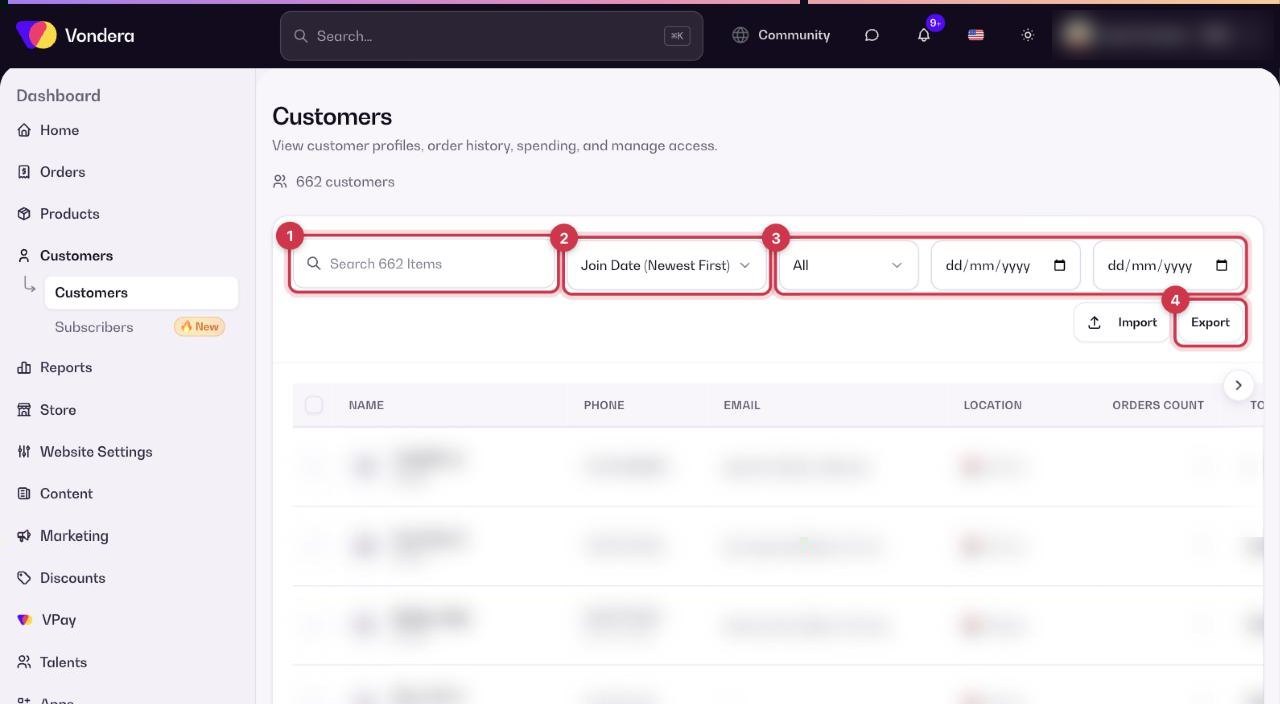
- Type a name, phone number or email in the Search box.
- Use Sort by to order the list, for example to see your top spenders first.
- Filter by Status, or set Joined from and Joined to to see customers who joined in a certain period.
- Click Export to download the list.
Columns in the customers table
The customer profile
Click a customer to open their profile.
- Header: name, since when they are a customer, city and country, and badges such as No marketing (not subscribed to emails) or No customer account (they checked out as a guest).
- Insights: an AI prediction of how much the customer may spend compared with your average customer, plus total spent, last order and total orders.
- Store credit: the customer’s wallet balance from cashback and manual adjustments. See Customer wallet.
- Contact information: email, phone and default address.
- Order History: the customer’s orders.
Ban a customer
- Open the customer’s profile.
- Click the Actions menu and choose Ban Customer.
- Confirm. Their future orders fail the Customer not banned check in the order trust score.
Common questions
Why does a customer show "No customer account"?
They ordered without signing up on your store. They are still a customer, but features that need an account, such as the wallet, are not available to them.
How do I add customers in bulk?
Use Customers › Import. See Import customers.
Can I see all orders of one customer?
Yes. Open the profile and look at Order History, or choose Order History from the Actions menu.