

 Photo: Kari Shea / Unsplash
Search, notifications, theme and store switcher
Use the top bar to search the dashboard with ⌘K, read notifications, switch light/dark mode and move between your stores.
🖥️ Open in dashboard/dashboardThe bar at the top of every dashboard page has the tools you use most: search, community, notifications, light/dark mode, the store switcher and help. Learning them saves you a lot of clicking.
Search the dashboard (⌘K)
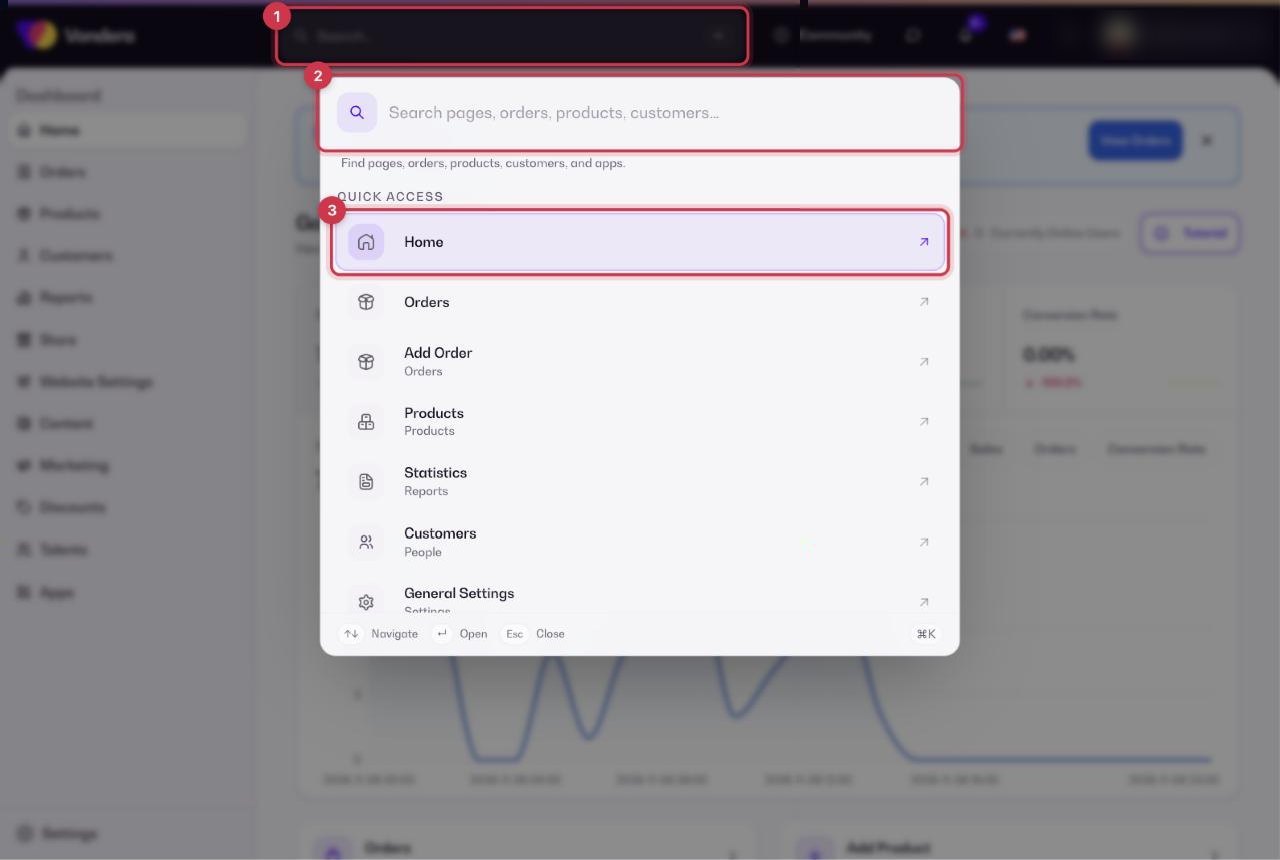
- Click Search in the top bar, or press ⌘K on Mac (Ctrl+K on Windows).
- Start typing what you need, for example a page name like "abandoned carts" or a setting like "shipping".
- Use the arrow keys or your mouse to pick a result and press Enter to open it.
💡 TipInside Settings there is also a Search settings… box at the top of the settings menu. Use it to jump straight to any settings section.
What else is in the top bar
Community
Opens the Vondera merchant community, where you can read posts and ask questions.
Notifications
The bell shows updates about your store. A badge means you have unread notifications.
Theme toggle
Switches the dashboard between light and dark mode. It only changes how the dashboard looks to you, not your store.
Store switcher
If you manage more than one store, pick another store here to switch the whole dashboard to it.
Help Center
Opens the support page with contact options and working hours.
Live chat
Starts a chat with the Vondera support team.
Switch to another store
- Click the store switcher (your store name or logo) in the top bar.
- Choose the store you want to manage.
- The dashboard reloads with that store’s orders, products and settings.
ℹ️ Good to knowAlways check the store name in the top bar before you change settings or create orders, so you are working on the right store.
Common questions
The shortcut ⌘K does nothing. What should I do?
Click once anywhere on the dashboard page first so it is focused, then press the shortcut again. You can also just click Search.
Does dark mode change my online store?
No. The theme toggle only changes the dashboard on your device.
Why don’t I see the store switcher?
It is useful only when your account has access to more than one store.