

 Photo: Vitaly Gariev / Unsplash
Website language (English and Arabic)
Choose whether your storefront is available in English, Arabic or both.
🖥️ Open in dashboard/dashboard/localizationThe Website Language page decides which languages your storefront offers. You can run your store in English, in Arabic, or in both so customers can switch. Arabic pages are shown right-to-left (RTL) automatically.
Go to Website Settings › Website Language.
Turn languages on or off
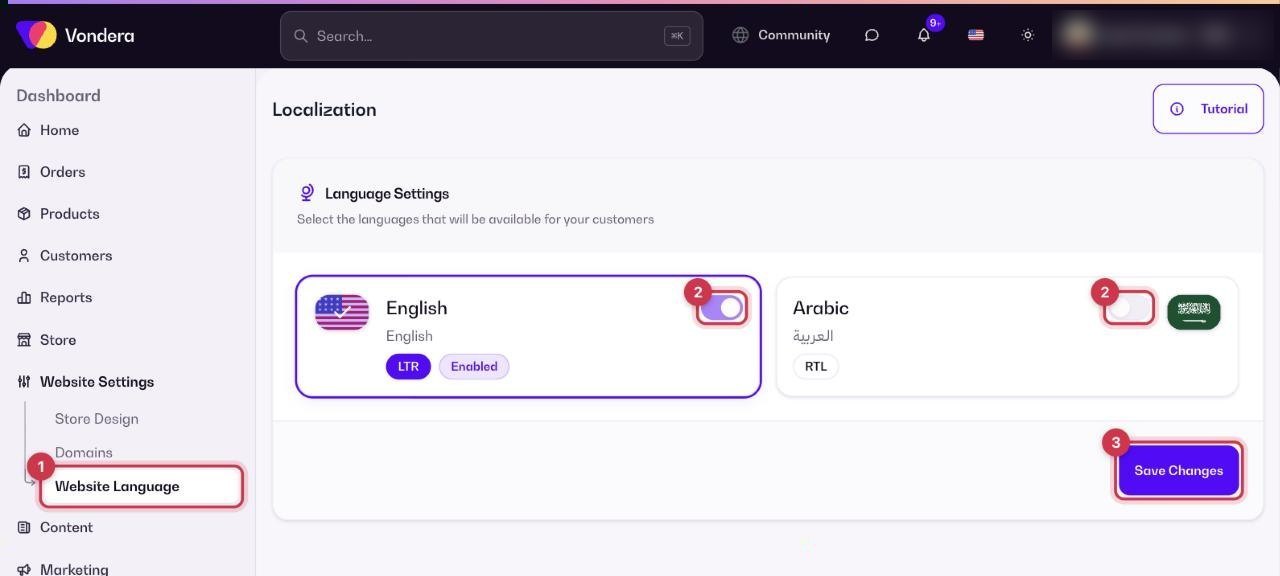
- Go to Website Settings › Website Language.
- Under Language Settings, use the Enabled toggle next to each language.
- Click Save Changes.
English (LTR)
Shows your store in English, left to right.
Arabic / العربية (RTL)
Shows your store in Arabic, right to left.
💡 TipIf you enable both languages, add an Arabic version of your product titles and descriptions. The product form has a language switch in Basic Information, so each language shows its own text.
ℹ️ Good to knowKeep at least one language enabled so your storefront always has something to show.
Common questions
Can my store be Arabic only?
Yes. Enable Arabic, turn English off, and save.
Where do I add the Arabic text?
In editors that have a language switch, such as the product form (Basic Information) and custom pages. Pick Arabic and type the Arabic version.
Is there a tutorial?
Yes. Click Tutorial on the Website Language page.