


 Photo: William Hook / Unsplash
Google Sheets sync
Sync your orders to a Google Sheet using a Google service account.
🖥️ Open in dashboard/dashboard/marketplace/plugins/dRDHqdZ2H5eKLkxAus2MGoogle Sheets sync sends your orders to a Google Sheet using a Google Cloud service account. It suits merchants comfortable with Google Cloud.
Developer
Vondera
Price
Free
Category
Analytics
Available in
Egypt, United States, Saudi Arabia, UAE
Set it up
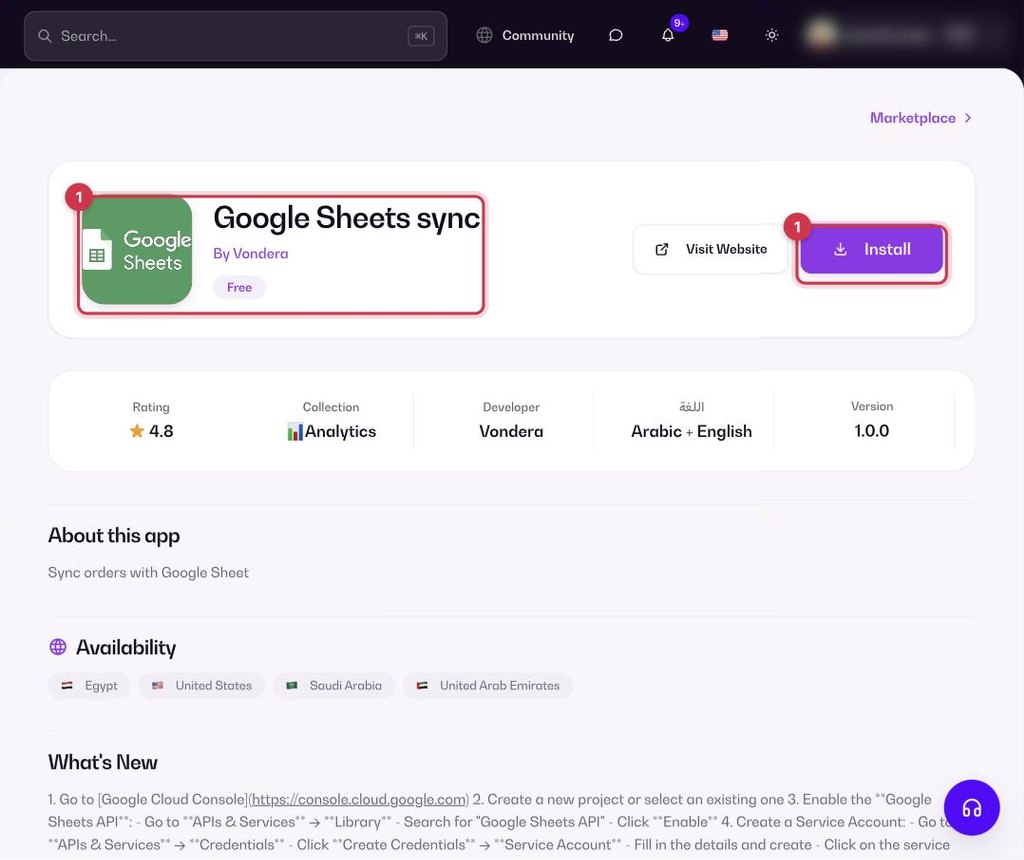
- Go to Apps, filter by Analytics or search, and open Google Sheets sync. Click Install.
- In Google Cloud, create a project and enable the Google Sheets API.
- Create a Service Account and create a JSON key for it.
- Share your Google Sheet with the service account’s email as Editor.
- After installing, open the app’s settings (Configure) to enter your service account key and sheet details.
Common questions
Is there an easier option?
Yes. VSheet only needs you to sign in with Google — no service account or keys.