

 Photo: Domenico Loia / Unsplash
Media Gallery shortcut in Settings
The Media Gallery Page item in Settings opens your store’s media library, where you upload and manage images and videos.
🖥️ Open in dashboard/dashboard/gallery🎬 Watch the video
Videos are in Arabic.
All your store’s images and videos live in one place: the Media Gallery. Files you upload there can be reused for products, collections, pages, your logo and your SEO share image — so you upload once and pick it anywhere.
In the settings menu, Settings › Media Gallery Page is a shortcut: it takes you to Content › Media Gallery.
Upload images or videos
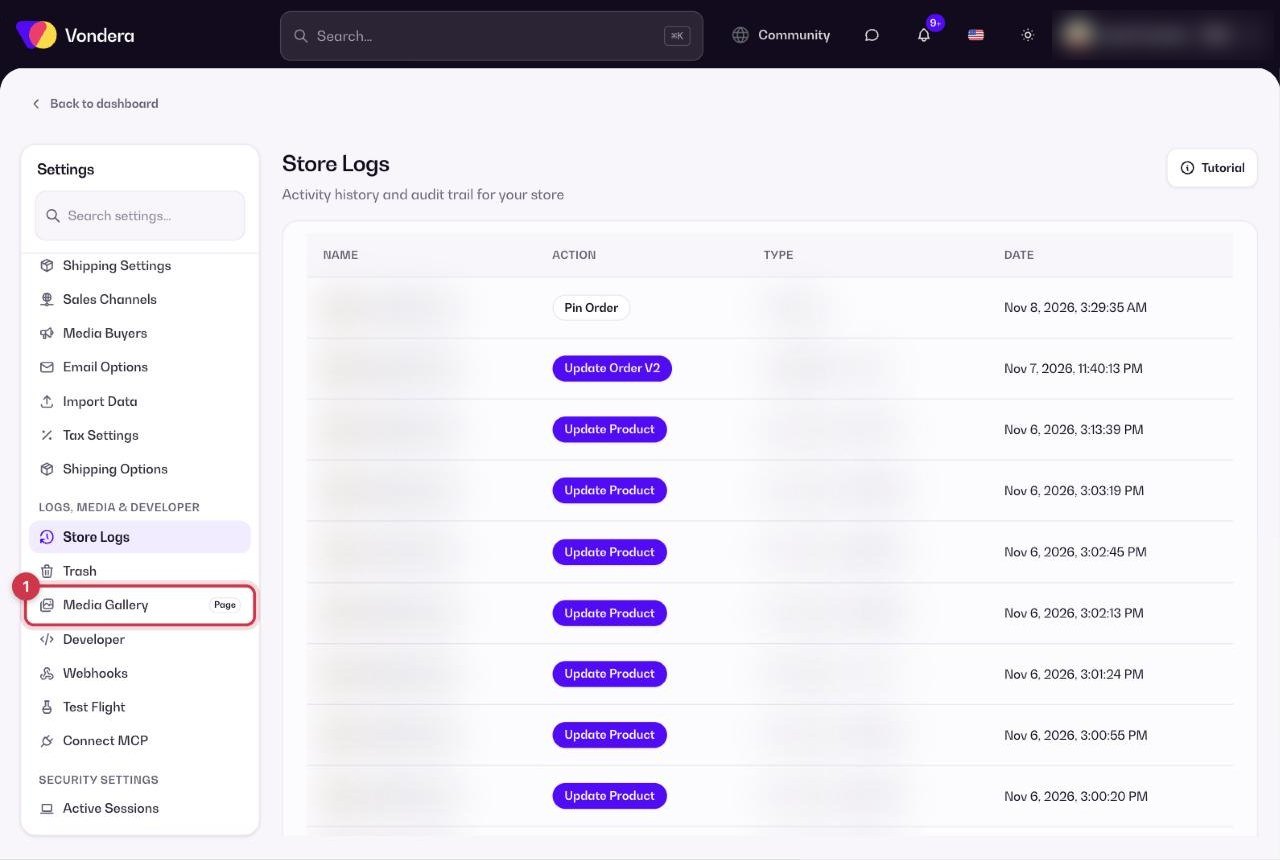
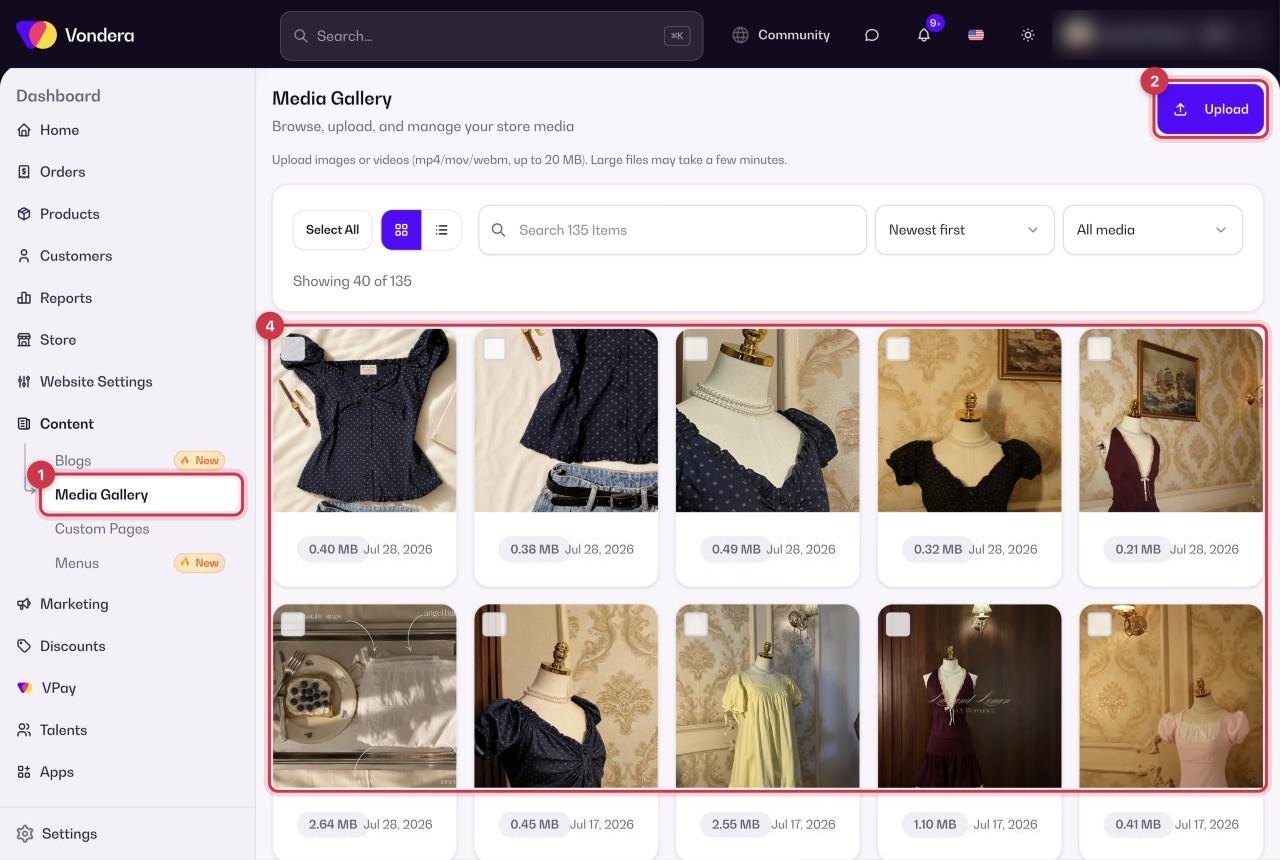
- Click Media Gallery Page in the settings menu (or go to Content › Media Gallery).
- Drag your files into the upload area, or click it to choose files.
- Wait for the upload to finish — large videos may take a few minutes.
- Your files now appear in the grid and can be picked from any Media Gallery button in the dashboard.
Upload area
Upload images or videos. Videos can be mp4, mov or webm, up to 20 MB.
Select All
Selects every file for bulk actions.
Sort
Order files, for example Newest first.
Type filter
Show all media, or only one type.
Search
Find a file by name.
File card
Thumbnail (click to preview), file size, dimensions and upload date.
Load More
The gallery shows 40 files at a time; click to see more.
💡 TipCompress big photos before uploading. Smaller images make your store load faster, especially on mobile data.
Common questions
What’s the maximum video size?
20 MB, in mp4, mov or webm format.
If I delete an image from the gallery, does it disappear from my products?
Products that use that image may lose it. Check where an image is used before deleting it.