

 Photo: Luke Heibert / Unsplash
Customer complaints
Record a complaint on an order, follow its status and update it with notes and photos.
🖥️ Open in dashboard/dashboard/complaints🎬 Watch the video
Videos are in Arabic.
When a customer has a problem with an order — a wrong size, a damaged item or a late delivery — record it as a complaint. This keeps every issue in one list, linked to its order, so nothing gets forgotten and your team can follow up.
Where to find it
- To add a complaint: open the order and click Add Complaint.
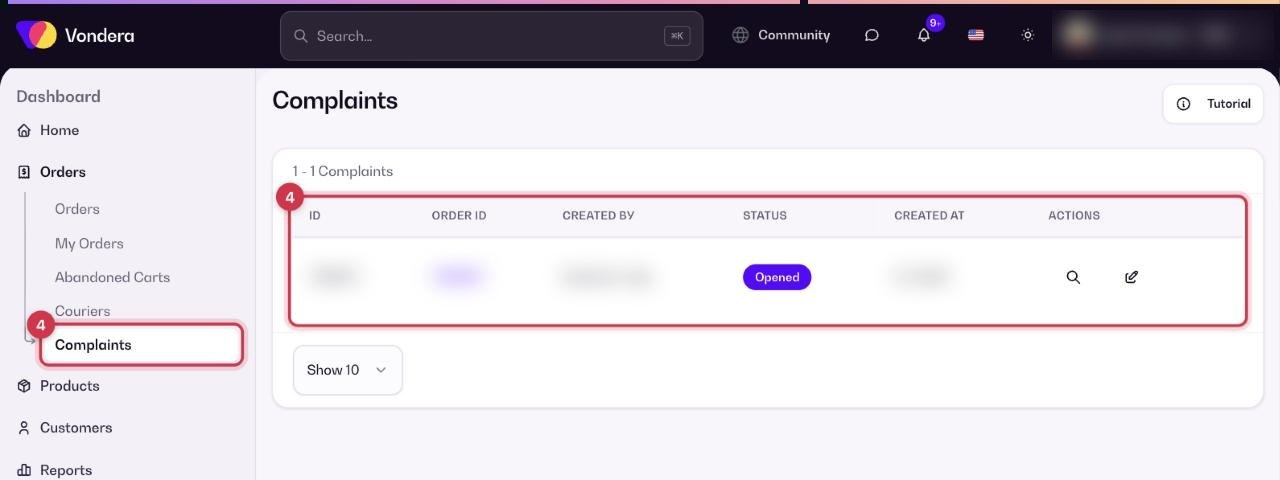
- To see and manage complaints: go to Orders › Complaints (or open /dashboard/complaints).
Add a complaint
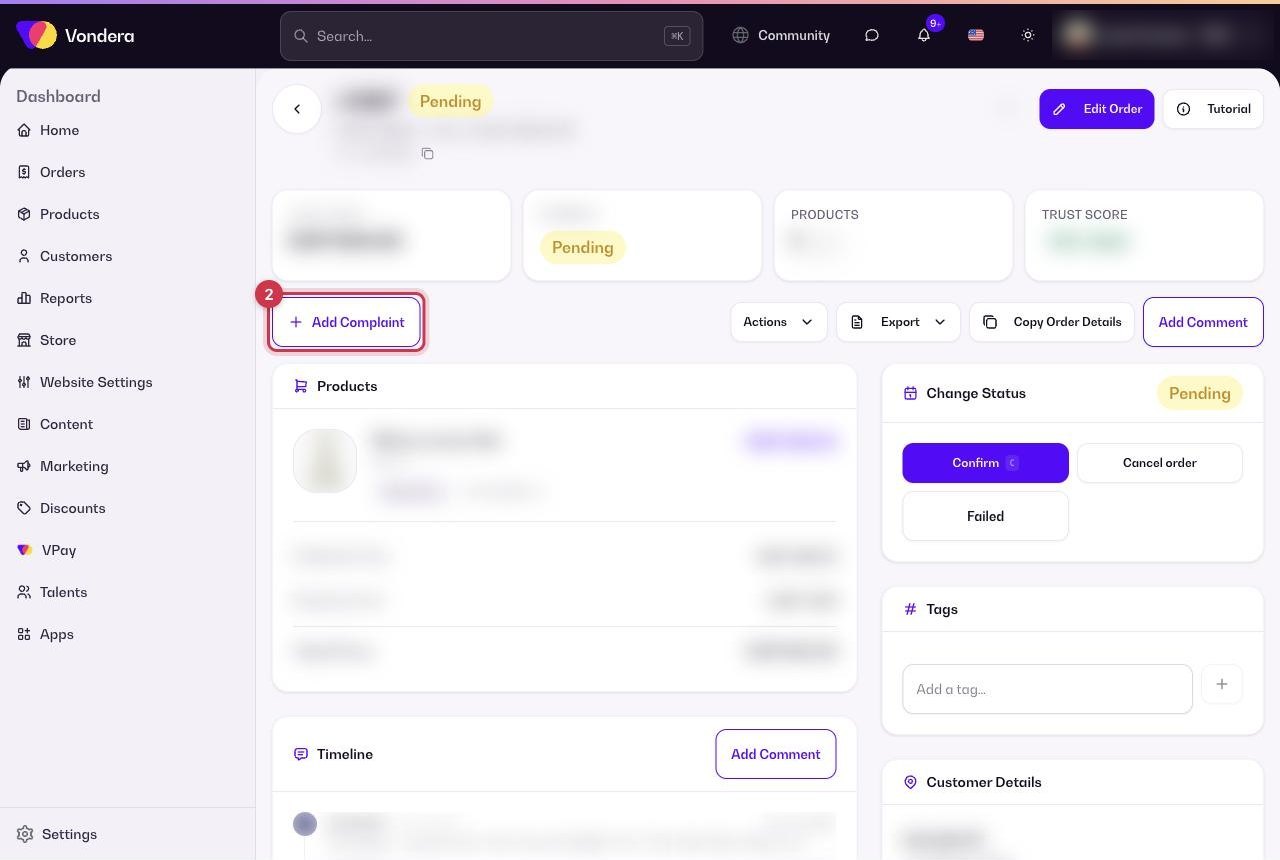
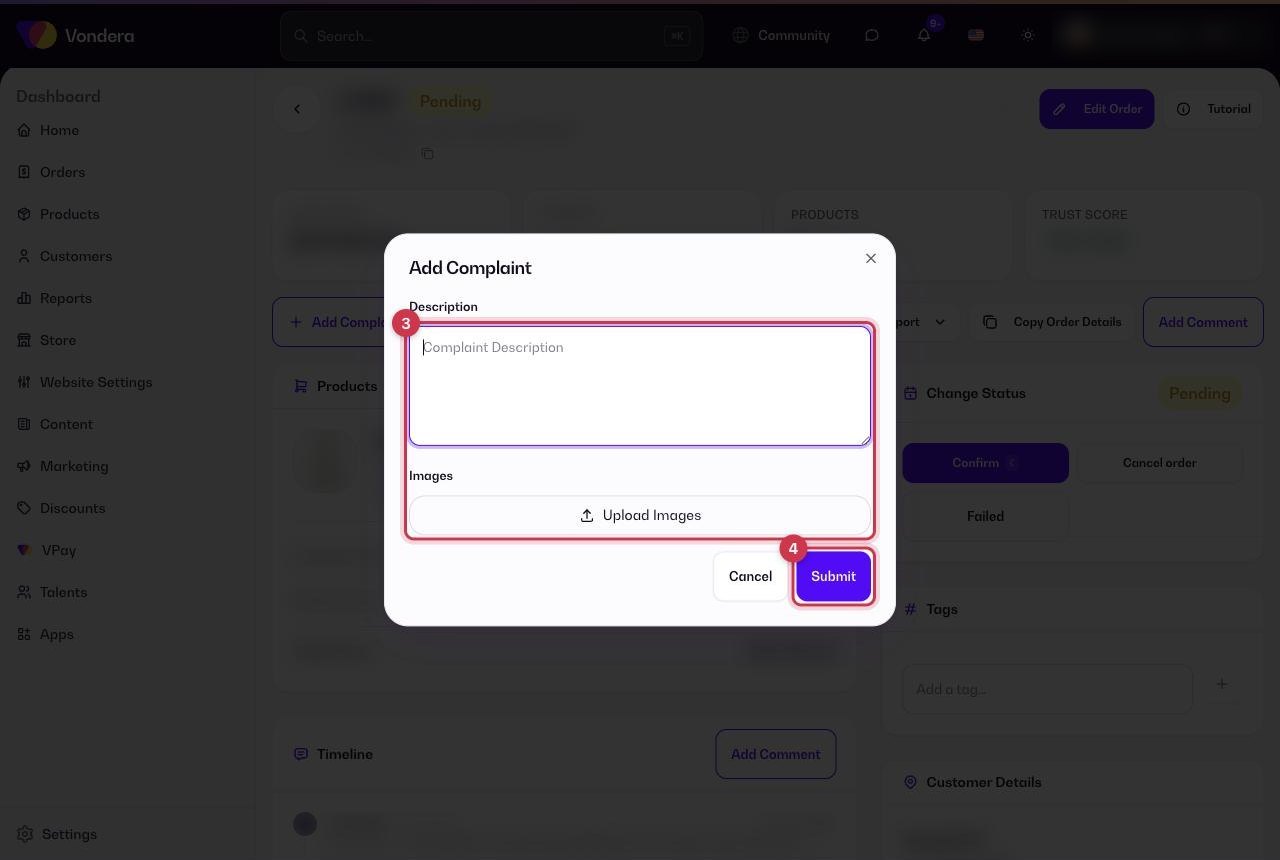
- Go to Orders and open the order the complaint is about.
- Click Add Complaint.
- Describe the problem clearly and attach photos if the customer sent any.
- Save. The complaint now appears in Orders › Complaints.
Follow up on complaints
Each complaint shows as a card with the customer, the order number, the complaint text, the date and a status badge (for example Opened).
- Go to Orders › Complaints.
- Click the magnifier icon to view a complaint.
- Click the pencil icon to edit it.
- In Edit Complaint, update the Description or upload more Images, then click Update.
Description
What the problem is and what you did about it.
Images
Photos of the problem, for example a damaged product.
💡 TipUse the description to log each step you take ("called customer", "sent replacement"). Anyone on your team can then pick up the complaint without asking.
Common questions
Why is there no Add button on the Complaints page?
Complaints are always linked to an order, so you add them from the order page with Add Complaint.
Can I change how many complaints I see per page?
Yes. Use the Show selector (for example Show 10).
Do customers see the complaint?
No. Complaints are for you and your team to track issues.