

 Photo: Austin Distel / Unsplash
Build sales funnels (landing pages)
Create single-product landing pages from ready templates or from scratch to turn ad traffic into orders.
🖥️ Open in dashboard/dashboard/funnelsA funnel is a landing page built around one product. Instead of sending ad visitors to your full store, where they can get distracted, you send them to a focused page that explains the product and leads straight to the order. It is one of the best ways to improve the conversion rate of your ads.
You will find it under Marketing › Funnels. Each funnel card shows its name, the linked product, its status (Draft or Published), its slug (the funnel's link address), the date and an on/off toggle. Use Select All for bulk actions on several funnels.
Create a funnel from a template
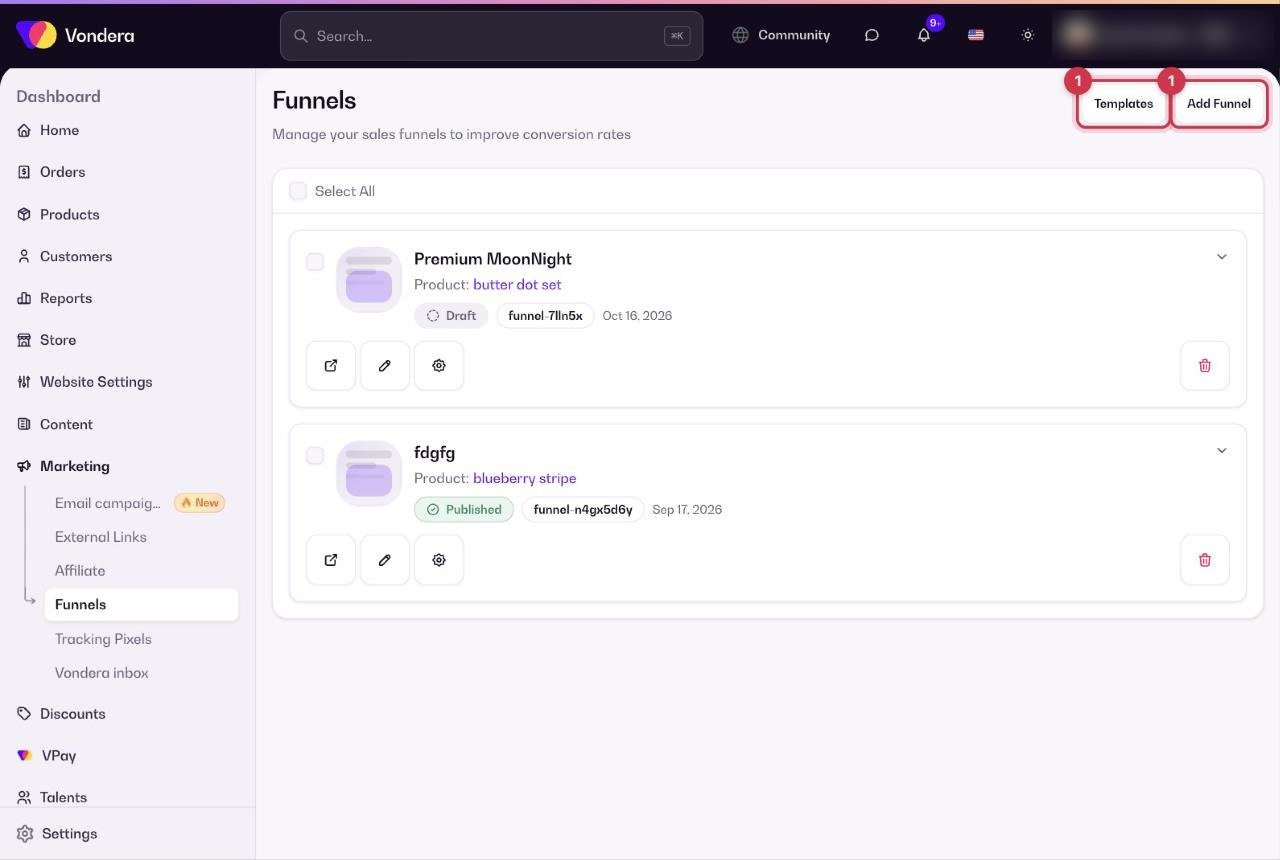
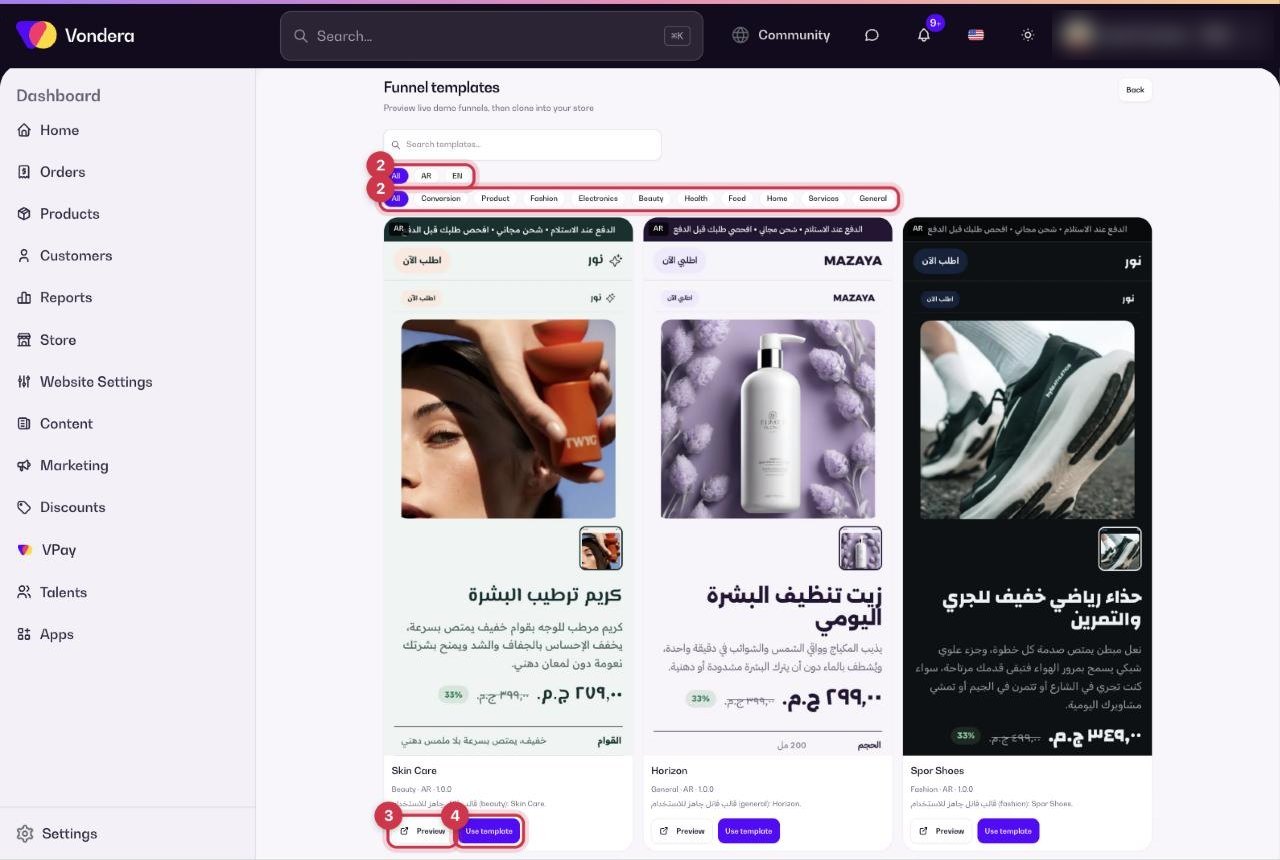
- Go to Marketing › Funnels and click Add Funnel, then choose Pick from template. You can also click Templates directly.
- Filter templates by language (AR or EN) and by category, such as Fashion, Electronics, Beauty or Health.
- Click Preview to open the live demo of a template.
- When you like one, click Use template to clone it into your store.
- Link it to your product, adjust the content, then publish it.
Start from scratch
- Click Add Funnel and choose Start from scratch.
- Pick the product the funnel will sell.
- Build your page on the blank funnel, then publish it.
Common questions
What is the difference between a funnel and a product page?
A product page lives inside your store with menus and other products. A funnel focuses on one product only, with nothing to distract the buyer.
Can I stop a funnel temporarily?
Yes. Switch off its toggle on the funnel card. Turn it back on whenever you want.
Where do I get the funnel link for my ads?
Each card shows the funnel's slug, which is its link address. Use that link as the destination of your ad.