

 Photo: Rodion Kutsaiev / Unsplash
Collections
Group products into collections like Tops, Sets or Dresses so customers can browse them on your store.
🖥️ Open in dashboard/dashboard/collections🎬 Watch the video
Videos are in Arabic.
Collections are the groups customers browse on your store — for example Tops, Sets, Dresses or New Arrivals. Each collection has a name, an optional image and description, and the products linked to it. You can hide a collection at any time without deleting it.
Where to find it
Go to Products › Collections. The list shows each collection with its product count, a visibility on/off toggle, and actions.
Create a collection
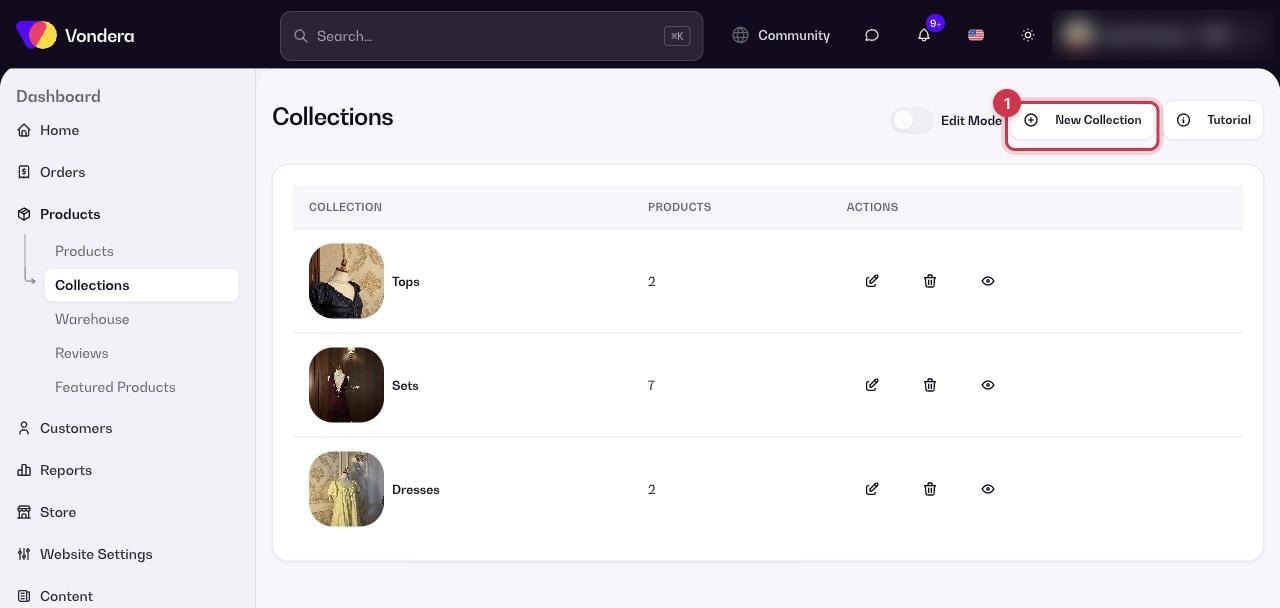
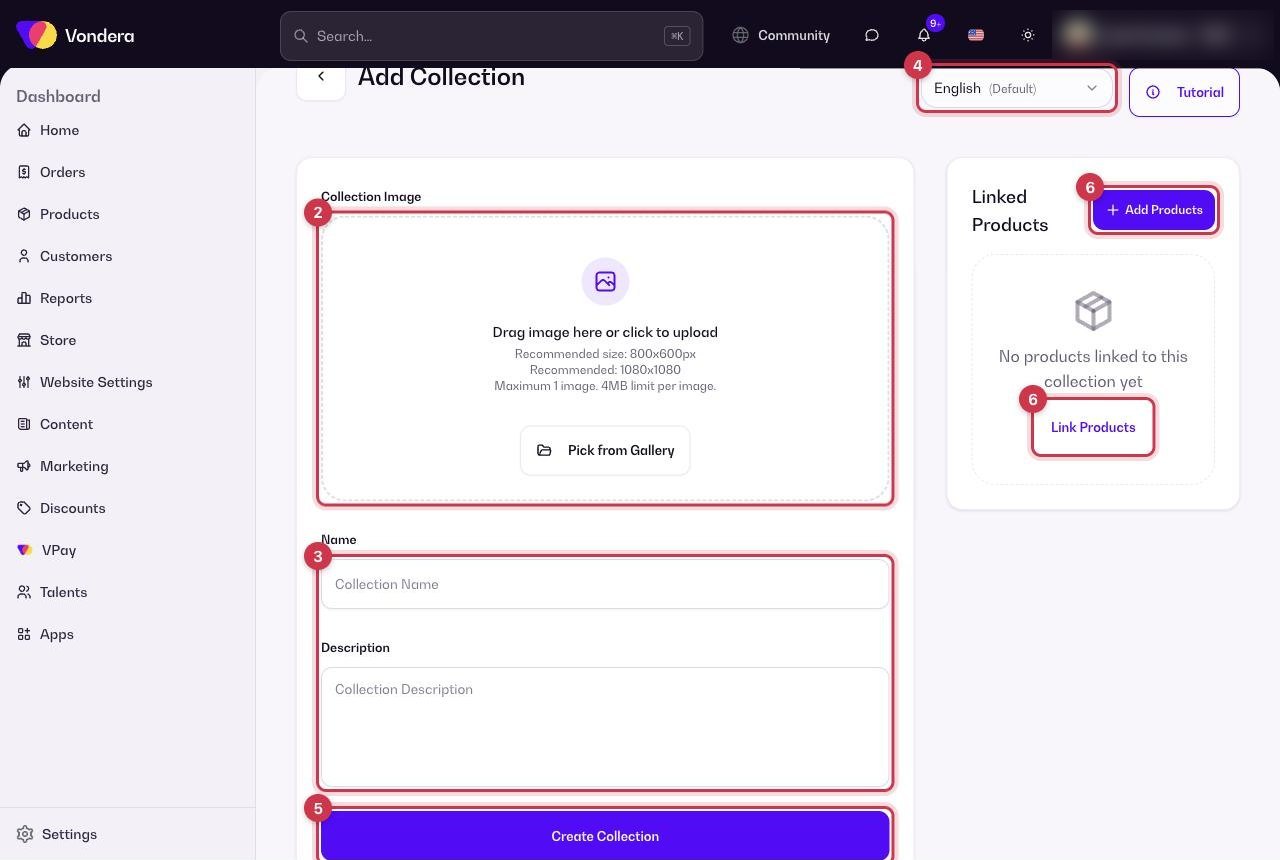
- Go to Products › Collections and click New Collection.
- Upload a Collection Image (drag it in, or click Pick from Gallery). One image, up to 4 MB.
- Enter the Name and a short Description.
- Use the language switch to add the Arabic name and description.
- Click Create Collection.
- In the Linked Products panel, click Add Products or Link Products to choose which products belong to it.
Collection Image
The picture shown for the collection on your store. One image, max 4 MB.
Name
The collection title customers see.
Description
Optional text about the collection.
Linked Products
The products that appear inside this collection.
Visibility toggle
In the list: turn a collection off to hide it from your store.
💡 TipYou can also assign a product to a collection from the product form, in Organization › Collection.
Common questions
Can a product be in more than one collection?
Yes. Link the same product from each collection’s Linked Products panel.
How do I hide a collection for a while?
Switch off its toggle in Products › Collections. Turn it back on when you are ready.
Can I run a discount on a whole collection?
Yes. When you create a discount code, you can apply it to selected collections.