

 Photo: Rodion Kutsaiev / Unsplash
Group bundles
Sell several existing products together as one kit, with a fixed price or an automatic sum.
🖥️ Open in dashboard/dashboard/products/addA group bundle is a kit made of products you already sell — for example a "Summer Kit" with a top, shorts and a hat. Customers buy the kit as one item, and you choose whether it has its own fixed price or costs the total of its parts minus a discount.
Where to find it
Go to Products › New Product and choose Group bundle. The form is called Create group bundle.
Create a bundle
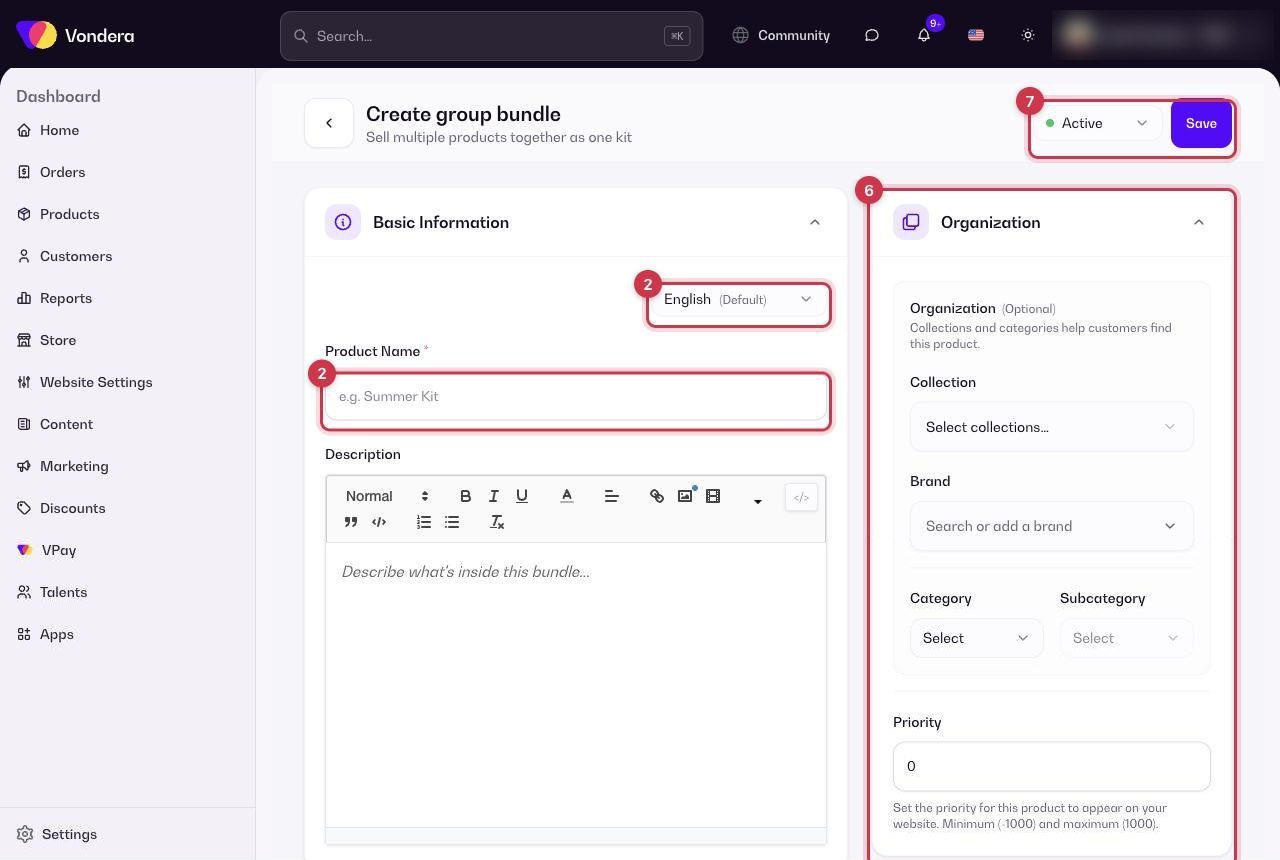
- Go to Products › New Product and choose Group bundle.
- In Basic Information, enter the Product Name (for example "Summer Kit") and a description. Use the language switch to add Arabic text.
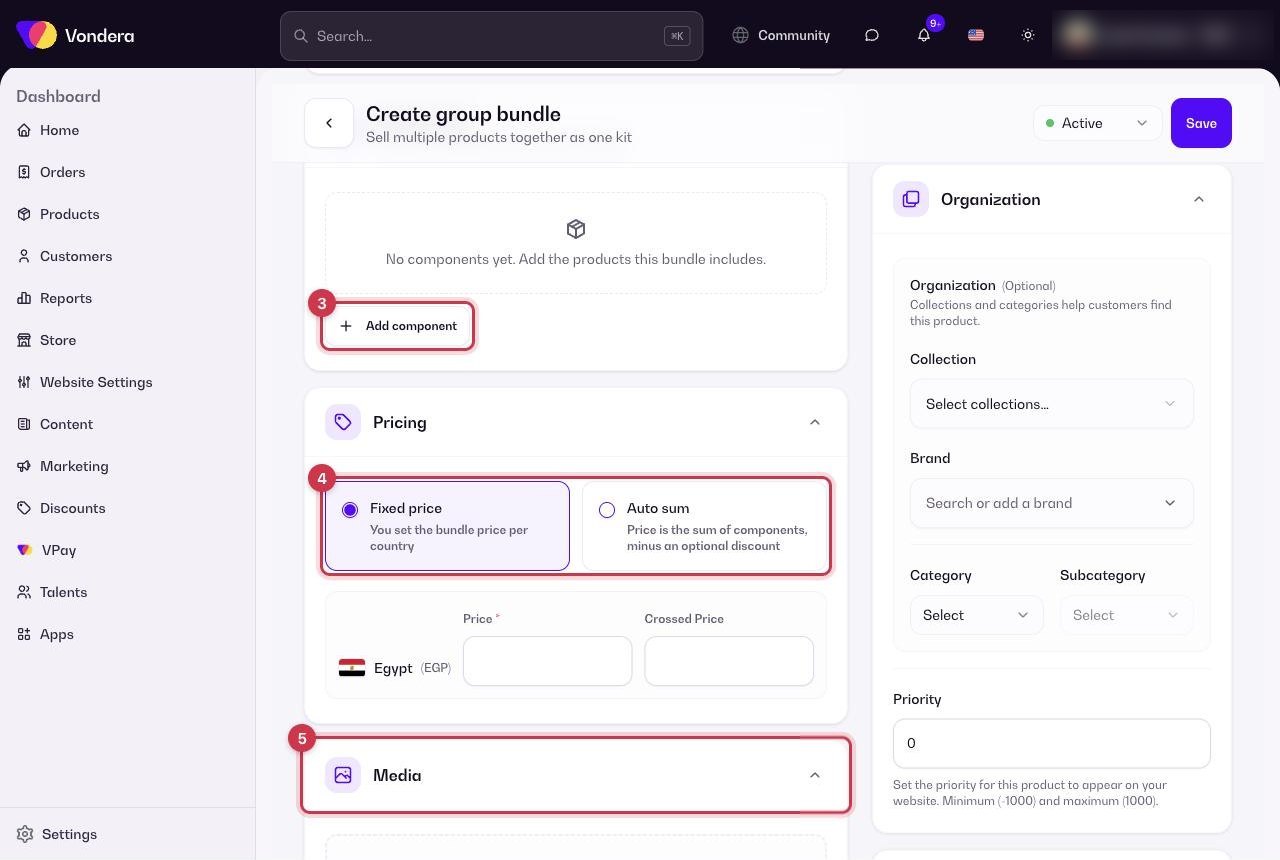
- In Components, click Add component and pick each product included in the bundle, with its quantity. For products with variants, choose a set variant or let the customer pick.
- In Pricing, choose Fixed price or Auto sum, then fill in the price for each market.
- Add photos in Media (drag and drop, Browse, or Pick from Gallery — up to 10 images).
- Optionally set Organization fields: Collection, Brand, Category, Subcategory and Priority.
- Choose Active or Draft at the top and click Save.
Common questions
Is a group bundle the same as a product offer?
No. A product offer is a quantity deal on one product (like "Buy 2"). A group bundle combines different products into one kit. See Product offers.
What happens to stock when a bundle is sold?
Availability comes from the component products’ stock, so check their stock in Products › Warehouse.
When should I use Auto sum?
Use it when component prices change often — the bundle price follows them automatically, with your discount applied.