

 Photo: Rodion Kutsaiev / Unsplash
Bulk import and export products
Add or update many products at once with a CSV or Excel file, and export your catalogue.
🖥️ Open in dashboard/dashboard/products/bulk-importBulk import lets you create or update many products from one spreadsheet instead of adding them one by one. You download a template, fill it in (in Excel or Google Sheets), check it, and import. You can also export your current catalogue in the same format, edit it, and upload it back.
Where to find it
Go to Products and click Bulk Import.
Import products
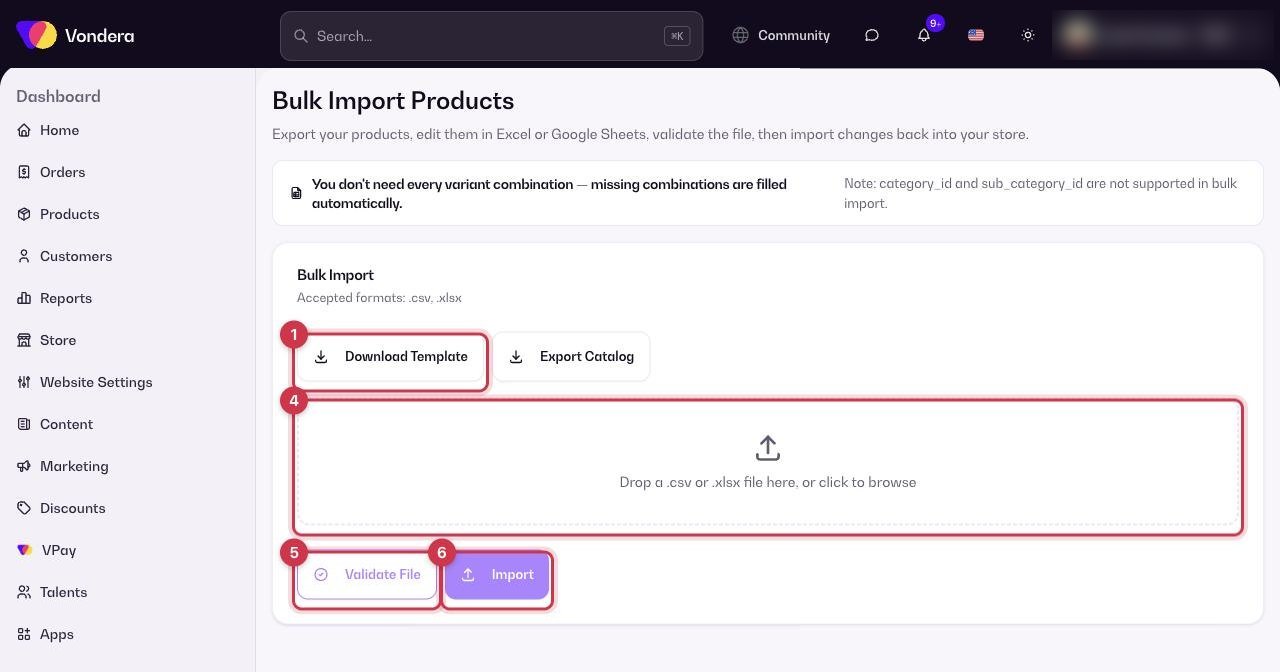
- Go to Products › Bulk Import and click Download Template.
- Fill in one row per product. For products with variants, add the variant rows under the product row (see the rules below).
- Save the file as .csv or .xlsx.
- Drag the file into the upload area (or click to choose it).
- Click Validate File to check for mistakes. Fix anything it reports and upload again.
- Click Import.
Update existing products
- Click Export Catalog to download your products with their IDs.
- Edit the rows you want to change. Keep the product_id so the row updates that product.
- Upload the file, click Validate File, then Import.
product_id
Leave empty to create a new product. Fill it with an existing product ID to update that product.
title
Product name (at least 3 characters). Required on the product row; leave empty on variant rows.
description
Product description.
price / crossed_price
Selling price (required for new products) and old price. The crossed price is ignored unless it is higher than the price.
quantity / sku
Stock and SKU for products without variants.
active / featured
true or false. Active defaults to true; featured defaults to false.
priority
A whole number for sorting. Default 0.
is_digital
true for digital products. Default false.
image_urls
Public https image links on the product row, separated by | or a comma.
options
For variant products, e.g. Size:S|M;Color:Black|White (; between options, | between values).
variant, variant_price, variant_crossed_price, variant_quantity, variant_sku
One variant per row, e.g. Size:M|Color:Black, with its own price, old price, stock and SKU.
ℹ️ Good to knowIf you list only some variant combinations, Vondera fills in the missing ones automatically using the product’s defaults. A product can have up to 300 variants. Collections and categories can’t be set from the file — assign them on the product page after importing.
💡 TipImage links must stay online, because images are used from the links you provide. Host them somewhere permanent, such as your Media Gallery.
Common questions
Which file types are accepted?
.csv and .xlsx.
What happens if I leave price empty when updating?
On updates, an empty price keeps the existing price.
Which plan includes import and export?
Import/export of products is included from the Plus plan.