

 Photo: Rodion Kutsaiev / Unsplash
Warehouse: stock levels and history
See stock for every product and variant, find items running low, and track every stock change.
🖥️ Open in dashboard/dashboard/products/warehouse🎬 Watch the video
Videos are in Arabic.
The Warehouse page is your stock room. It lists every product and variant with its quantity, price, cost and status, so you can quickly spot what is running low or sold out. The History tab keeps a log of every stock change and why it happened — for example a sale.
Where to find it
Go to Products › Warehouse. There are two tabs: Warehouse and History.
Check your stock
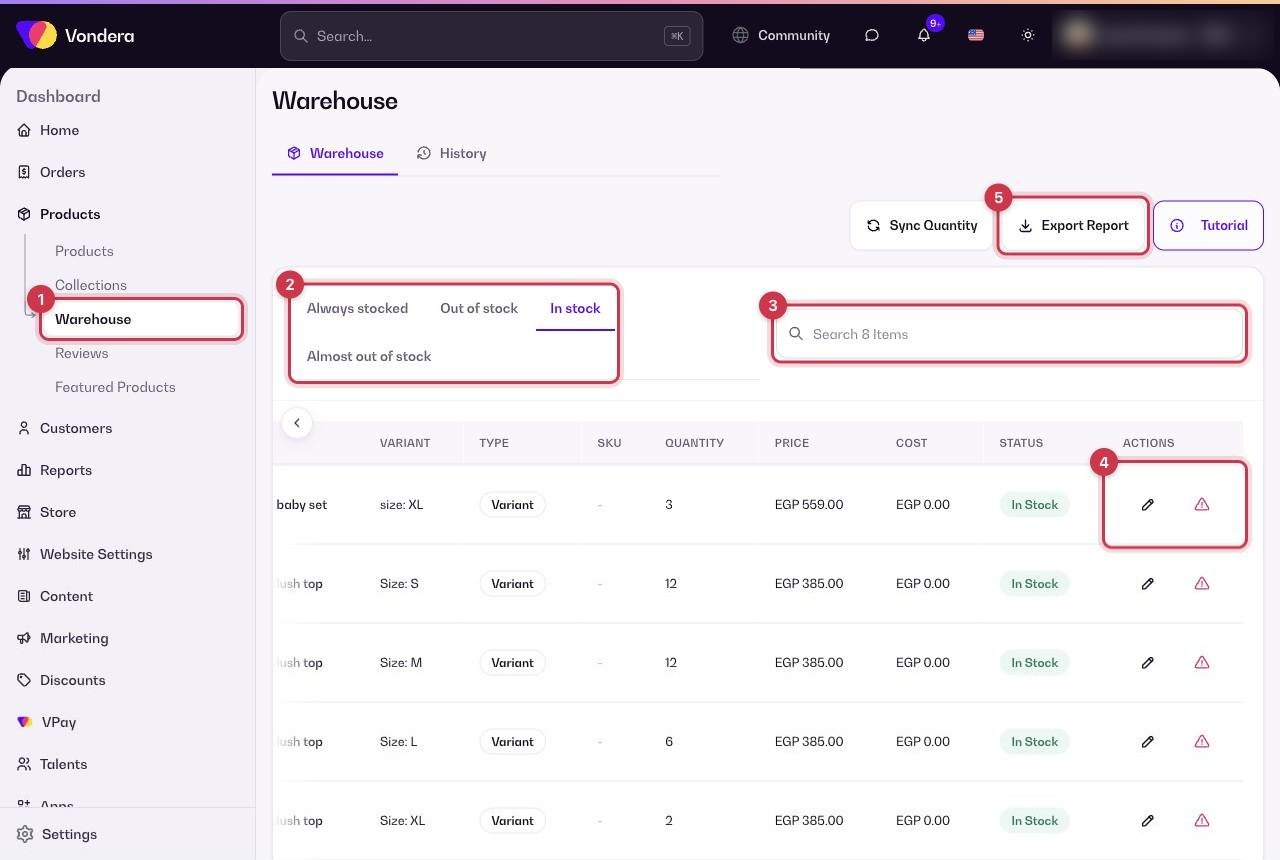
- Go to Products › Warehouse.
- Pick a filter: In stock, Almost out of stock, Out of stock or Always stocked.
- Use the search box to find a product, variant or SKU.
- Use the actions on a row to update that item.
- Click Export Report to download the list as a file.
See stock history
Open the History tab to see every change: the product, type of change, quantity before and after, the related order, the reason (such as SALE) and the time.
Common questions
Why did a product’s stock go down?
Open History and search for the product. Each change shows the reason and, for sales, the order it came from.
What does "total cost" mean?
Quantity × cost for that row — the value of the stock you hold, based on the cost you entered on the product.
How do I stop tracking stock for an item?
Open the product, go to Inventory or the variant, and turn stock tracking off. See Variants and inventory.