

 Photo: Luke Chesser / Unsplash
Employees report
Track how each team member performs over a period, such as the orders they handle.
🖥️ Open in dashboard/dashboard/statistics/employeesIf your team confirms, prepares or handles orders, the Employees report (Team Members Analytics) shows how each team member performed in a period. Use it to see who is handling the most orders and to compare this month with last month.
Where to find it
Go to Reports › Employees.
Use the report
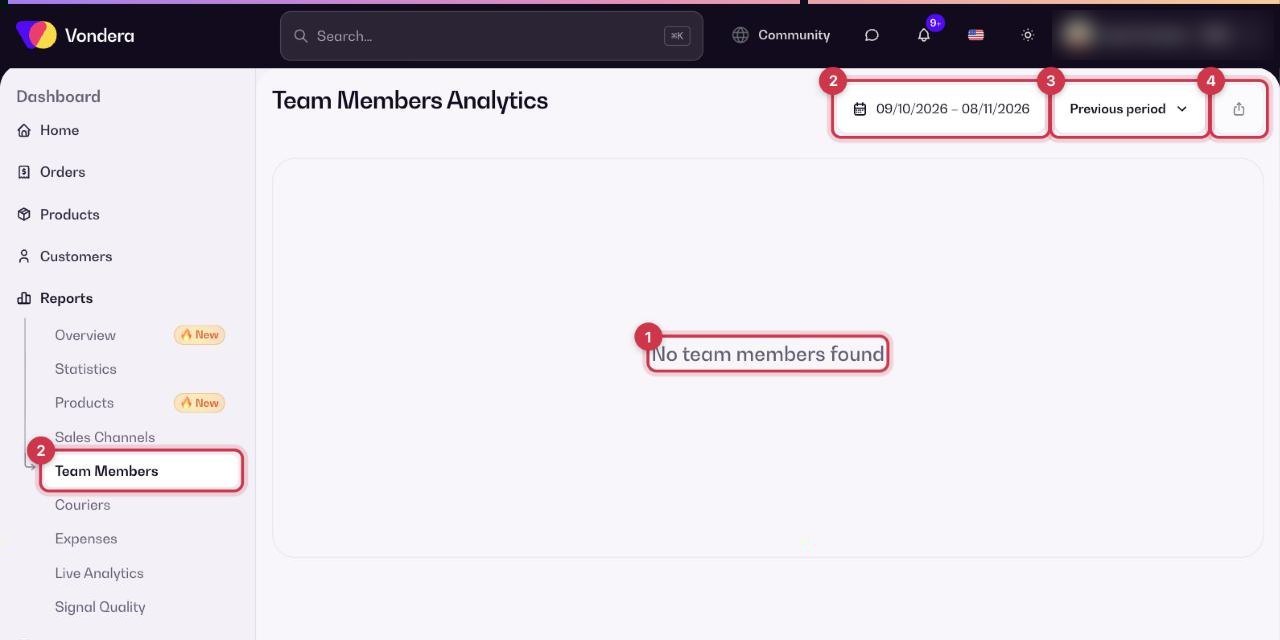
- Make sure your team members are added in Settings › Team Members. If none are added, the report shows "No team members found".
- Open Reports › Employees and choose a date range.
- Compare with the Previous period to see whether each person’s numbers went up or down.
- Click Export CSV to download the results, for example for monthly bonuses.
Date range
The period the report covers.
Previous period
Compares each number with the same length of time just before.
Export CSV
Downloads the team results as a spreadsheet file.
💡 TipGive each person their own account instead of sharing one login. The report can only credit work to the person who actually did it.
Common questions
Why does it say "No team members found"?
Your store has no team members yet. Add them in Settings › Team Members.
Is my own work as the owner included?
The report lists your team members. Each person’s numbers come from the actions done under their own account.