

 Photo: Rodion Kutsaiev / Unsplash
Product variants and inventory
Add sizes, colours and other options, and track stock, SKU and barcode for each one.
🖥️ Open in dashboard/dashboard/products/add🎬 Watch the video
Videos are in Arabic.
If a product comes in different options — like sizes S, M and L, or colours black and white — you add them as variants. Each combination (for example M / Black) is a variant that can have its own stock, SKU, price and image. Products without options just use the Inventory section for their stock.
Where to find it
Open a product from Products (or create one with New Product) and scroll to the Inventory and Variants sections.
Set stock for a simple product
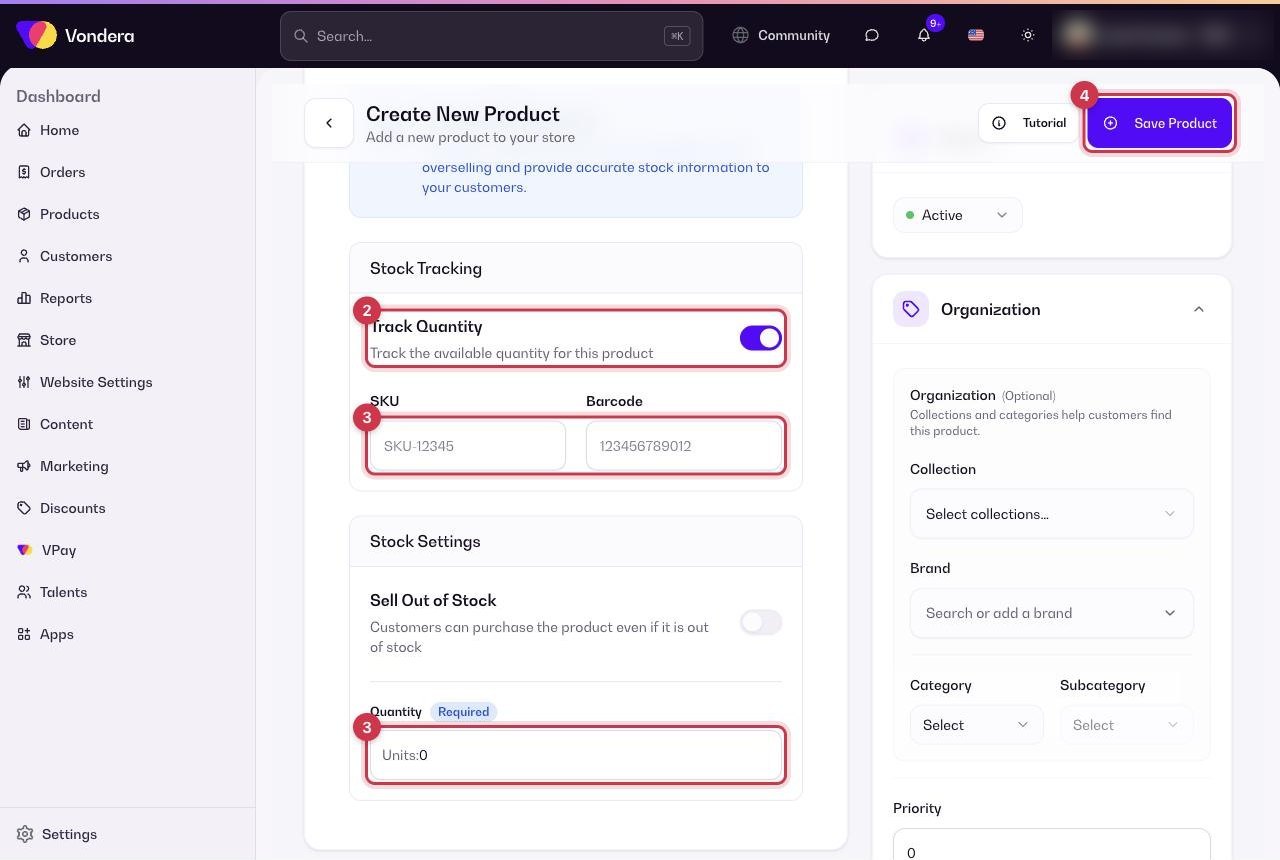
- Open the product and go to Inventory.
- Turn on stock tracking if you want Vondera to count units and mark the product sold out at zero.
- Enter the Quantity you have, and optionally an SKU and barcode.
- Click Save Product.
Add variants
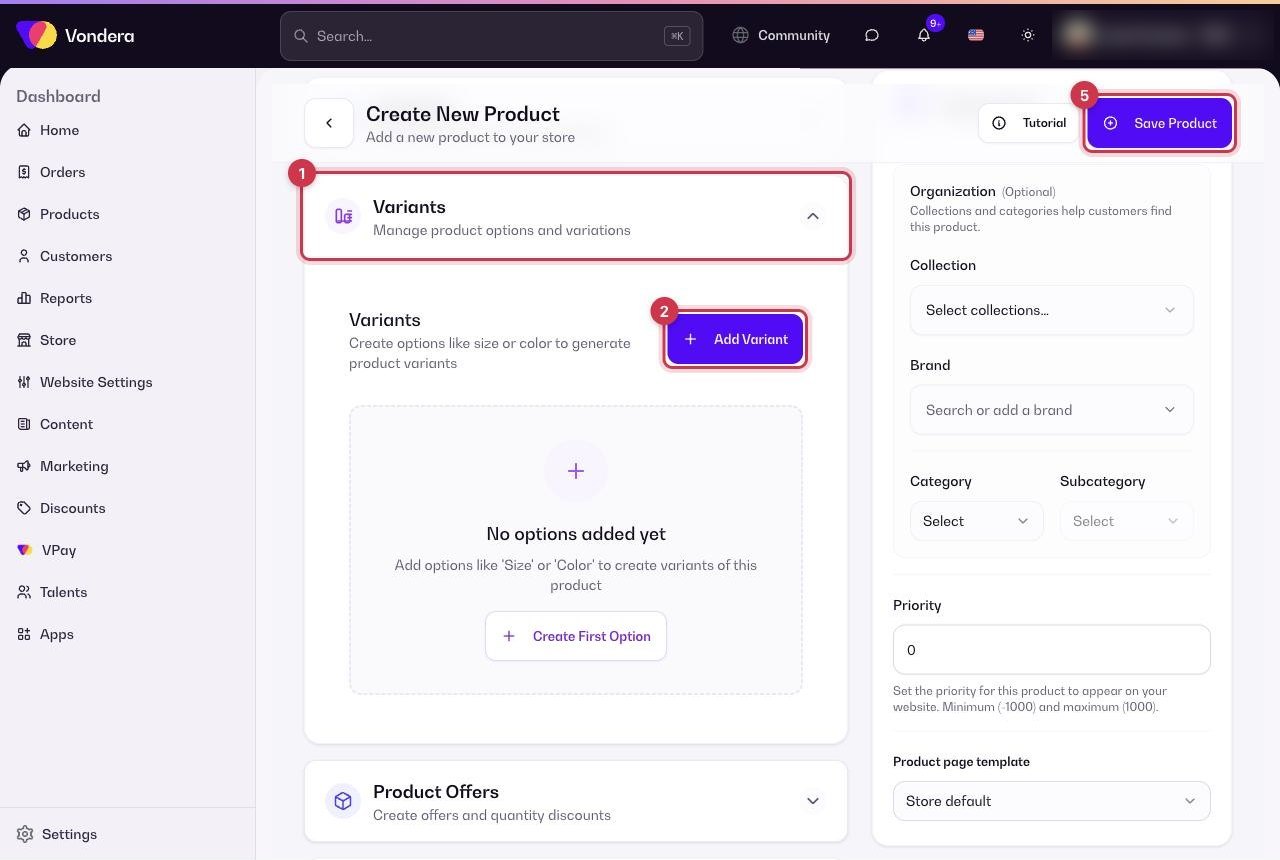
- Open the product and go to Variants.
- Add an option, such as Size, and type its values (S, M, L).
- Add another option if needed, such as Color (Black, White). Vondera creates a variant for every combination.
- For each variant, set the stock and, if it differs, its price, SKU or image.
- Click Save Product.
Common questions
Where can I see stock for all products at once?
Go to Products › Warehouse. It lists every product and variant with quantity, price, cost and status.
What does "always stocked" mean?
Stock tracking is off for that item, so it can always be ordered and its quantity is not counted.
Can one variant cost more than the others?
Yes. Set a price on that variant; the others keep using the main product price.