

 Photo: Vitaly Gariev / Unsplash
Delivery areas and shipping fees
Choose the cities you deliver to, the shipping fee and delivery time for each, and add sub-zones.
🖥️ Open in dashboard/dashboard/areas🎬 Watch the video
Videos are in Arabic.
The Areas page controls where you deliver and how much you charge. For each city you decide whether it’s enabled, the shipping fee, and the estimated delivery time in days. Customers can only check out to cities you have enabled, and they pay the fee you set for their city.
Go to Store › Areas. In Egypt you’ll see all 27 governorates, 10 per page.
Set fees and delivery times
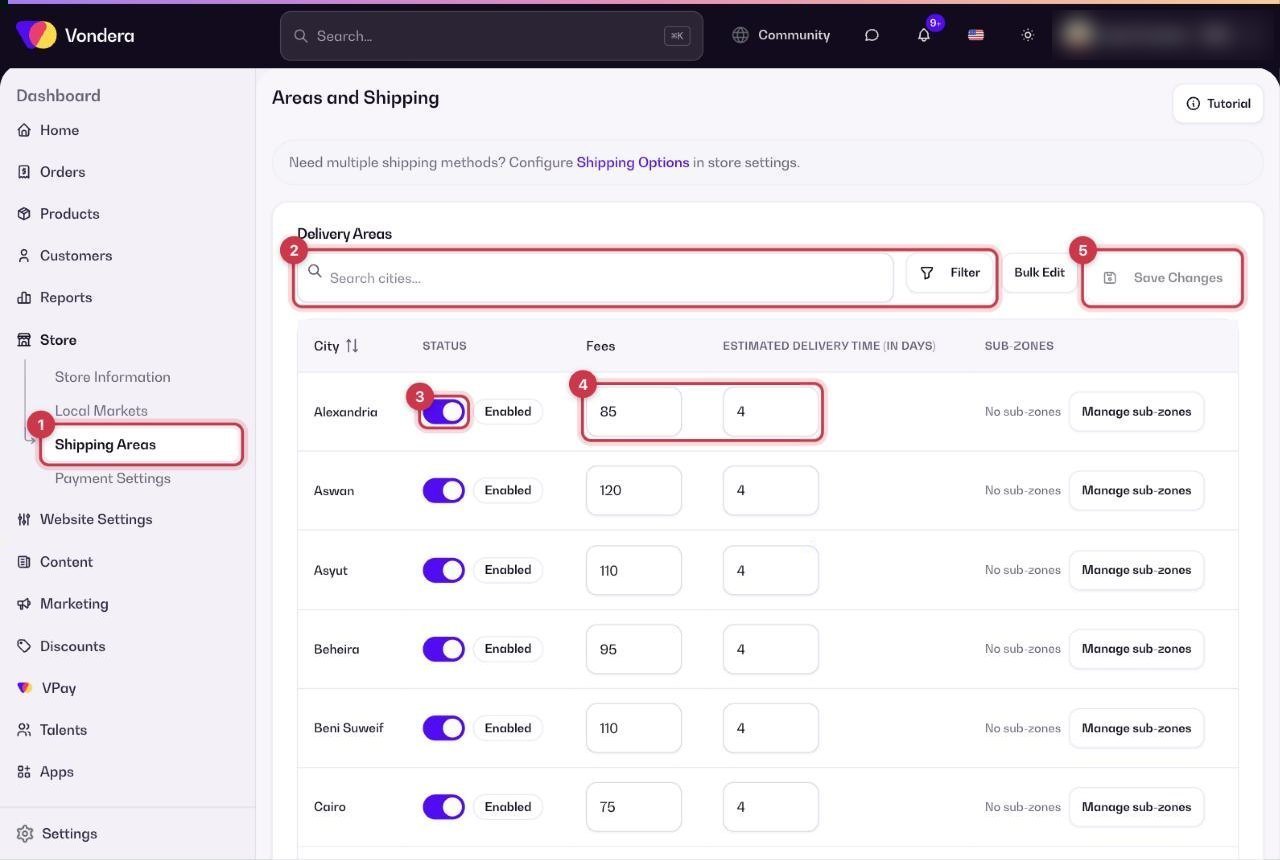
- Go to Store › Areas.
- Use the search box or Filter to find a city.
- Turn the Status toggle on for every city you deliver to, and off for cities you don’t.
- Type the shipping fee in Fees and the number of days in Estimated delivery time.
- Click Save Changes. Nothing is applied until you save.
Change many cities at once
Click Bulk Edit to update several cities together, for example to set the same fee for all Delta governorates. Then click Save Changes.
Add sub-zones
Some cities are large, and delivery to one district costs more than another. Click Manage sub-zones on the city and add each district with its own fee.
Common questions
A customer says their city is not in the checkout. Why?
The city is probably turned off. Enable its Status toggle and click Save Changes.
Can I offer free shipping to one city?
Set its Fees to 0 and save.
I changed fees but the checkout still shows the old ones.
Make sure you clicked Save Changes. If it still shows old prices, flush your store cache from Store.