

 Photo: Vitaly Gariev / Unsplash
Markets and currencies
Sell in more than one country: manage markets, their currencies and your default market.
🖥️ Open in dashboard/dashboard/marketsA market is a country or region you sell to, with its own currency. Every store starts with a default market (for example, Egypt in EGP). If you want to sell abroad, you can add more markets or open your store to every country at once.
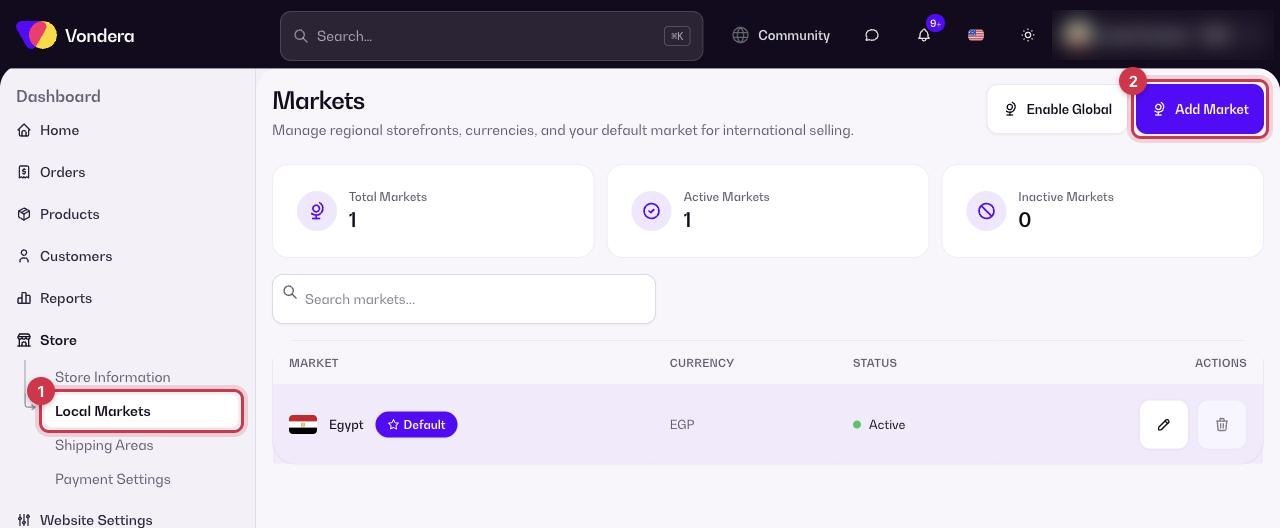
Go to Store › Markets.
What you see on the page
- Three counters at the top: Total markets, Active markets and Inactive markets.
- A table with each Market, its Currency, its Status (Active or Inactive) and Actions. Your main market has a Default badge.
- A search box to find a market quickly.
Add a market
- Go to Store › Markets.
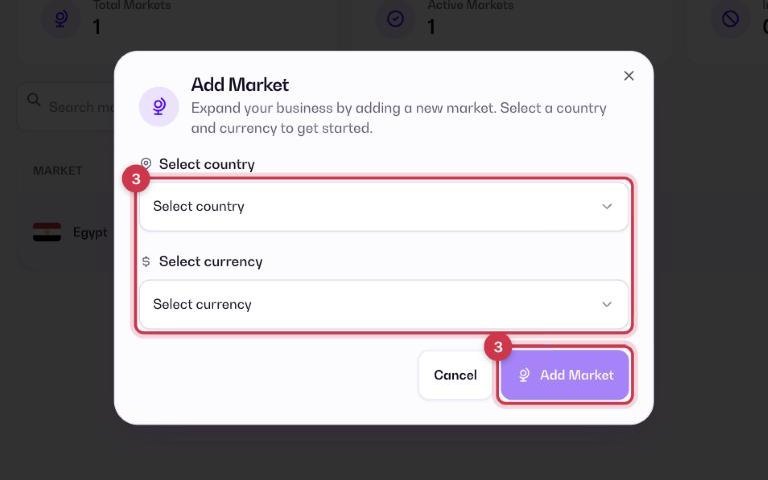
- Click Add Market.
- Fill in the market details and save.
- Open your products and set the price for the new market in the Pricing section of the product form.
Sell to every country
Click Enable Global to open your store to customers in all countries, instead of adding markets one by one.
💡 TipBefore you open a new market, make sure you can actually deliver there and that a payment method works in that currency. See Payment methods overview.
Common questions
Where do I set a different price for each country?
In the product form, under Pricing. Each market you add gets its own price there.
What does the Default badge mean?
It marks your main market, the one your store uses by default.
Can I pause a market without deleting it?
Yes. A market can be Active or Inactive, and the counters show how many of each you have. Use the market’s Actions to manage it.