

 Photo: Vitaly Gariev / Unsplash
Store information: logo, name and category
Set your store's logo, name, slogan and category, and copy your store ID or link.
🖥️ Open in dashboard/dashboard/store-informationThe Store Information page holds the basic identity of your store: the logo and name your customers see, a short slogan, and the category your business belongs to. It's also where you copy your store ID and your store link when you need to share them.
To open it, click Store in the sidebar. Store Information is the first page in that section.
Update your store details
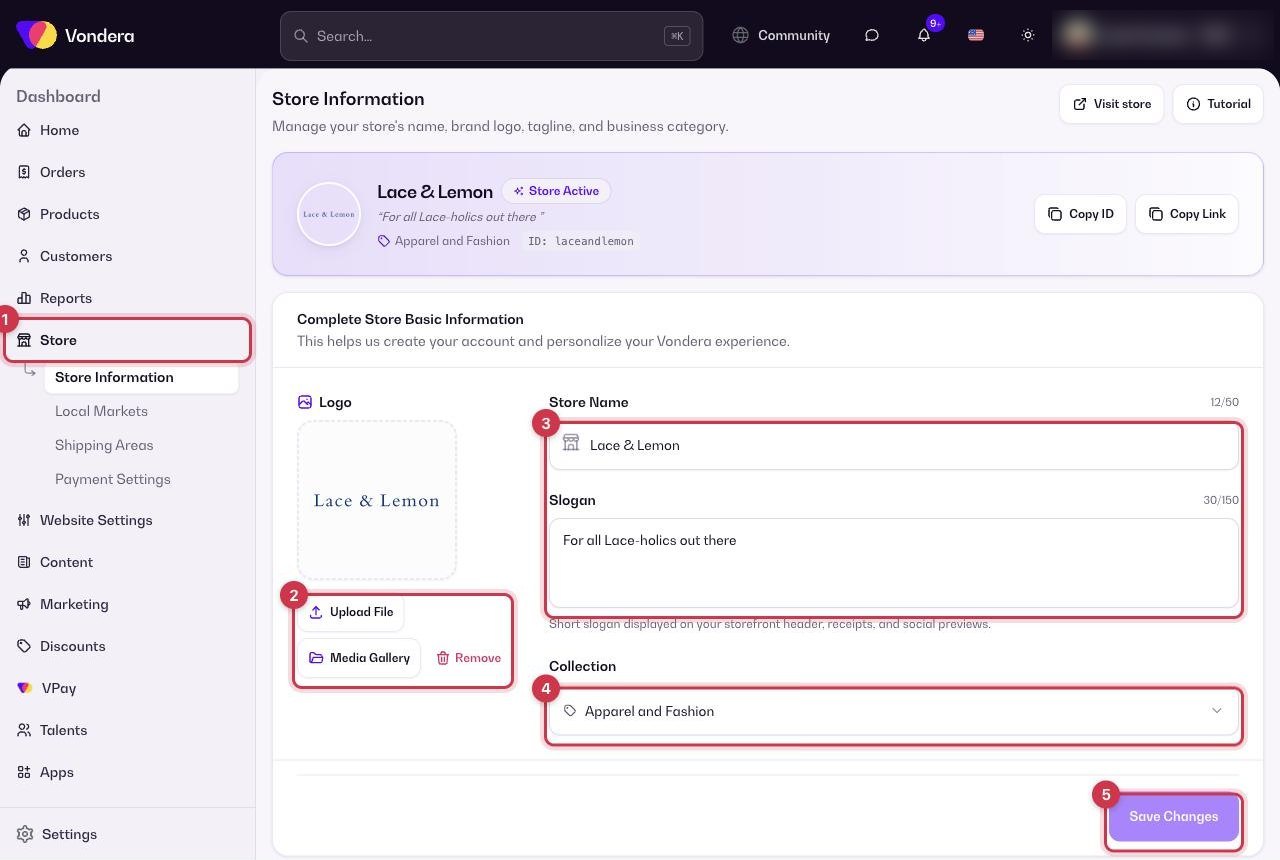
- Click Store in the sidebar.
- Under the logo, click Upload to add an image from your device, or Media Gallery to pick one you already uploaded. Use Remove to clear the current logo.
- Type your Store Name and an optional Slogan.
- Choose the Category that best describes what you sell (for example, Apparel and Fashion).
- Click Save Changes.
Logo
The image shown on your store and dashboard. Upload a new file, choose from the Media Gallery, or remove it.
Store Name
The name customers see on your website, receipts and messages.
Slogan
A short line that describes your brand.
Category
The type of business you run, for example Apparel and Fashion.
Copy store ID
Copies your unique store ID. Support or an app may ask you for it.
Copy link
Copies your store link so you can paste it in your bio, ads or WhatsApp.
💡 TipUse a square logo with a transparent or plain background. It looks sharper in the header and on mobile.
ℹ️ Good to knowThe same page also has the Store Cache and Danger Zone sections. Read Store cache and danger zone before you use them.
Common questions
My new logo or name is not showing on the website yet. Why?
Make sure you clicked Save Changes. If the old version still shows, use Flush Cache on the same page and refresh your store.
Where do I change my store link?
Your link comes from your website username or your own domain. See Connect a domain.
When do I need my store ID?
When you contact support or set up some integrations. Click Copy store ID and paste it where needed.