

 Photo: Austin Distel / Unsplash
Send email campaigns to your subscribers
Create newsletters and promotional emails from ready templates and send them to your marketing subscribers.
🖥️ Open in dashboard/dashboard/marketing/campaignsEmail campaigns let you send newsletters and promotions straight to the people who subscribed to your store's marketing emails. Use them to announce a new collection, a flash sale, a holiday offer or simply to stay in touch with your customers. Vondera gives you ready templates for the most common occasions, so you do not have to design an email from zero.
Open Marketing in the sidebar: Email campaigns is the first page. At the top, a usage meter shows how many emails you have sent this month out of your allowance, how many are remaining, and the maximum number of recipients per campaign. Below it, the table lists your campaigns with their name and subject, status (for example Draft or Sent), number of emails sent and creation date.
Create a campaign
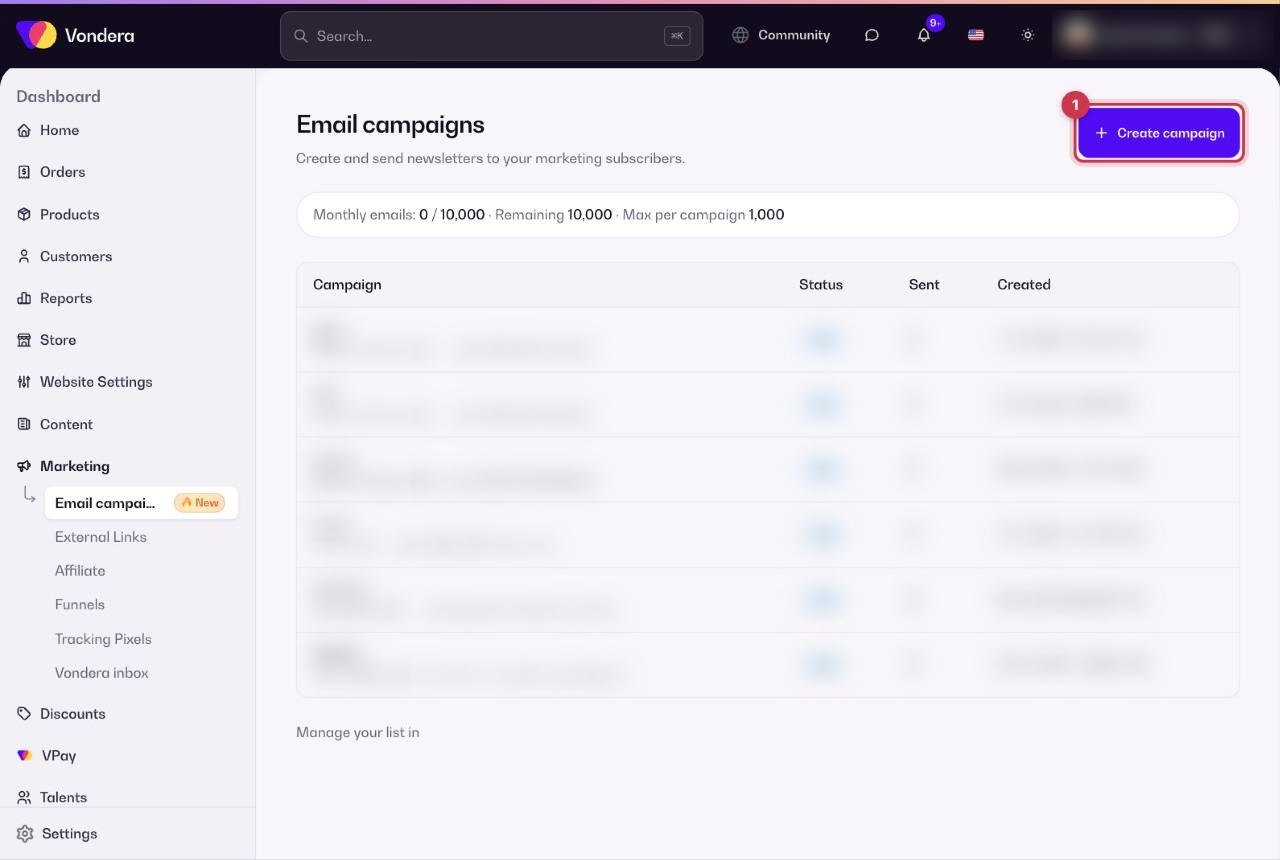
- Go to Marketing and click Create campaign.
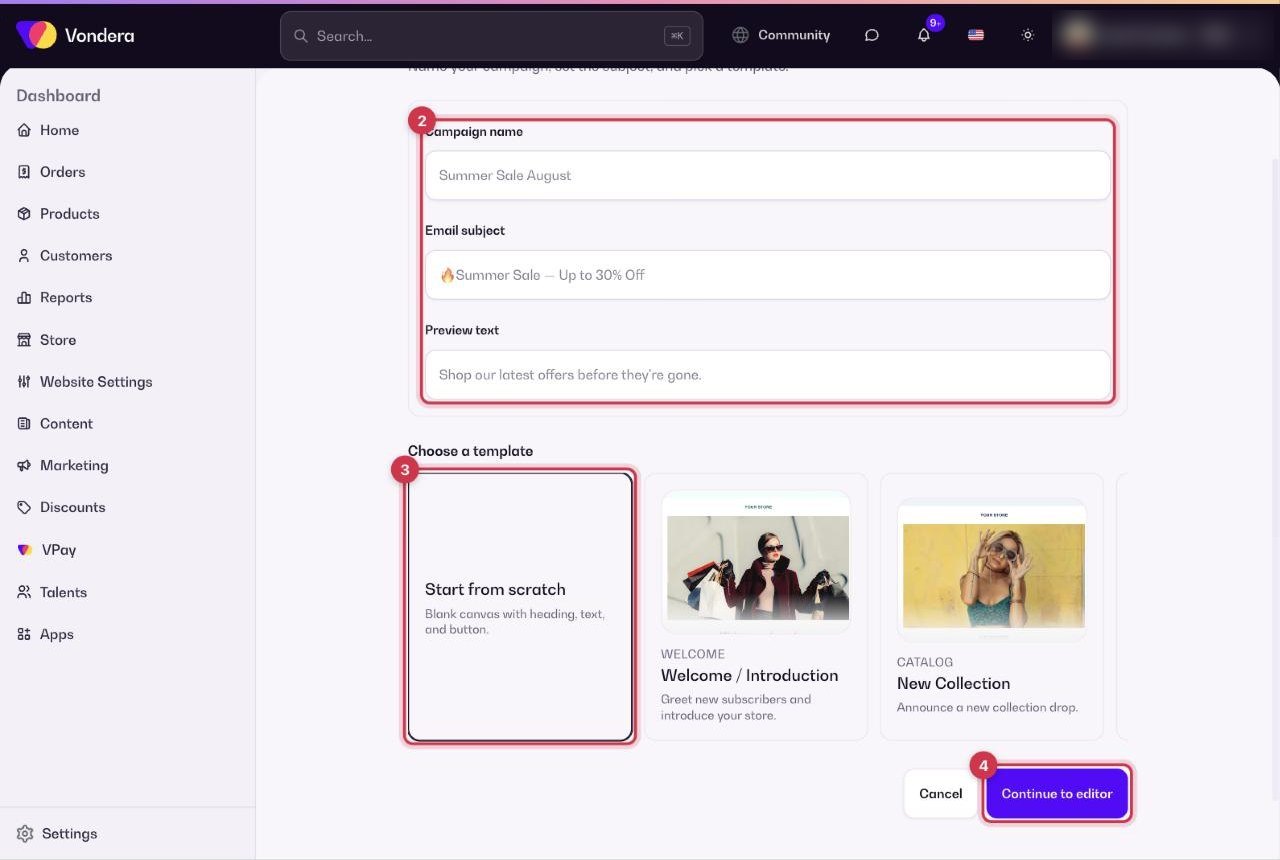
- Enter a Campaign name, the Email subject and the Preview text.
- Pick a template, or choose Start from scratch.
- Click Continue to editor.
- In the editor, adjust the text, images and links of your email, then send it to your subscribers.
Available templates
- Start from scratch and Welcome / Introduction
- Catalog: New Collection, New Products, Back in Stock, Best Sellers
- Promo: Product Promotion, Limited Time Offer
- Sale: Flash Sale, Seasonal Sale, Discount Campaign, Weekend Sale, Clearance Sale
- Holiday: Black Friday, Eid / Holiday Sale
- Newsletter: General Newsletter
Common questions
Who receives my campaign?
The subscribers in Customers › Subscribers who are subscribed to your marketing emails.
How many emails can I send?
The usage meter at the top of the page shows your monthly allowance, what is left, and the maximum per campaign.
Can I prepare a campaign and send it later?
Yes. A campaign you have not sent yet stays in the list with the Draft status, so you can come back to it.