

 Photo: Domenico Loia / Unsplash
Import products from another platform
Move your products and categories from Shopify, WooCommerce, Easy Orders, Taager, Wuilt, CJ Dropshipping, Printify and more.
🖥️ Open in dashboard/dashboard/settings?section=import-data🎬 Watch the video
Videos are in Arabic.
Moving to Vondera from another platform? You don’t have to add every product again. Import Data connects to your old store or supplier and brings your products (and, for most providers, your categories) into Vondera.
Go to Settings › Import Data. Each provider has a Select Provider button that opens a “Connect to …” window asking for that platform’s access details.
Import your products
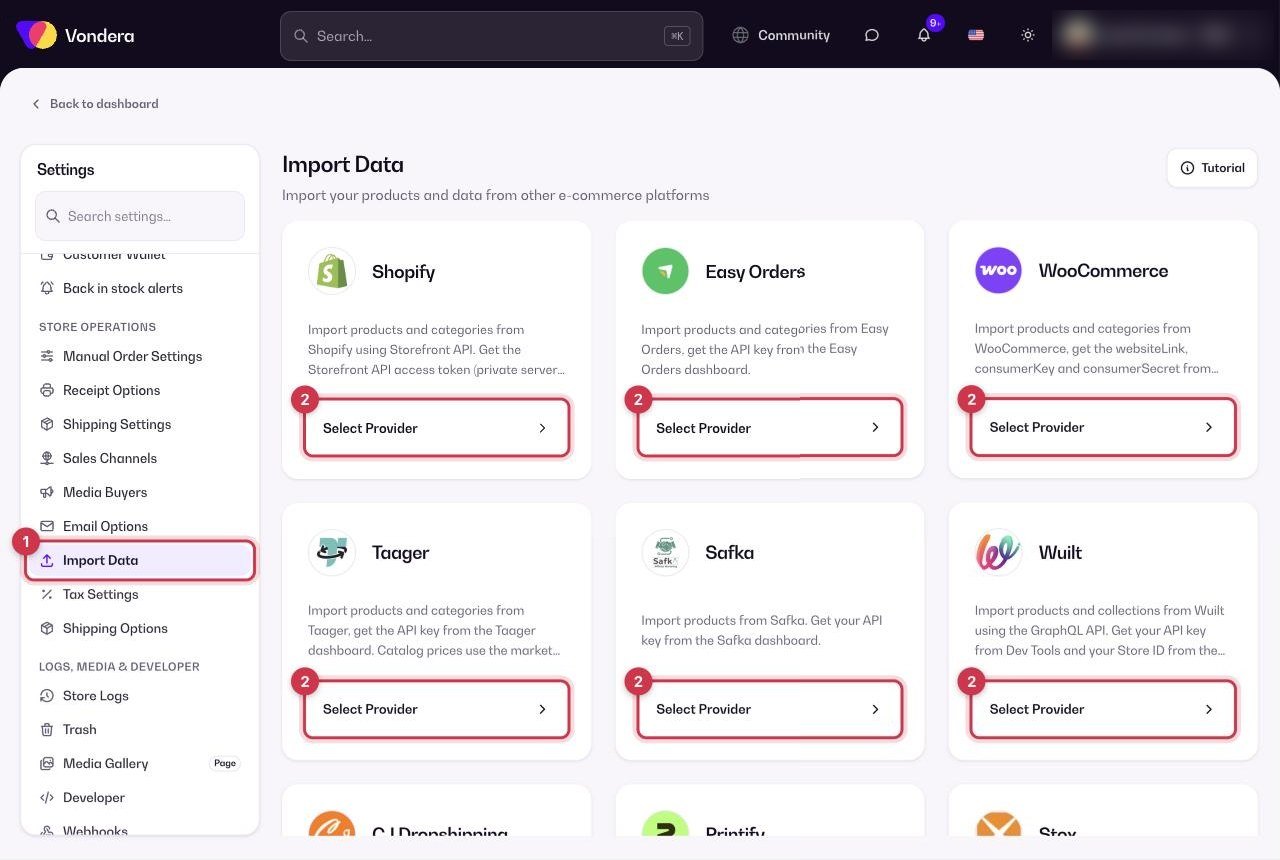
- Open Settings › Import Data.
- Click Select Provider on the platform you’re coming from.
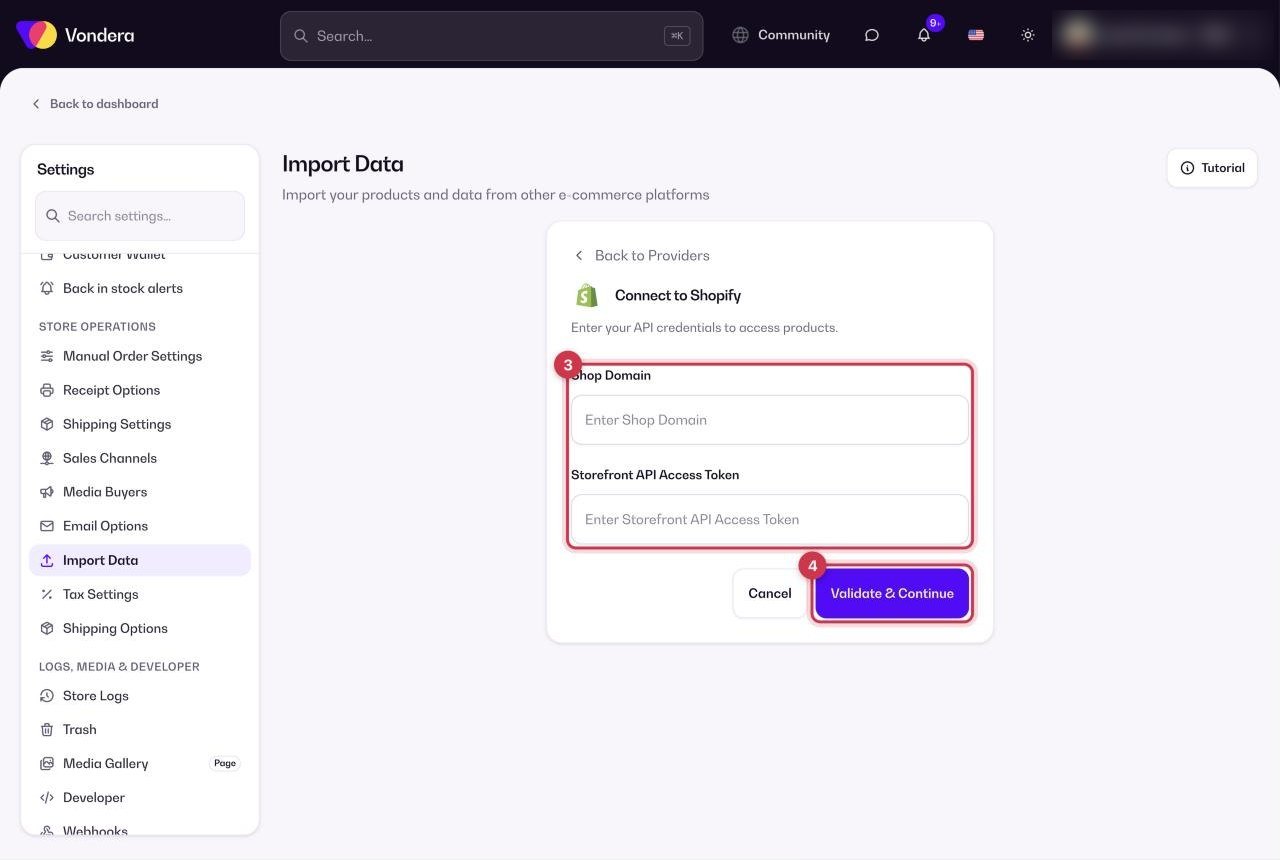
- Enter the access details it asks for (see the table below). You get these from your account on that platform.
- Click Validate & Continue and follow the remaining steps.
- When the import finishes, review your products — especially prices, stock and images.
Providers and what you need
Where to find the access details on each platform
Shopify: Shop Domain. In Shopify admin go to Settings › Domains and copy the domain that ends in .myshopify.com (for example my-store.myshopify.com), not your own domain. Enter it without https://.
Shopify: Storefront API Access Token. Since January 2026 Shopify no longer lets stores create new custom apps in the admin, so use Shopify’s free Headless channel:
- In the Shopify App Store, install Headless (it adds a sales channel).
- Click Create storefront.
- Next to Storefront API permissions, click Edit, tick the permissions to read products, collections and inventory, then click Save.
- In Storefront API tokens, copy the Public access token and paste it into Vondera.
WooCommerce: consumer key and secret.
- In WordPress admin go to WooCommerce › Settings › Advanced › REST API and click Add key.
- Write a description (for example "Vondera"), choose an Administrator user and set Permissions to Read.
- Click Generate API key and copy the Consumer key (starts with ck_) and Consumer secret (starts with cs_) right away. The secret is shown only once.
Easy Orders: API key. In your Easy Orders seller dashboard open account settings › Public API, click Create New API Key, name it (for example "Vondera") and copy the key. It is shown only once. If you choose permissions, include reading products and categories.
Wuilt: API key and Store ID. In Wuilt go to Settings › Dev Tools › API Key Generator › Generate API Key, name it, give it access to products and collections, then copy the key (it is shown only once). The Store ID is the part after /store/ in your Wuilt dashboard address, for example Store_clp157fec…
CJ Dropshipping: API key. In My CJ open Authorization › API (on newer accounts: Apps › API, then Add API with type API Key), and copy the key. It looks like CJ1234567@api@…: copy all of it.
Printify: Personal Access Token and Shop ID. In Printify open My Profile › Connections, generate a Personal Access Token with at least shops and products read access, and copy it (shown once; it expires after a year). The Shop ID is the number after /store/ in the address bar when you open your store in Printify.
Taager, Safka and Stox. Taager and Safka give the API key from your account with them; if you can’t find it, ask their support for "an API key to connect my products to Vondera". For Stox, use the same email and password you sign in to your Stox merchant account with.
Common questions
Does it import my customers and orders?
No — Import Data brings products and categories. To import customers, use Customers › Import.
My platform isn’t listed. What can I do?
Export your products to a spreadsheet and use Products › Bulk Import with the Vondera template.
Validation failed. What should I check?
Make sure you copied the key or token completely, with no extra spaces, and that it has permission to read products on the other platform.