

 Photo: Domenico Loia / Unsplash
Tax settings
Turn taxes on for your market and set the tax percentage applied to orders.
🖥️ Open in dashboard/dashboard/settings?section=tax-settingsIf you need to charge tax — for example VAT — you can turn on taxes for your market and set one tax percentage that’s applied to orders. Taxes then appear in your order totals and in the taxes line of your sales reports.
Go to Settings › Tax Settings.
Turn on taxes
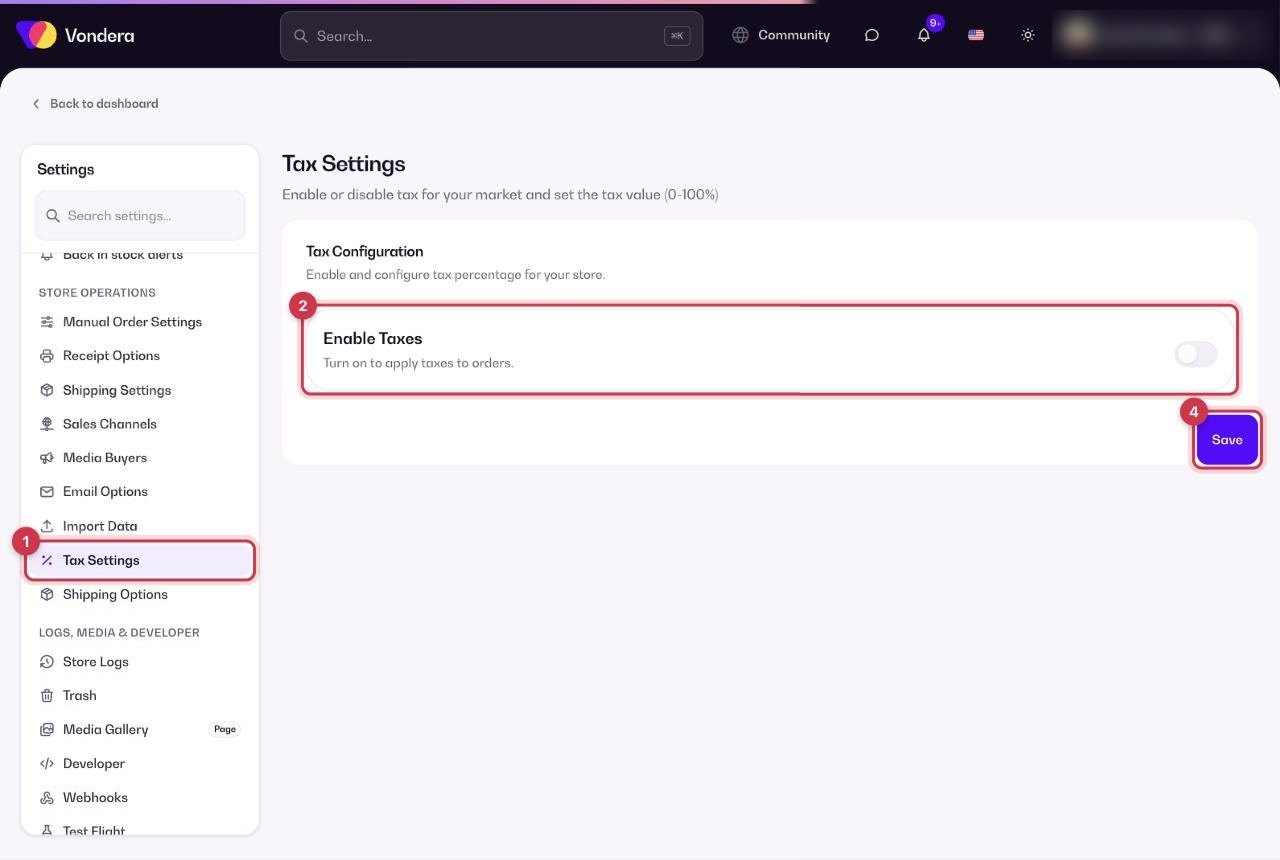
- Open Settings › Tax Settings.
- Turn on Enable Taxes. The percentage field appears.
- Enter your tax value, from 0 to 100%.
- Click Save, then place a test order to check the total.
Enable Taxes
Applies taxes to orders in your market.
Tax percentage
The tax value applied, from 0 to 100%. It appears once taxes are enabled.
ℹ️ Good to knowEach product also has a Tax % field in its Pricing section, so you can set a different rate for specific products.
💡 TipNot sure which rate applies to your business? Check with your accountant before turning taxes on — it changes what customers pay.
Common questions
Where do I see how much tax I collected?
In Reports › Overview, the sales breakdown shows taxes alongside discounts, shipping and returns.
Can I set a different tax for one product?
Yes — use the Tax % field in that product’s Pricing section.