

 Photo: Domenico Loia / Unsplash
Connect or disconnect a media buyer
Give a media buyer read-only access to your store data with their connect code, and disconnect them anytime.
🖥️ Open in dashboard/dashboard/settings?section=media-buyersA media buyer runs your ads and needs to see how they perform — sessions, orders and sales. Instead of sharing your login, you connect them to your store from Settings. They get read-only access to your store data and analytics, and you can remove them at any time.
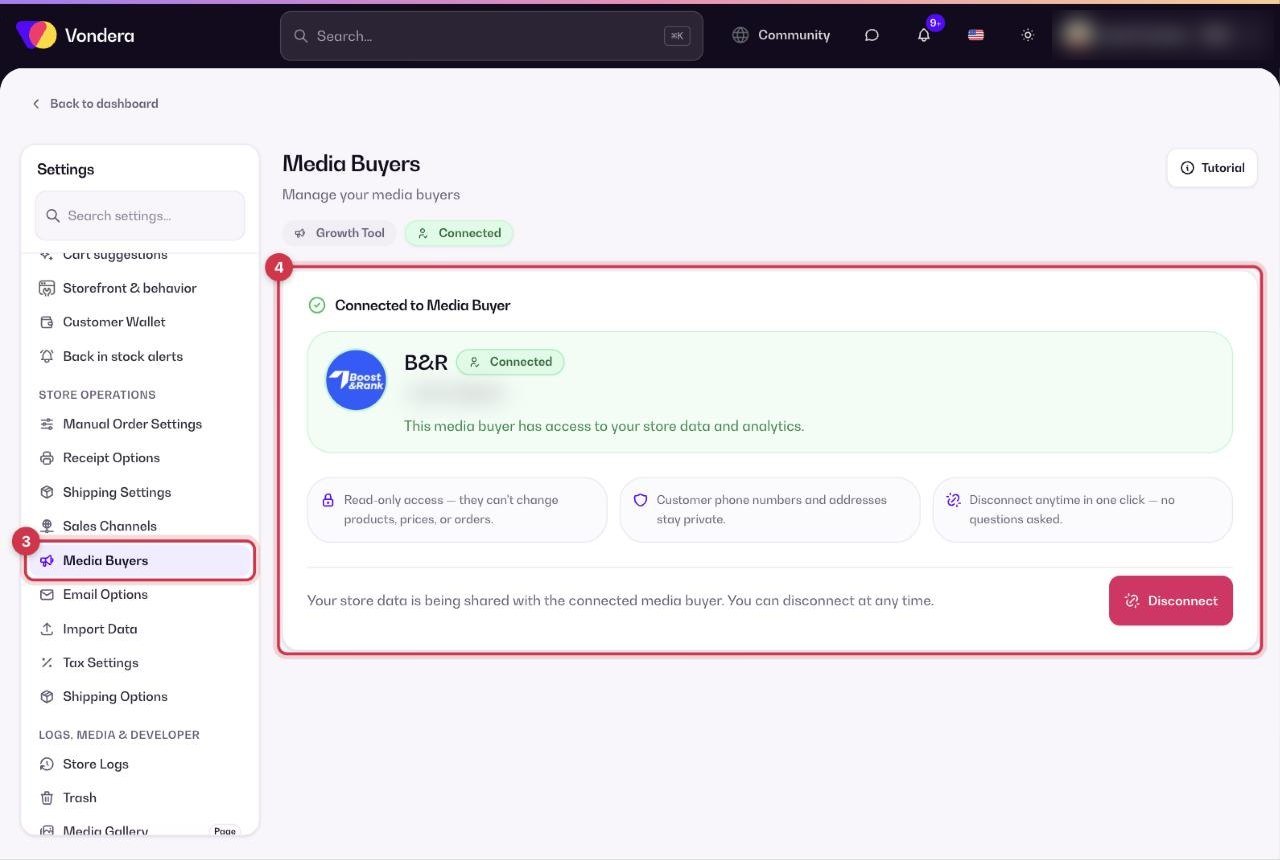
Go to Settings › Media Buyers. If a media buyer is connected, you’ll see their name, contact and the status Connected.
Connect a media buyer
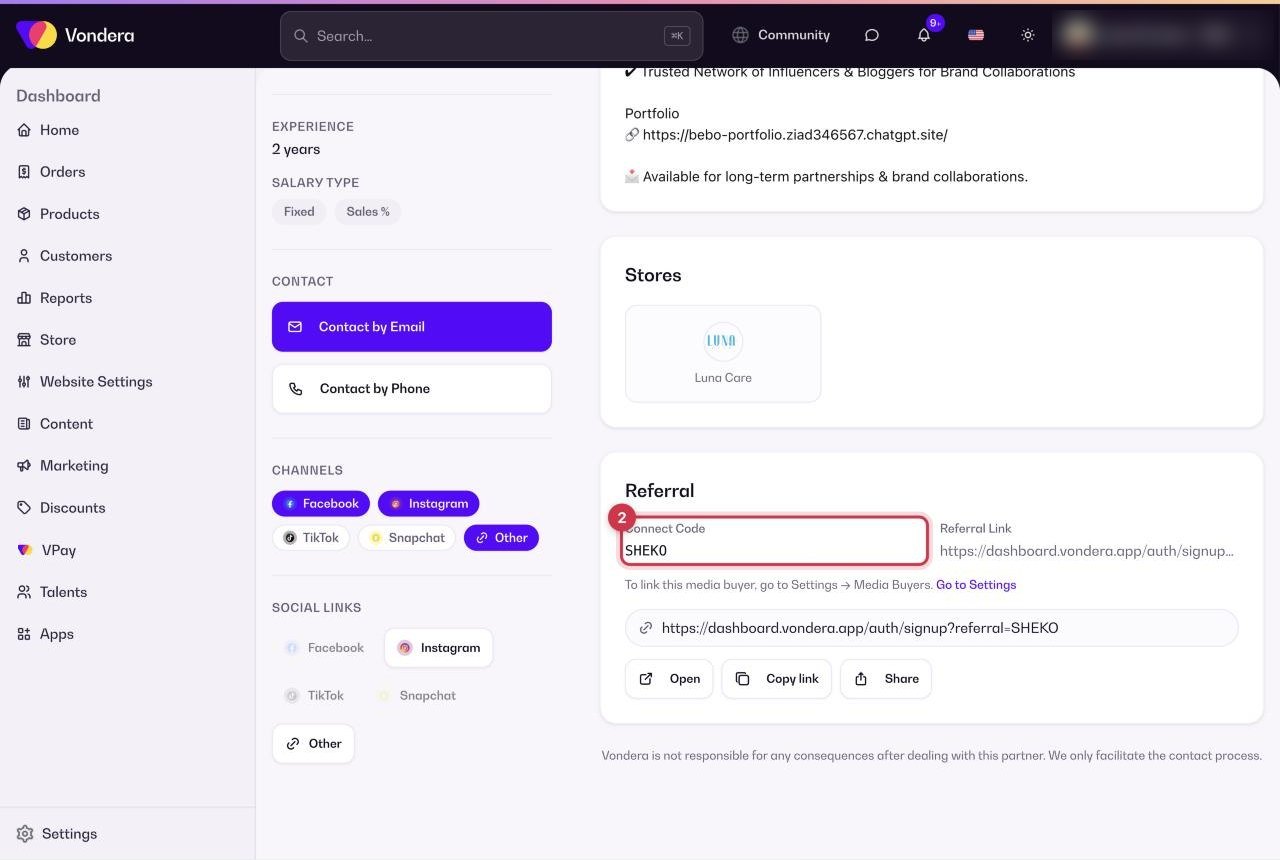
- Find the media buyer in Talents › Media Buyers (or get their code from them directly).
- Copy their Connect Code from their profile.
- Open Settings › Media Buyers and enter the code.
- Confirm. The media buyer now shows as Connected.
What a connected media buyer can and can’t do
- They get read-only access to your store data and analytics.
- They can’t change your products, prices or orders.
- Your customers’ phone numbers and addresses stay private.
- You can disconnect them anytime.
Connected media buyer
Name and contact details of the media buyer linked to your store.
Status
Connected means they can currently see your store data.
Disconnect
Removes the media buyer’s access immediately.
ℹ️ Good to knowVondera helps you find and contact media buyers, but your agreement and payments with them are between you and the media buyer.
Common questions
Can the media buyer see my customers’ phone numbers?
No. Customer phone numbers and addresses stay private.
How do I stop working with a media buyer?
Open Settings › Media Buyers and click Disconnect. Their access ends right away.
Where do I find a media buyer?
Browse verified media buyers, their results and channels in Talents › Media Buyers.