

 Photo: Domenico Loia / Unsplash
Shipping settings and shipping options
Auto-assign a default courier, show courier zones at checkout, sync statuses, and offer several shipping methods like Standard and Express.
🖥️ Open in dashboard/dashboard/settings?section=shipping-settings🎬 Watch the video
Videos are in Arabic.
Shipping in Vondera has two settings pages. Shipping Settings handles automation with your couriers: which courier gets new orders, whether customers pick a courier zone at checkout, and whether order statuses update from the courier. Shipping Options lets you offer more than one shipping method — for example Standard and Express — with different rates, couriers and delivery times per zone.
Find them under Settings › Shipping Settings and Settings › Shipping Options. Basic delivery cities and fees are set in Store › Areas.
Send new orders to a default courier
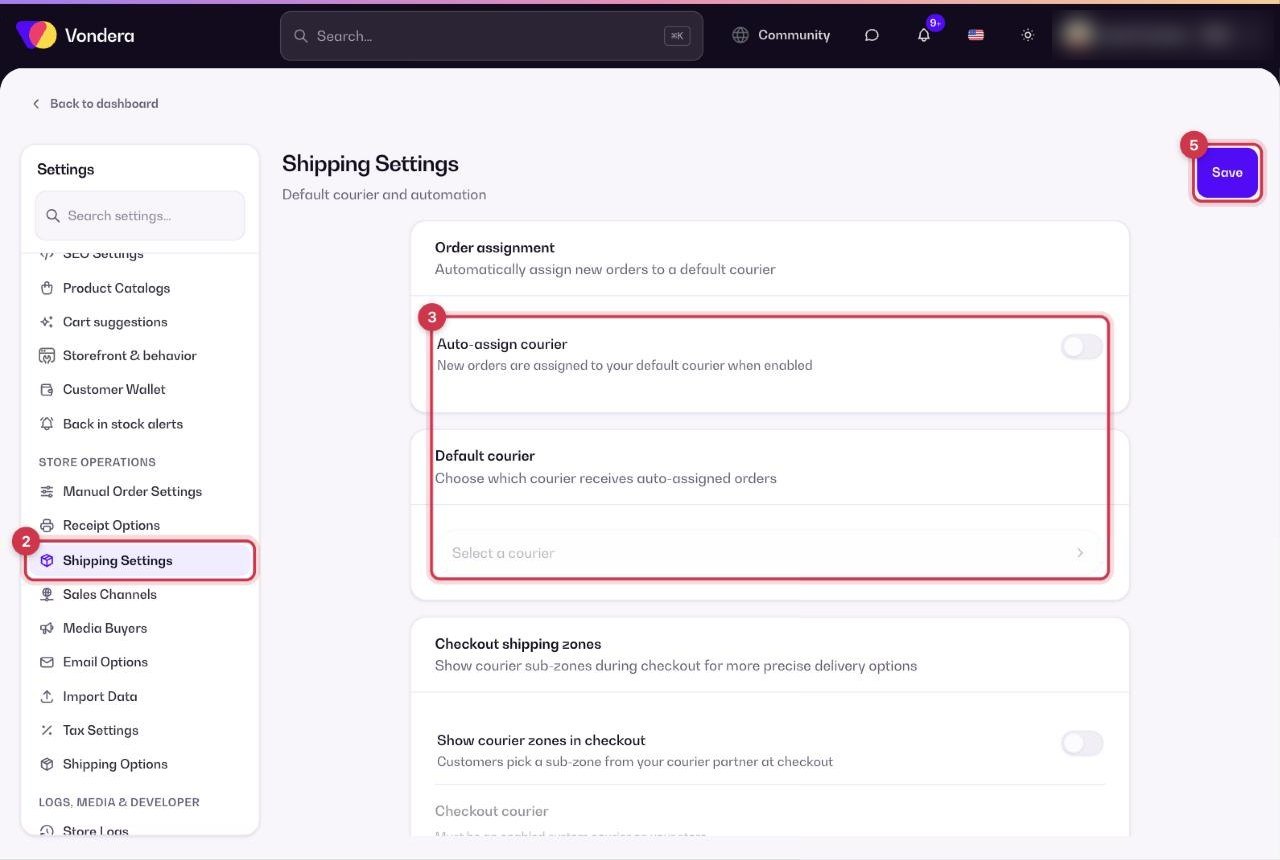
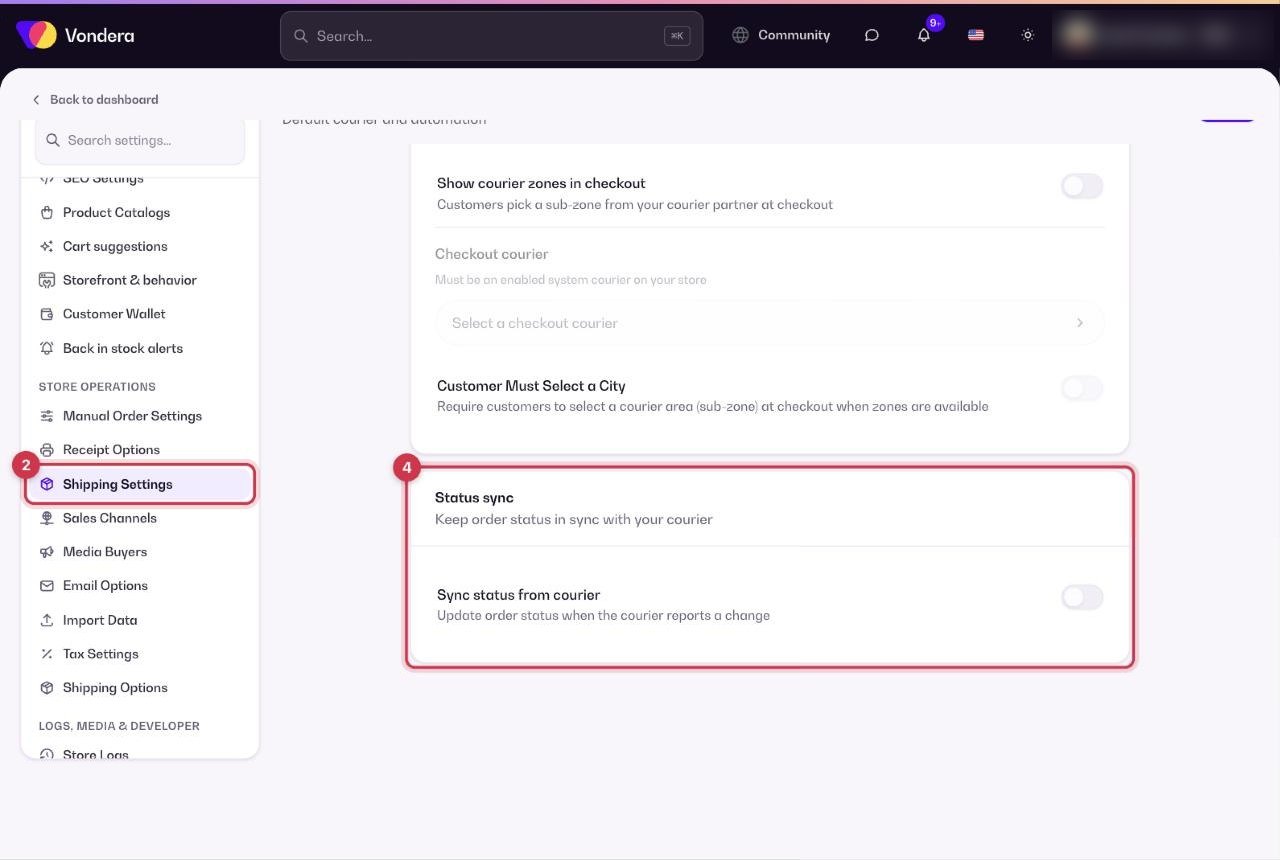
- Make sure the courier is added and active in Orders › Couriers.
- Open Settings › Shipping Settings.
- Turn on Auto-assign courier and choose your Default courier.
- Turn on Sync status from courier so orders update by themselves.
- Click Save.
Shipping Settings
Offer several shipping methods
- Open Settings › Shipping Options.
- Click Enable multiple shipping options.
- Create each option you want to offer (for example Standard and Express) with its rate, courier and delivery time per zone.
Common questions
Why can’t I pick my courier as the checkout courier?
Checkout zones only work with an enabled shipping partner (an integrated courier from the App Store), not a custom courier.
Do I need Sync status from courier?
It’s strongly recommended with integrated couriers — it saves you updating every order by hand.
How do I charge more for express delivery?
Enable multiple shipping options and create an Express option with a higher rate.