

 Photo: Domenico Loia / Unsplash
Order rules and manual order settings
Set your order number format and control manual orders: pickup, deposits, out-of-stock items, custom prices, attachments and customer notifications.
🖥️ Open in dashboard/dashboard/settings?section=manual-order-settingsMany orders don’t come through the website — they come by phone, WhatsApp or Instagram messages, and you or your team add them by hand. Manual Order Settings control how those orders are created, what staff are allowed to do, and how customers are notified. This is also where you set your order number format for the whole store.
It’s the first page you see when you open Settings, under Settings › Manual Order Settings. It has four groups: Orders, Fulfillment, Product rules and Customer notifications.
Change your order number format
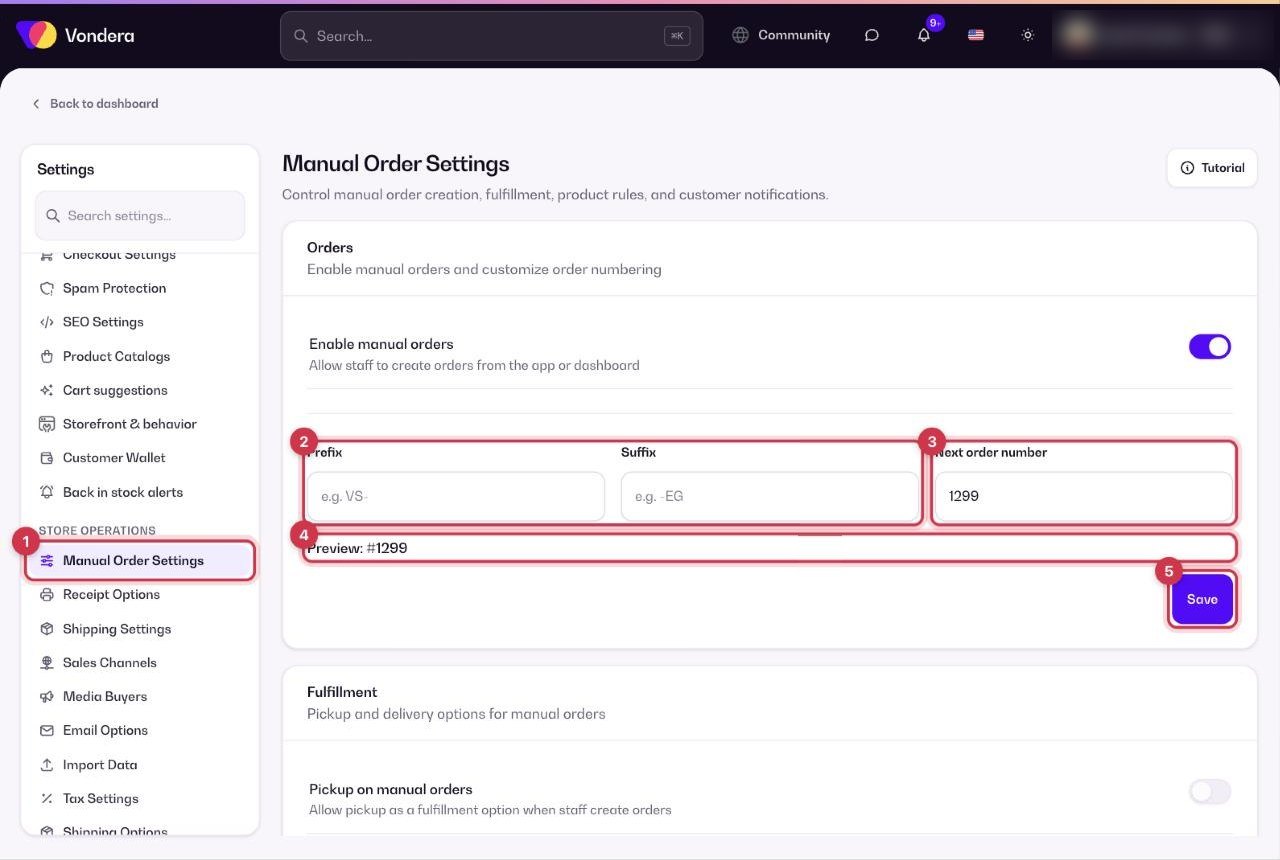
- Open Settings › Manual Order Settings.
- Under Orders, type a Prefix (for example VS-) and/or a Suffix (for example -EG).
- Set the Next order number if you want to continue from a certain number.
- Check the live Preview to see how the next order number will look.
- Click Save.
All options
Common questions
What is an order deposit?
An amount the customer pays in advance — common for expensive or custom-made items. With deposits on, you’ll see a Deposit field on the New Order page.
Why can’t my team add a sold-out product to an order?
Turn on Allow out-of-stock on manual orders and save.
Does the WhatsApp receipt send automatically?
It opens WhatsApp with the message ready. You (or your staff member) still press send.