

 Photo: Domenico Loia / Unsplash
Back in stock alerts
Add a “Notify me” button to sold-out products so shoppers get an email when the item is back.
🖥️ Open in dashboard/dashboard/settings?section=back-in-stock-alertsWhen a product sells out, interested shoppers usually leave and don’t come back. Back in stock alerts keep them: a Notify me button appears on sold-out product pages, and each shopper who asks gets one email as soon as the product is back in stock.
Go to Settings › Back in stock alerts.
Turn on alerts
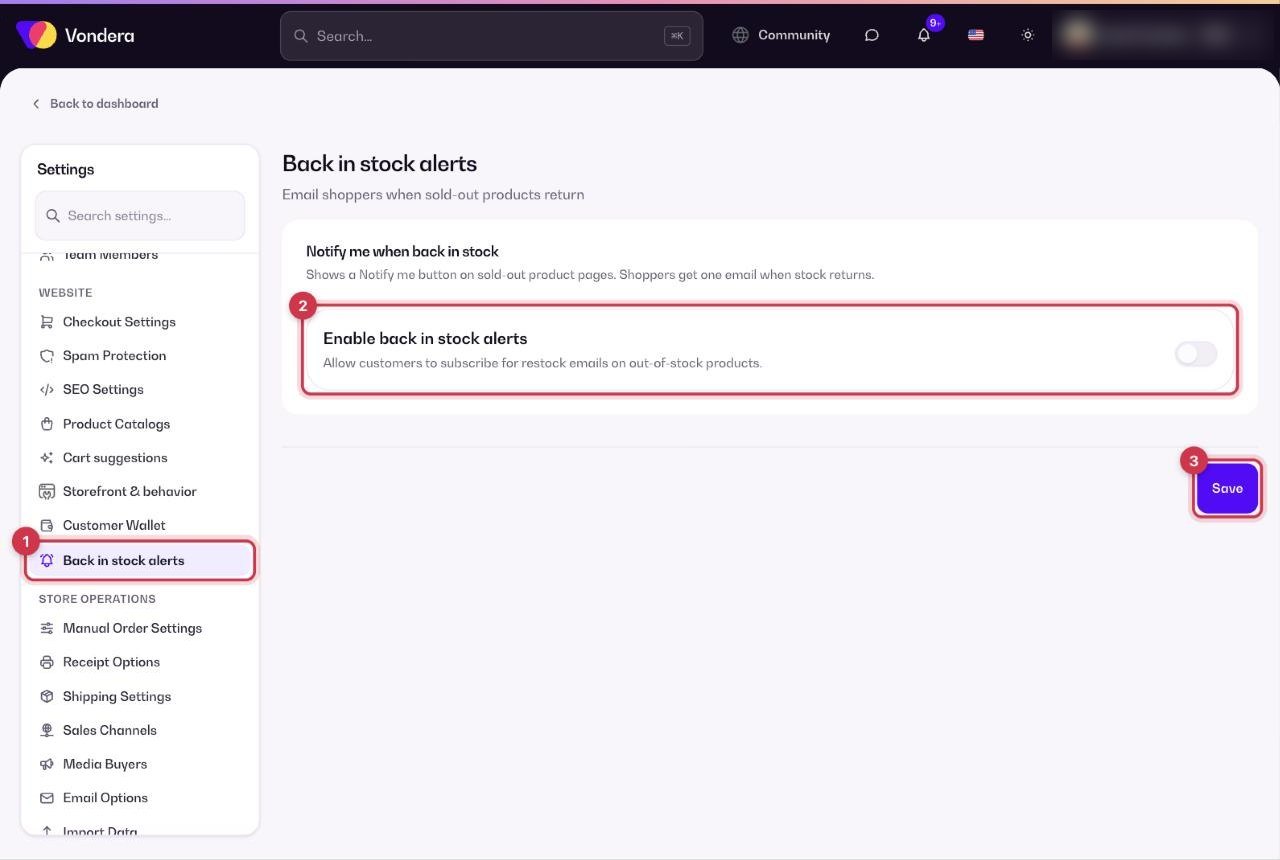
- Open Settings › Back in stock alerts.
- Turn on Enable back in stock alerts.
- Click Save.
- Open a sold-out product on your store to see the Notify me button.
Enable back in stock alerts
Shows the Notify me button on sold-out product pages and sends the restock emails.
Notify me button
What shoppers see on a sold-out product. They leave their email to be told when it’s back.
Restock email
One email per shopper, sent when the product’s stock comes back.
💡 TipRestock popular items quickly and update the quantity in the product or Warehouse page — that’s what triggers the emails.
ℹ️ Good to knowIf you turned on Hide out of stock products in Checkout settings, sold-out products disappear from lists, but shoppers with a direct link can still open the page and use Notify me.
Common questions
How many emails does a shopper get?
One email, when the product is back in stock.
When is the email sent?
When the product’s quantity goes back above zero — for example after you update the stock.
Can customers pre-order instead?
You can let customers pay in advance for sold-out items with Prepaid out-of-stock products in Checkout settings.