

 Photo: Rodion Kutsaiev / Unsplash
Product offers, meta fields and custom fields
Add quantity offers like "Buy 2 for less", extra product details, and questions customers answer when ordering.
🖥️ Open in dashboard/dashboard/products/add🎬 Watch the video
Videos are in Arabic.
Three sections on the product form help you sell more and collect the details you need: Product Offers for quantity deals, Meta Fields for extra product information, and Custom Fields for questions the customer answers when ordering — such as a name to print or a photo to use.
Where to find it
Open a product from Products and scroll to Product Offers, Meta Fields and Custom Fields.
Add a quantity offer
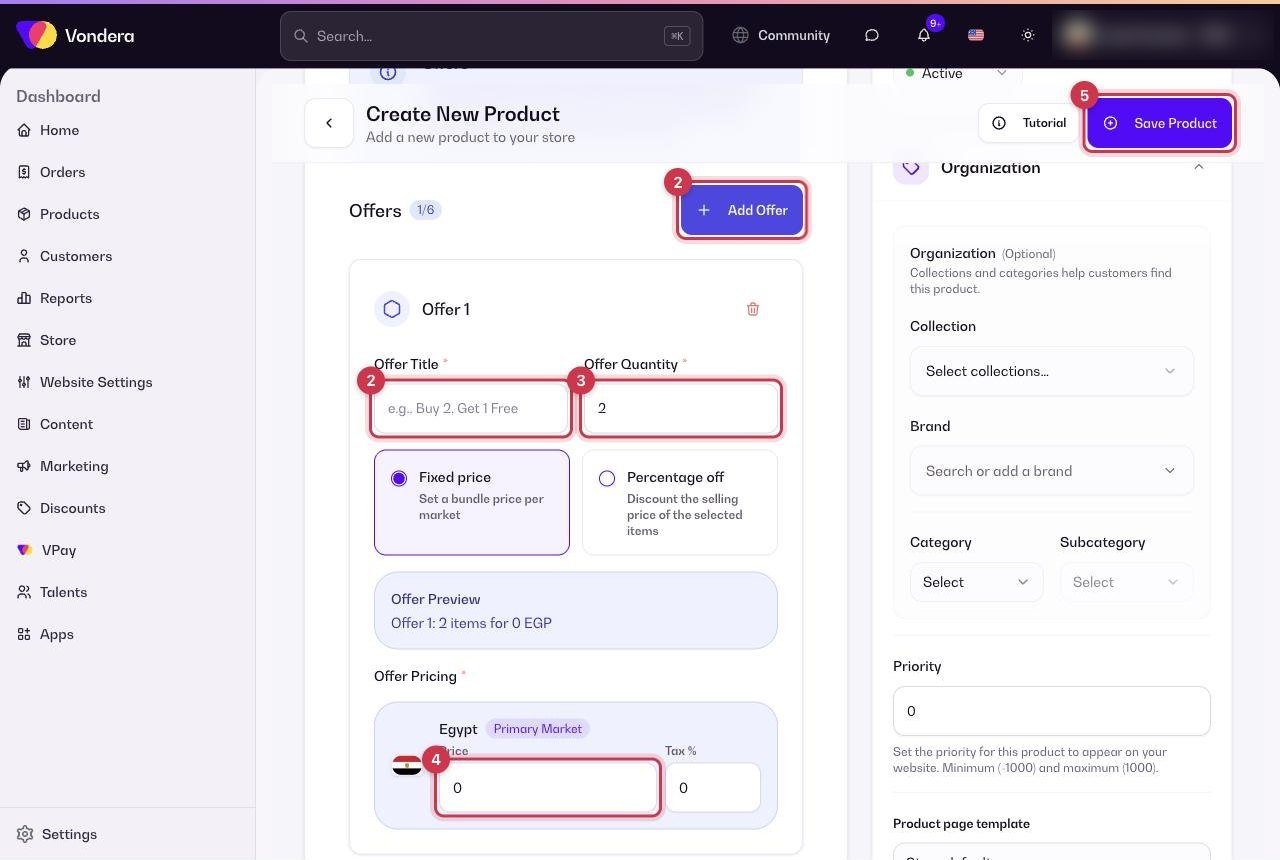
- Open the product and go to Product Offers.
- Add an offer and give it a title customers will see, for example "Buy 2" or "عرض 3 قطع".
- Enter the number of units in the offer.
- Enter the total price for those units in each market (not the price per piece).
- Add more offers if you want (up to 6), then click Save Product.
Offers appear on the product page as options the customer can pick, for example 1 piece for 300, 2 pieces for 550, 3 pieces for 750.
Ask the customer for details (Custom Fields)
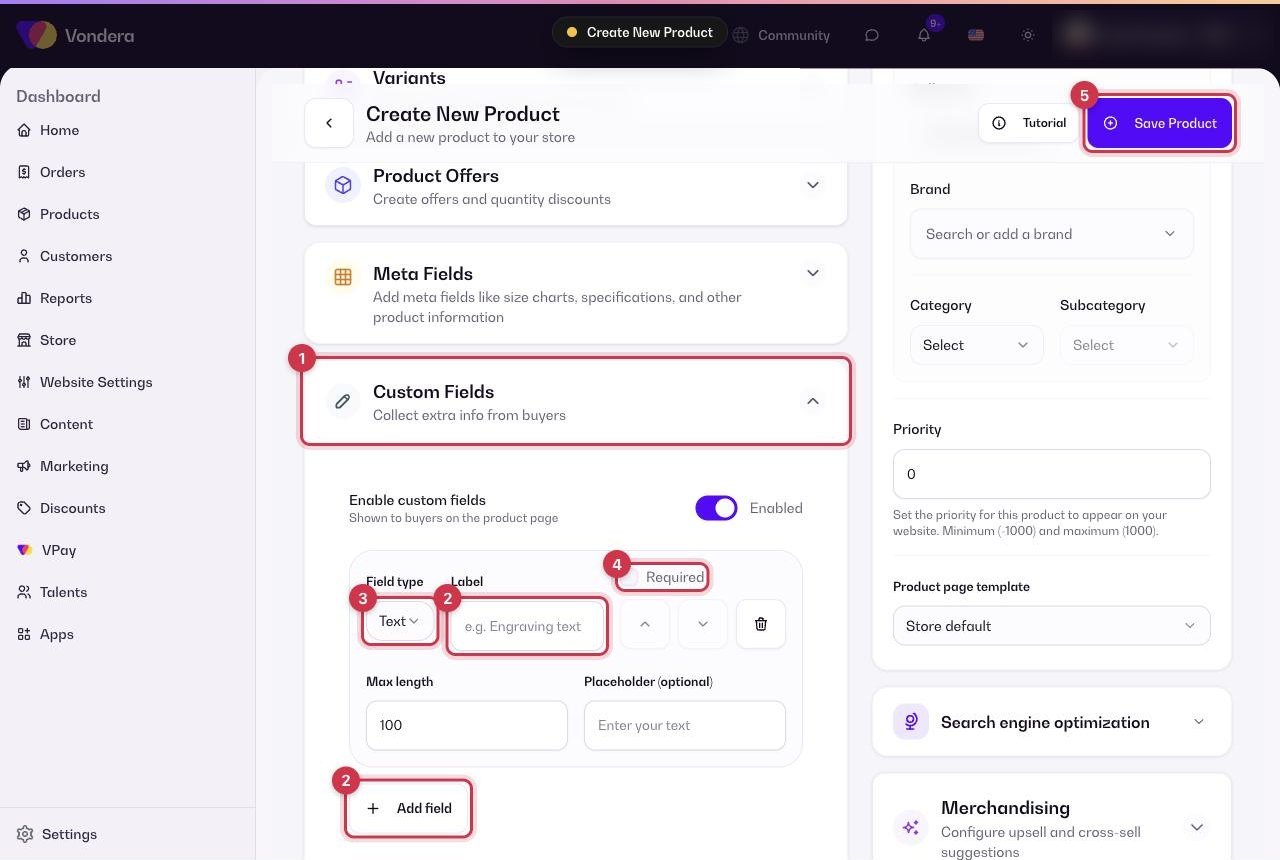
- Go to Custom Fields on the product.
- Add a field and write the question, for example "Name to engrave".
- Choose the answer type: text, image or file.
- Mark it as required if the order cannot be made without it.
- Click Save Product.
Common questions
Is the offer price per piece?
No. Enter the total for the whole offer. For "3 pieces for 750", the price is 750.
How many offers can one product have?
Up to 6.
Where do I see the customer’s answers to custom fields?
They are saved with the order, so you can see them when you open the order.