

 Photo: Rodion Kutsaiev / Unsplash
Product SEO, organization and merchandising
Organise a product into collections and categories, control its order and page template, set search-engine text, and suggest related products.
🖥️ Open in dashboard/dashboard/products/add🎬 Watch the video
Videos are in Arabic.
The last sections of the product form decide where the product appears, in what order, how it looks in Google, and which other products are suggested next to it. None of them are required, but they make your catalogue easier to browse and help you sell more per order.
Where to find it
Open a product from Products and scroll to Status, Organization, Search engine optimization and Merchandising.
Organise the product
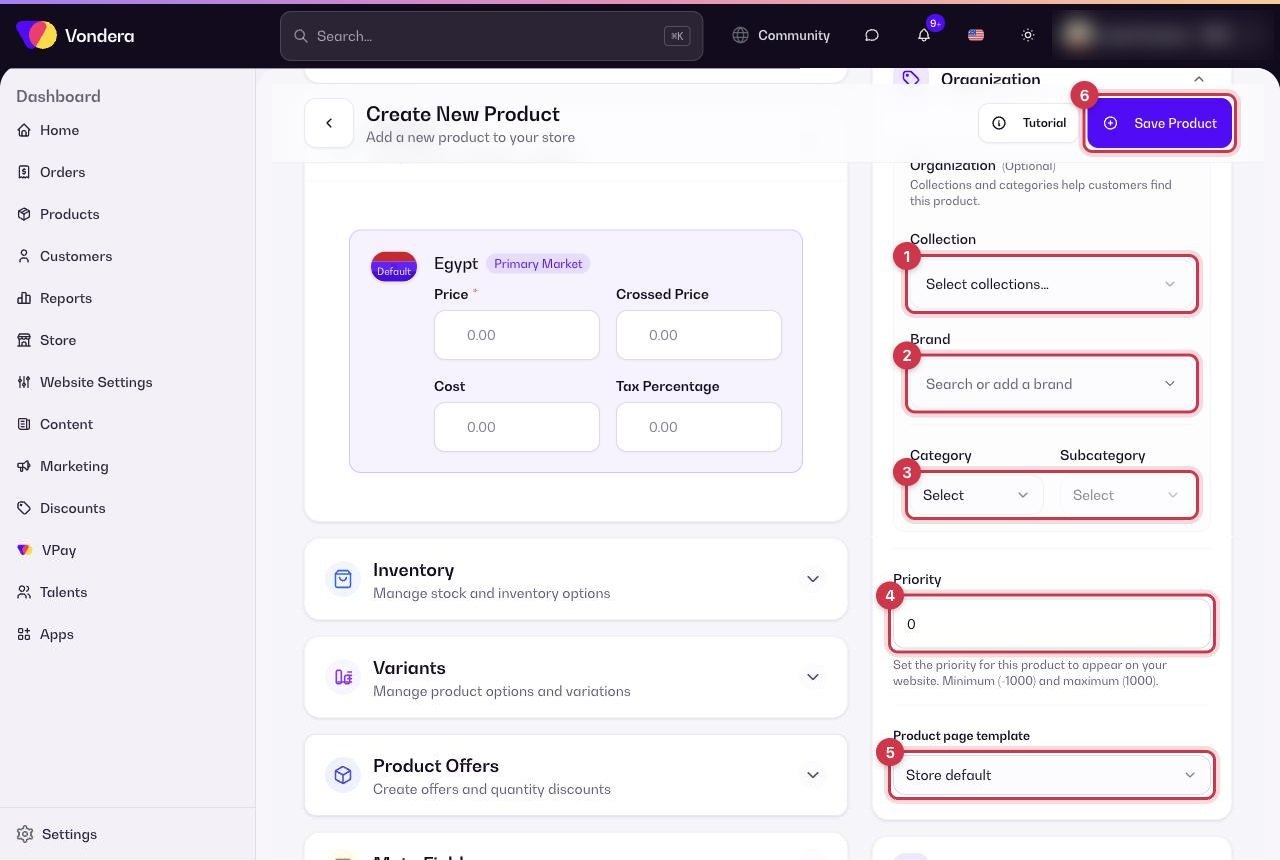
- In Organization, pick a Collection so the product shows on that collection page.
- Choose a Brand (search for an existing one or add a new one).
- Pick a Category and Subcategory that describe the product type.
- Set a Priority to control the order: higher numbers show first.
- Leave Product page template on Store default, or choose another template for this product.
- Click Save Product.
Suggest related products (Merchandising)
Use Merchandising to pick products to recommend: upsells are better or bigger versions of this item, and cross-sells are items that go well with it (for example a belt with trousers). You can also give the cross-sell section its own title.
Common questions
Why does a product with high priority not show first?
Priority affects default ordering. If a customer sorts by price or newest, that sort is used instead.
Can I hide a product without deleting it?
Yes. Set Status to inactive and save. It stays in your dashboard with its stock and history.
What is the difference between a collection and a category?
Collections are your own store groupings (like "New arrivals"). Categories are standard product types (like Beauty & Personal Care).