

 Photo: Rodion Kutsaiev / Unsplash
Add a product
Create a standard product: title, description, images, price, stock and visibility — then save it.
🖥️ Open in dashboard/dashboard/products/add🎬 Watch the video
Videos are in Arabic.
Every item you sell starts as a product. The product form keeps everything about the item on one page — the name and description customers read, the photos, the price in each market, stock, variants such as size or colour, and how the product is organised in your store. You can fill in the basics in a couple of minutes and come back to the rest later.
Where to find it
Go to Products and click New Product. Vondera asks what you want to create: choose Standard product for a single item with its own stock, variants and offers. (To sell several existing products together as one kit, choose Group bundle instead — see Group bundles.)
Create a product
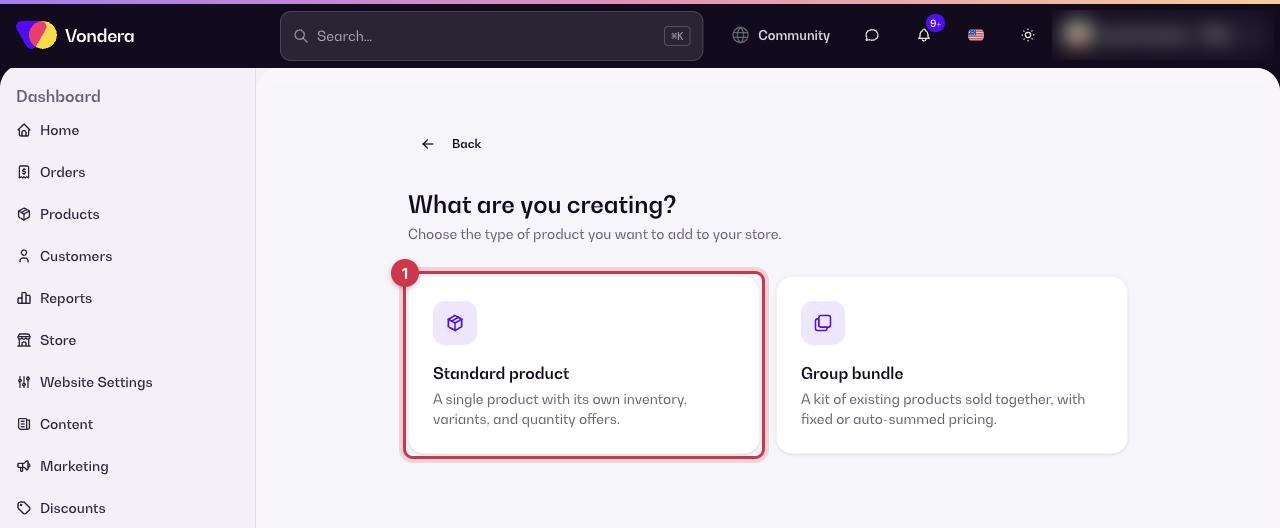
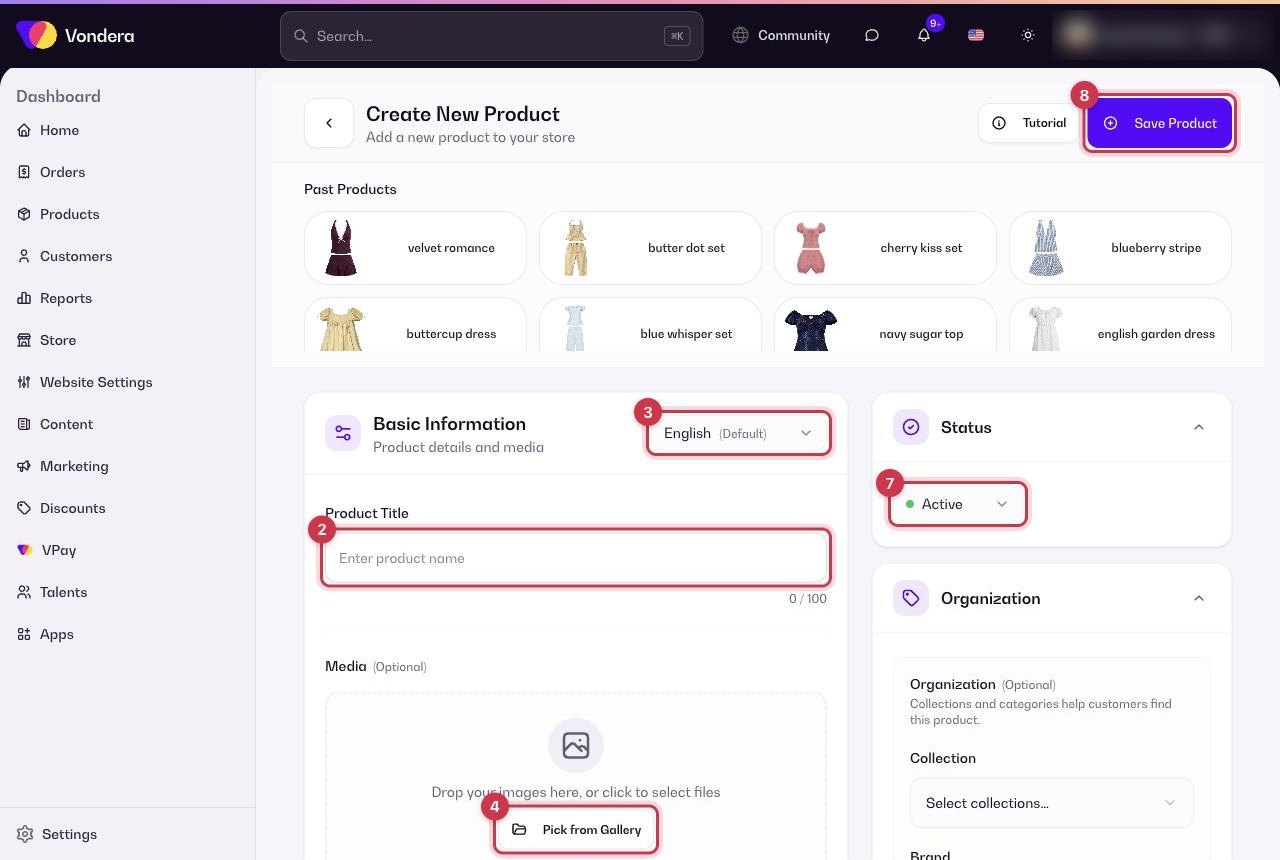
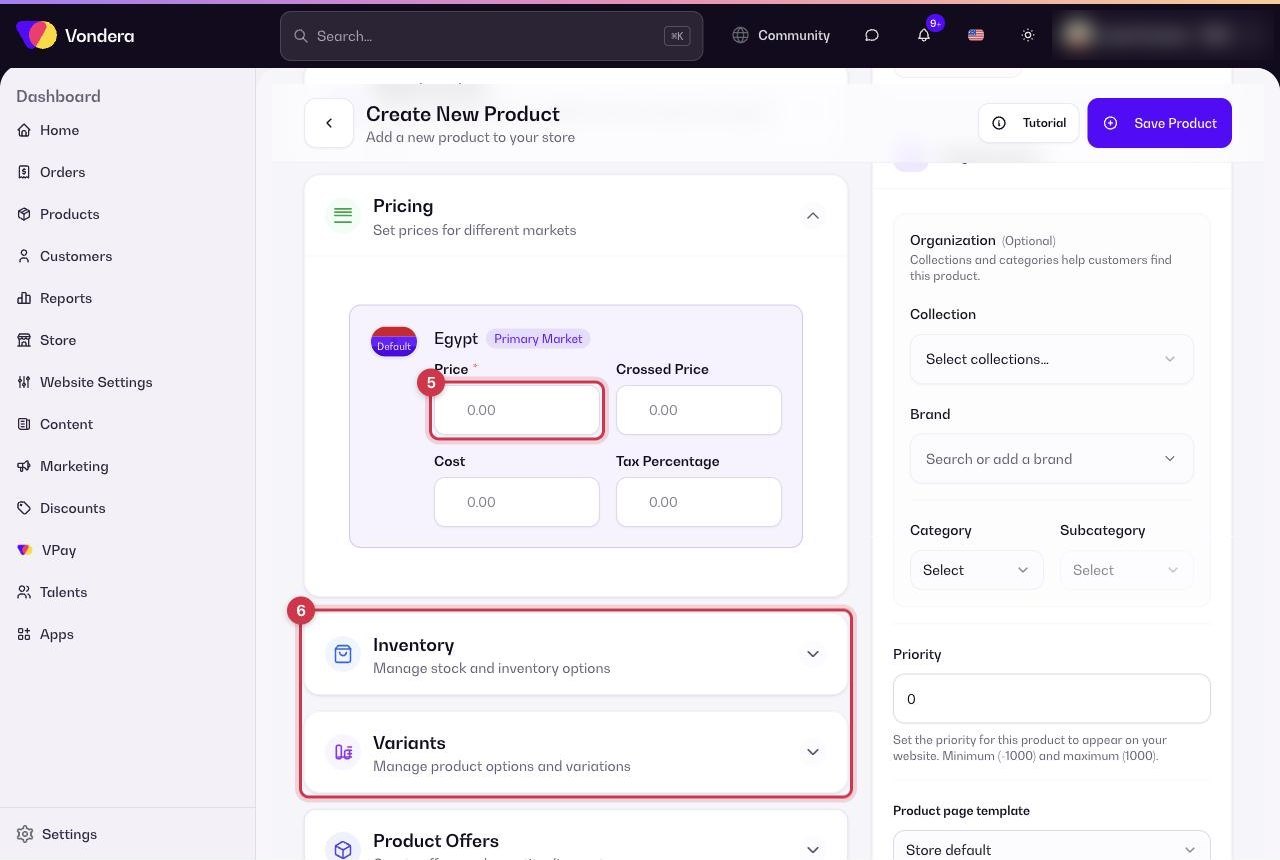
- Go to Products › New Product and choose Standard product.
- In Basic Information, type the product title and write the description. The description editor has Editor, Preview and HTML modes.
- Use the language switch (English is the default) to add the Arabic title and description, so each storefront language shows the right text.
- In Image Gallery, upload photos or click Pick from Gallery to reuse images you already uploaded.
- In Pricing, enter the Price (required) for each market. Add a crossed price, cost and tax % if you need them.
- Set stock in Inventory, or add Variants if the product comes in sizes, colours or other options.
- Check that Status is Active if you want the product to appear on your store right away.
- Click Save Product.
Copy a past product
Selling something similar to a product you already have? Use the Past Products shortcut on the form to start from an existing product, then change only what is different — for example the title, photos and price.
Common questions
Do I have to write the description in both languages?
No, but it is recommended if your store shows both English and Arabic. Use the language switch at the top of Basic Information to add each version.
Why is my new product not showing on the store?
Check that Status is Active. Also check stock: if the product is out of stock and your store hides out-of-stock products, it will not appear in lists.
Can I add many products at once?
Yes. Use Bulk Import on the Products page to upload a CSV or Excel file. See Bulk import products.