

 Photo: Luke Heibert / Unsplash
Create a manual order
Add an order yourself for customers who order by phone, WhatsApp or social media messages.
🖥️ Open in dashboard/dashboard/orders/addMany customers order through WhatsApp, Instagram messages or a phone call. A manual order lets you record these sales in Vondera so they go through the same flow as website orders: confirmation, shipping, reports and stock.
Where to find it
Go to Orders and click New Order (or open /dashboard/orders/add).
Create the order
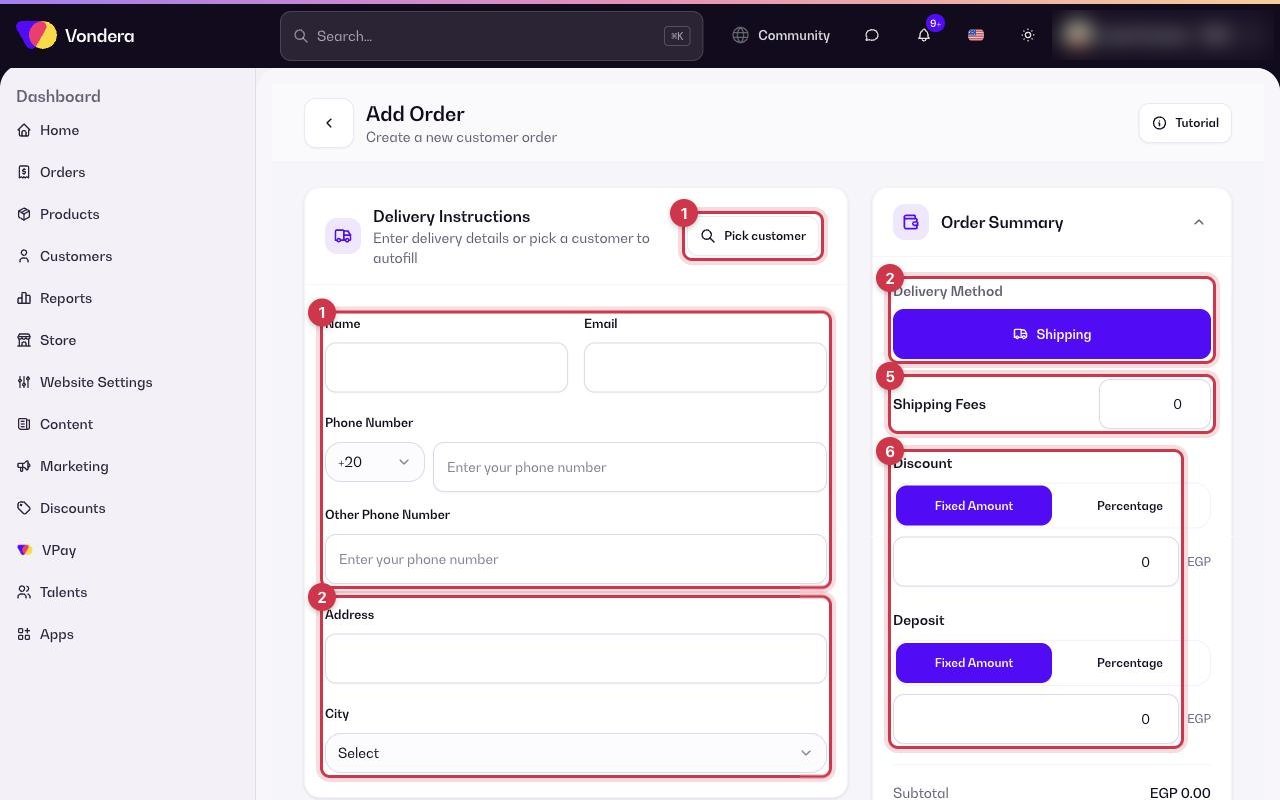
- Under the customer section, pick an existing customer, or type a new customer’s Name, Email, Phone and Other phone.
- Enter the Address and choose the City, then pick a Delivery Method and add any Delivery Instructions.
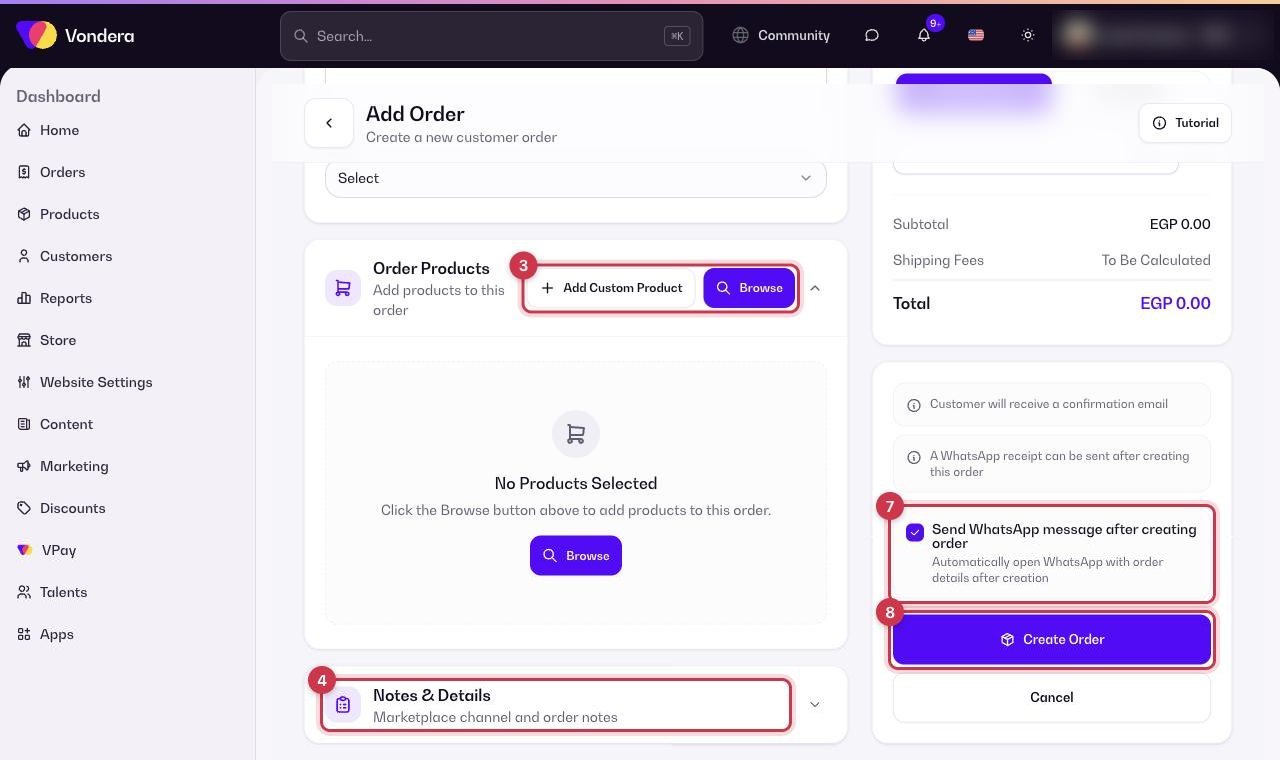
- Under Order Products, click Browse to add products from your catalog, or Add Custom Product for an item that is not in your store.
- Add any Notes & Details for your team.
- Set the Shipping fees, or choose To Be Calculated if you will set them later.
- Optionally add a Discount and a Deposit if the customer paid part of the amount in advance.
- Tick Send WhatsApp message after creating order if you want to send the customer an order summary.
- Click Create Order. The order appears in the orders list.
Order form options
Pick customer
Search your customers to fill their details automatically.
Delivery Method
How the order reaches the customer.
Add Custom Product
Add an item with its own name and price that is not in your catalog.
Shipping fees / To Be Calculated
Enter the fee now, or leave it to be calculated later.
Discount
Reduce the total by a Fixed Amount or a Percentage.
Deposit
An amount the customer already paid. The rest is collected on delivery.
Send WhatsApp message after creating order
Opens WhatsApp with the order summary ready to send to the customer.
ℹ️ Good to knowWhat you can do on this form depends on Settings › Manual Order Settings. There you can turn manual orders on or off, set order number prefix and suffix, allow pickup and deposits, allow out-of-stock products, allow editing line prices, allow attachments, and choose whether customers get a WhatsApp receipt or a confirmation email.
Common questions
The Deposit field is missing. Why?
Turn on Enable order deposits in Settings › Manual Order Settings.
Can I add a product that is out of stock?
Only if Allow out-of-stock on manual orders is on in Settings › Manual Order Settings.
Can I change the price of a product just for this order?
Yes, if Enable custom pricing is on in Settings › Manual Order Settings.
Do manual orders count in my reports?
Yes. They are normal orders and appear in the orders list and in Reports.