

 Photo: Luke Heibert / Unsplash
The orders list and order statuses
What each status tab means, how an order moves from Pending to Delivered, and what every column in the orders table shows.
🖥️ Open in dashboard/dashboard/orders🎬 Watch the video
Videos are in Arabic.
Every order your store receives — from your website, social channels or orders you add by hand — lands in the orders list. Status tabs at the top split the list by where each order is in its journey, so you always know what needs your attention next.
Where to find it
Click Orders in the sidebar (or open /dashboard/orders).
The status tabs
Move an order to the next status
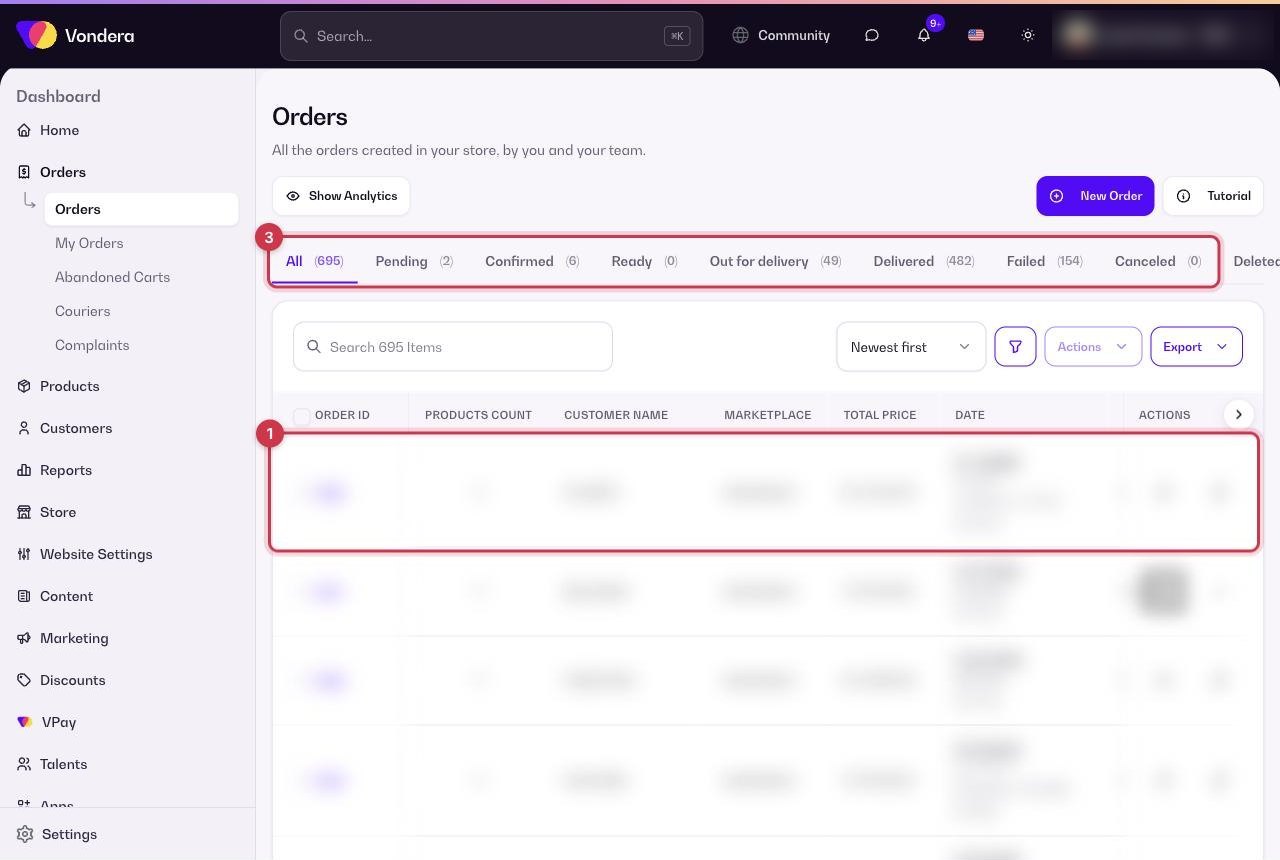
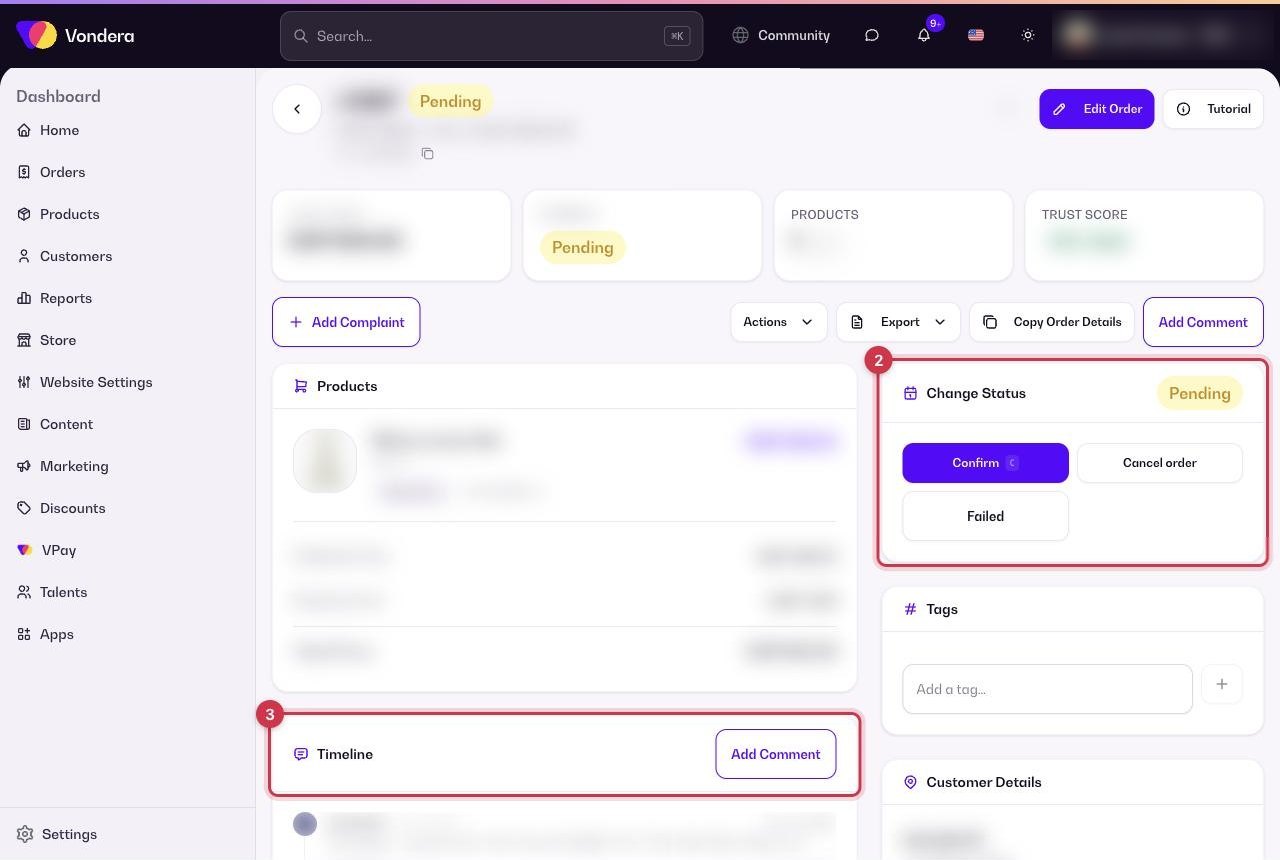
- Click the order to open its details page.
- In the Change Status box, click the next status you want (for example Ready). Only the statuses that make sense for the order’s current step are shown.
- The order moves to the matching tab, and the change is recorded in the order Timeline.
The columns in the orders table
Common questions
Why are new website orders always Pending?
Pending is the starting point for most orders so you can confirm them first. Cash on delivery orders especially should be confirmed before you ship.
Can I move an order back to an earlier status?
For some steps the Change Status box shows a Reset option that moves the order back so you can process it again.
What is the difference between Failed and Canceled?
Canceled means the order was stopped before it was delivered. Failed means a delivery attempt did not succeed.