

 Photo: Luke Heibert / Unsplash
Order details and editing an order
Everything on the order page: products, timeline, customer, payment, tags, actions — and how to edit an order.
🖥️ Open in dashboard/dashboard/orders/detailThe order page shows everything about one order in one place: what was ordered, what happened to it, who the customer is, how they pay and how risky the order looks. It is also where you take most actions on an order.
Where to find it
Go to Orders and click any order in the list.
What you see on the order page
Header
Order number, status badge, order date and time, and the internal ID with a copy button.
Summary cards
Total price, Payment status, Products count and Trust Score.
Products
Each item with its variant (for example size), unit price and quantity, then products price, shipping fees and total.
Timeline
A log of everything that happened: order added, emails and WhatsApp messages sent, status and payment changes, comments from your team and from connected apps.
Marketing Data
Source, Medium, Session ID, Referrer (the page the order came from) and IP address.
Trust Score
The checks behind the order’s score. See Order trust score.
Change Status
Buttons for the next allowed statuses.
Tags
Add your own labels to group orders (type in Add a tag…).
Customer Details
Name, phone, email, address, a WhatsApp button, View customer, and the customer’s delivery rate across Vondera stores.
Payment Details
Payment gateway, payment method (for example COD), paid amount, remaining amount and profit, plus Generate Payment Link.
Order Information
Order number, ID, date, marketplace (sales channel), country and more.
Actions on the order
- Add Comment: write an internal note that only your team sees in the Timeline.
- Copy Order Details: copy a text summary to paste into a chat with the customer or courier.
- Add Complaint: record a customer complaint. See Customer complaints.
- Export: print or export the order.
- Actions menu: Duplicate order, Assign (to a team member), Update Payment Status, Delete, Mark as spam, and status shortcuts.
- Generate Payment Link: create a link the customer can use to pay online.
Edit an order
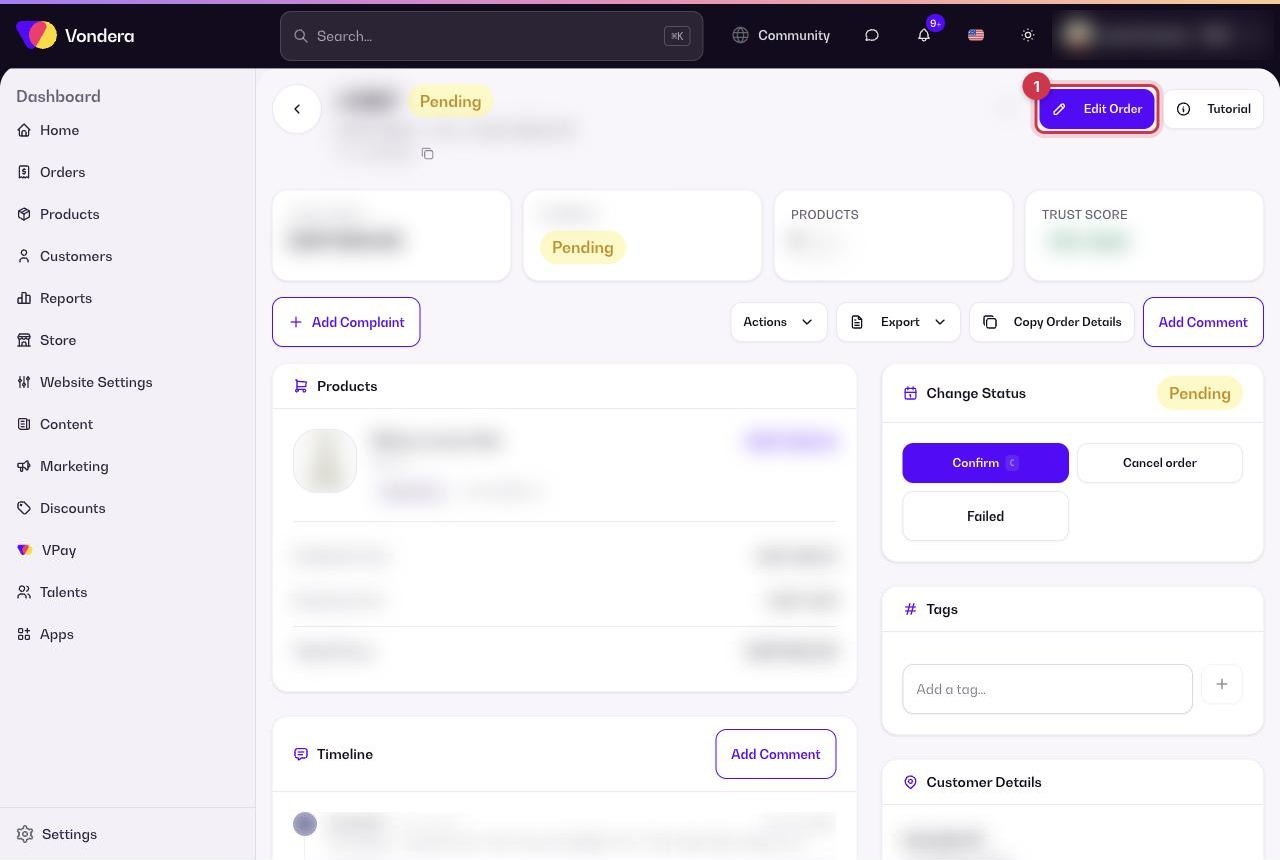
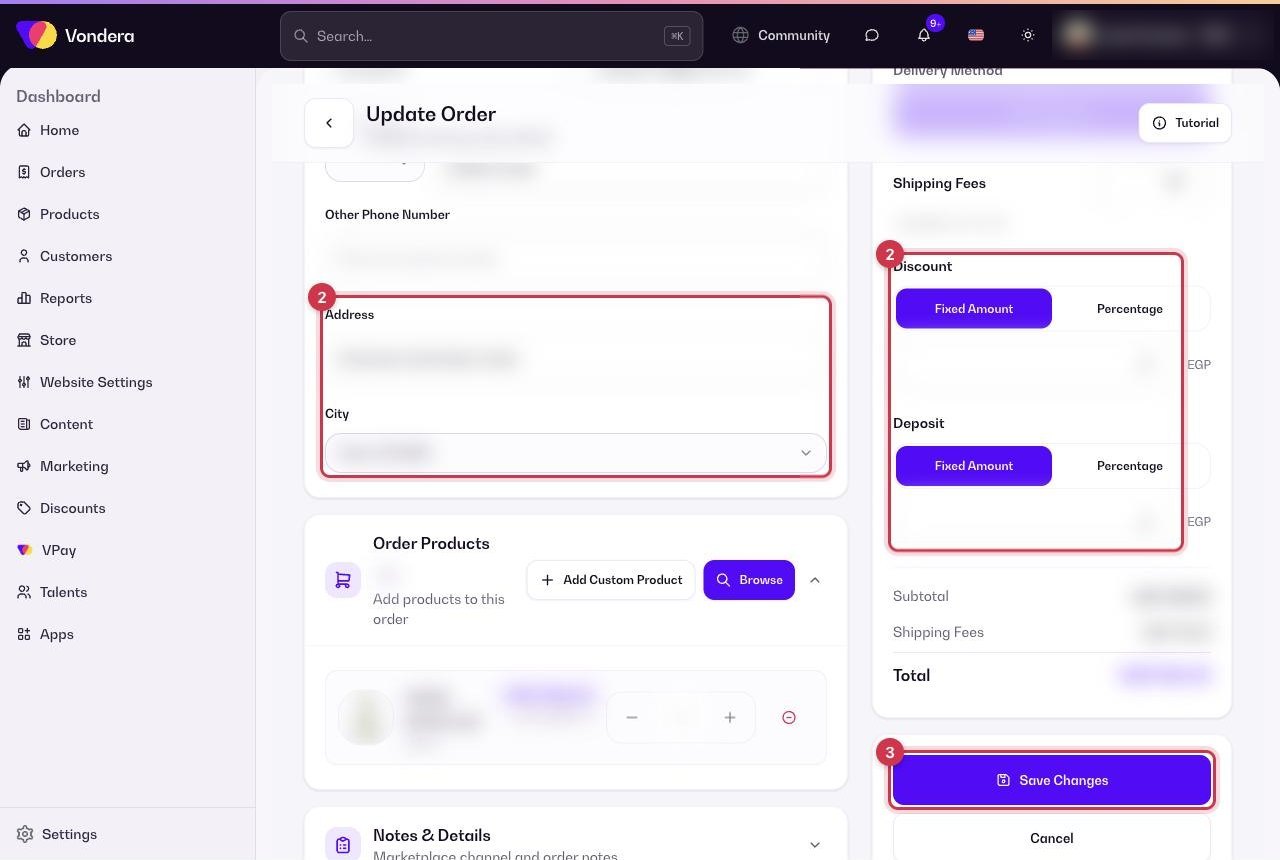
- Open the order and click Edit Order at the top.
- Change what you need, for example the customer’s address, products, quantities, shipping fees or discount.
- Save your changes. The order page shows the updated details.
💡 TipBefore you confirm a cash on delivery order, check Customer delivery rate. A customer with many failed deliveries in other stores is worth a confirmation call or a deposit.
Common questions
Who can see comments?
Comments are internal. Only you and your team see them in the Timeline; the customer does not.
What does Mark as spam do?
It flags the order as spam and adds the customer’s details to your blocked list in Settings › Spam Protection, so future orders from them are flagged too.
When should I use Duplicate order?
When a customer wants to order the same items again, or you need to resend a lost package as a new order.