

 Photo: Luke Heibert / Unsplash
Find, sort, bulk-edit and export orders
Search the orders list, change the sort and page size, apply actions to many orders at once, export them and show order analytics.
🖥️ Open in dashboard/dashboard/orders🎬 Watch the video
Videos are in Arabic.
When you have many orders, the tools above the orders table help you find the right ones fast and handle them together instead of one by one.
Where to find it
Go to Orders in the sidebar. The search, Show Analytics, Actions, Export, sort and page size controls are above the table.
Find an order
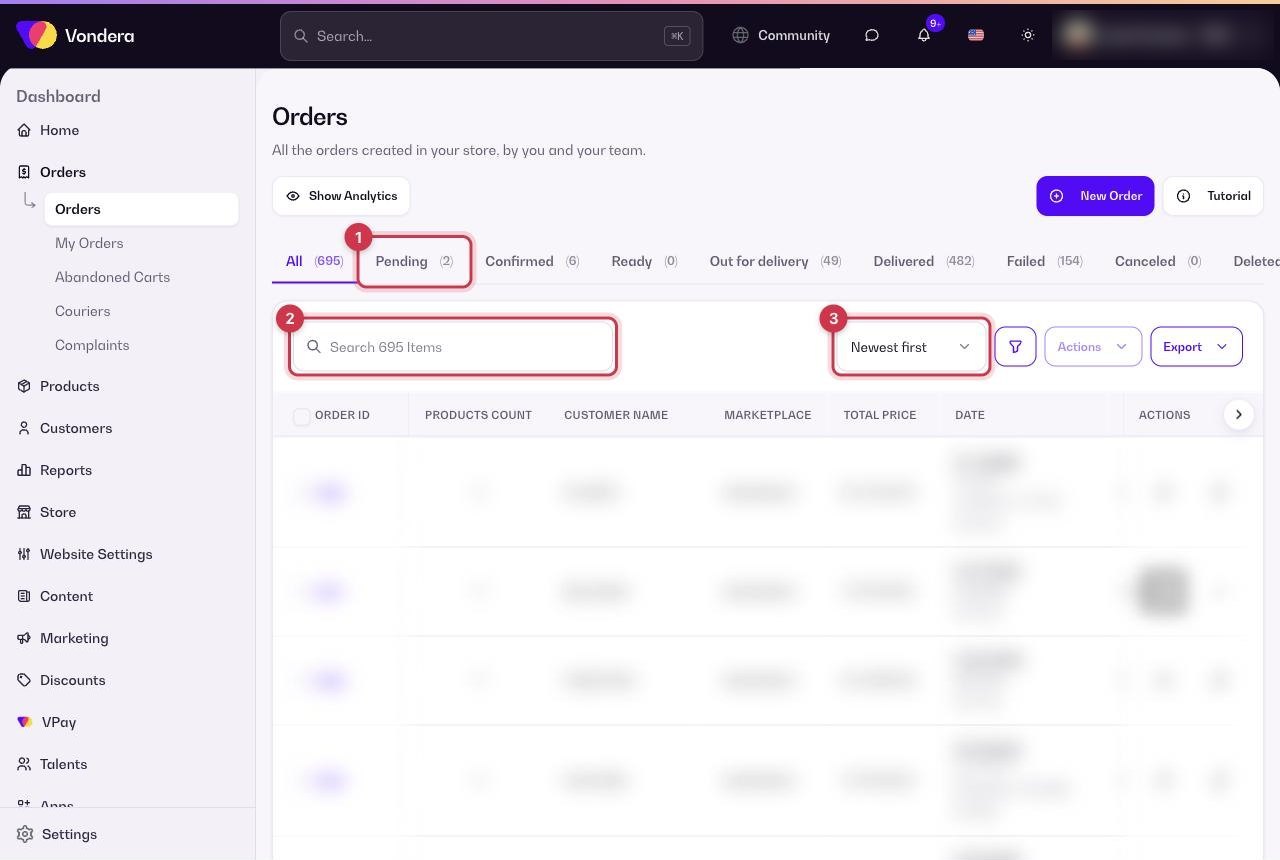
- Pick a status tab first (for example Pending) to narrow the list.
- Type in the search box, for example an order number, a customer name or a phone number.
- Use the sort menu (Newest first by default) to change the order of the list.
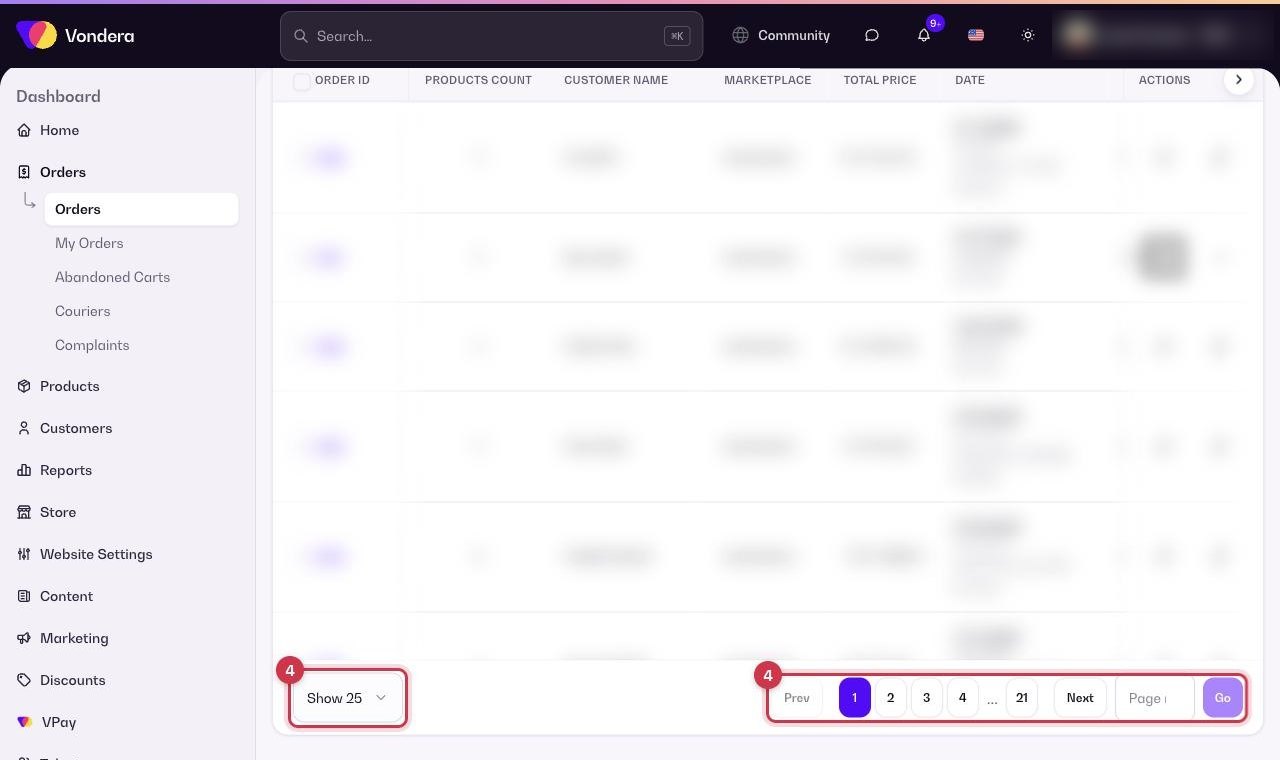
- Change the page size to show more orders per page, and use the pagination at the bottom to move between pages.
Work on many orders at once
- Tick the checkbox next to each order you want, or tick the header checkbox to select the whole page.
- Click Actions and choose what to do with the selected orders, for example change their status or assign them to a team member.
- Confirm. The change is applied to all selected orders.
Export orders
- Select the orders you want (or filter the list first).
- Click Export and choose a format, for example a spreadsheet for your records or printable documents such as receipts and shipping slips.
- The file downloads to your device.
Show Analytics
Click Show Analytics to open summary numbers for your orders above the list. Click it again to hide them. For deeper numbers, open Reports in the sidebar.
Common questions
My search returns nothing. Why?
Check that you are on the All tab. If you are on a status tab, the search only looks inside that status.
Can I export only one status, for example Confirmed?
Yes. Open that status tab first, select the orders, then use Export.
Is a bulk status change reversible?
You can change the status again, but notifications that were already sent to customers cannot be undone. Double-check your selection before you confirm.