

 Photo: Domenico Loia / Unsplash
SEO and social sharing settings
Control how your store looks in Google results and when shared on Facebook, WhatsApp or X.
🖥️ Open in dashboard/dashboard/settings?section=seo🎬 Watch the video
Videos are in Arabic.
SEO settings decide what people see before they even visit your store: the title and description in Google results, and the title, text and image that appear when someone shares your link on Facebook, WhatsApp or X (Twitter). A clear title and an attractive image get more clicks.
Go to Settings › SEO Settings. A Live SEO Preview shows how your store will look in Google as you type.
Set up your store’s SEO
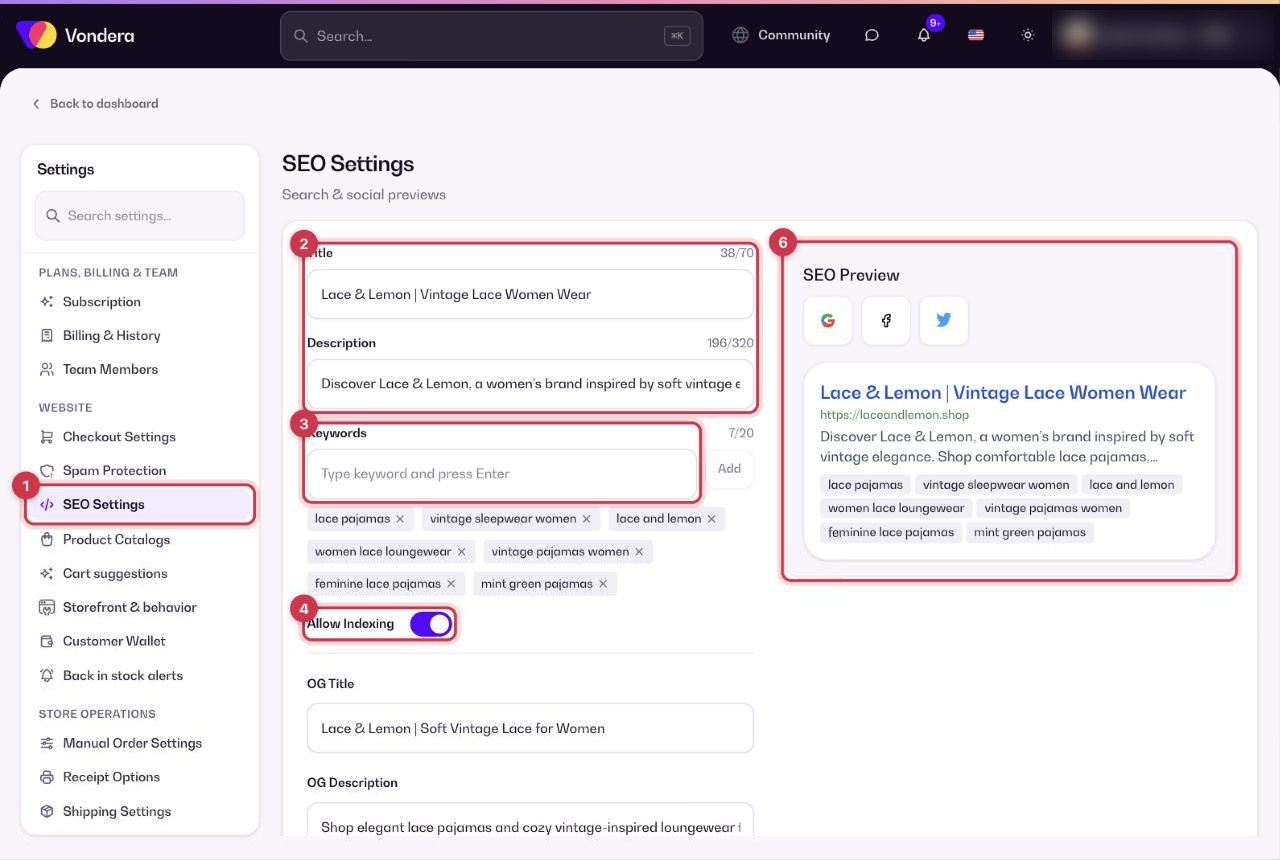
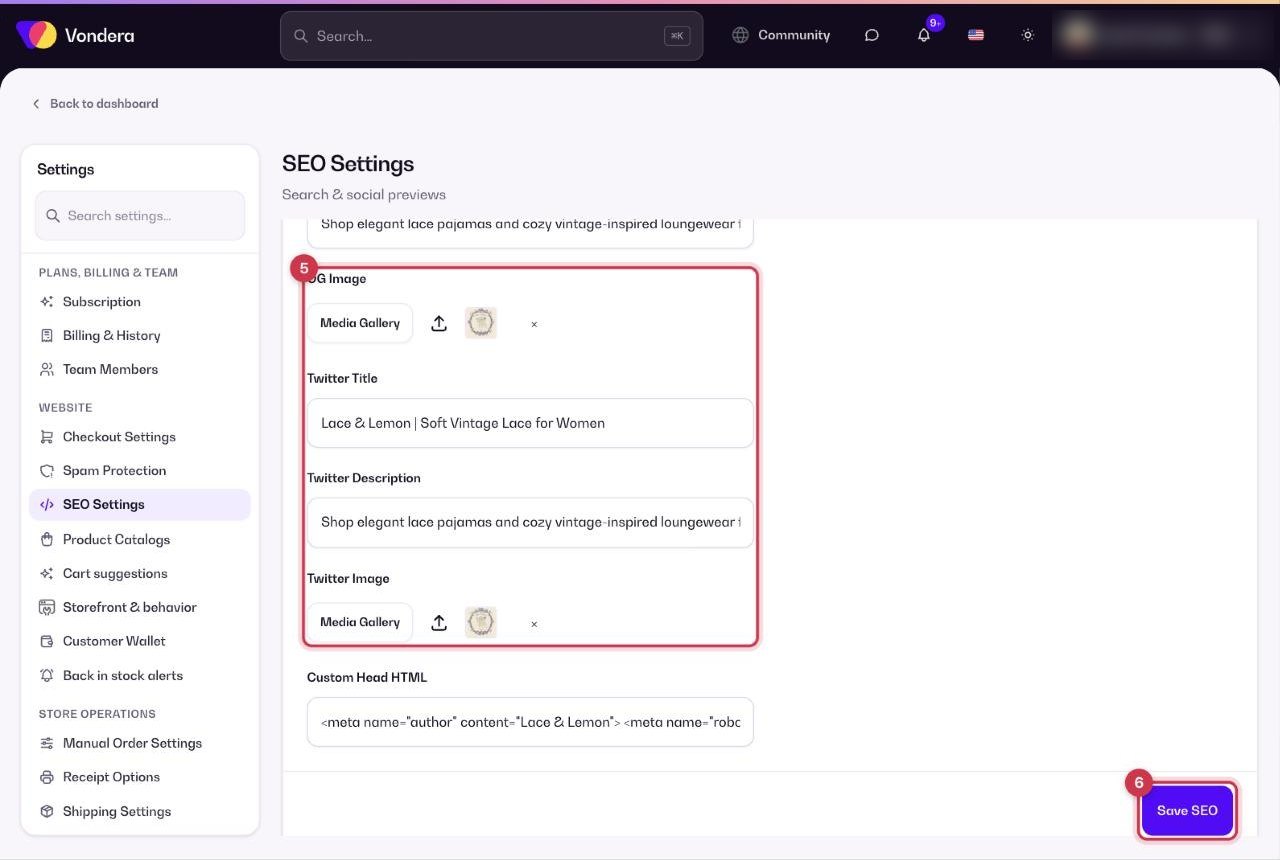
- Open Settings › SEO Settings.
- Write a Title and Description that say what you sell and why people should choose you.
- Add Keywords: type each one and press Enter.
- Make sure Allow Indexing is on so search engines can list your store.
- Fill in the Open Graph and Twitter fields and pick a share image from your Media Gallery.
- Check the Live SEO Preview, then click Save SEO.
Get a verification tag from Google or Meta
Google Search Console (HTML tag).
- In Google Search Console click + Add property, choose URL prefix and enter your full store address with https://.
- Choose the HTML tag method and copy the whole tag (it starts with <meta name="google-site-verification").
- Paste it into Custom Head HTML here and click Save SEO, then click Verify in Search Console. Keep the tag: Google checks it again later.
Meta domain verification.
- In Meta Business Suite › Settings (Business Settings), open Brand safety › Domains and click Add.
- Enter your domain without https:// or www (for example mystore.com) and choose the meta tag method.
- Copy the tag (it starts with <meta name="facebook-domain-verification"), paste it into Custom Head HTML, save, then click Verify in Meta. It can take up to 72 hours.
Common questions
My store doesn’t appear on Google. Why?
Check that Allow Indexing is on. New stores and changes can take days or weeks to show up, because search engines visit sites on their own schedule.
How do I verify my store with Google Search Console?
Copy the HTML verification tag Google gives you, paste it into Custom Head HTML, click Save SEO, then click Verify in Search Console.
What size should the share image be?
Use a clear, wide image (landscape) with your logo or best product. Most apps crop share images to a wide rectangle.